Upload paper in Webarch - Prenly
Webarch is used for the material to be processed so that the article reading mode becomes available.
Start by visiting the page: https://prenly.webarch.se
Log in with your login details, and then start uploading material according to the instructions below.
1. The first page after logging in shows your newspaper/newspapers. Select the newspaper you want to work with.
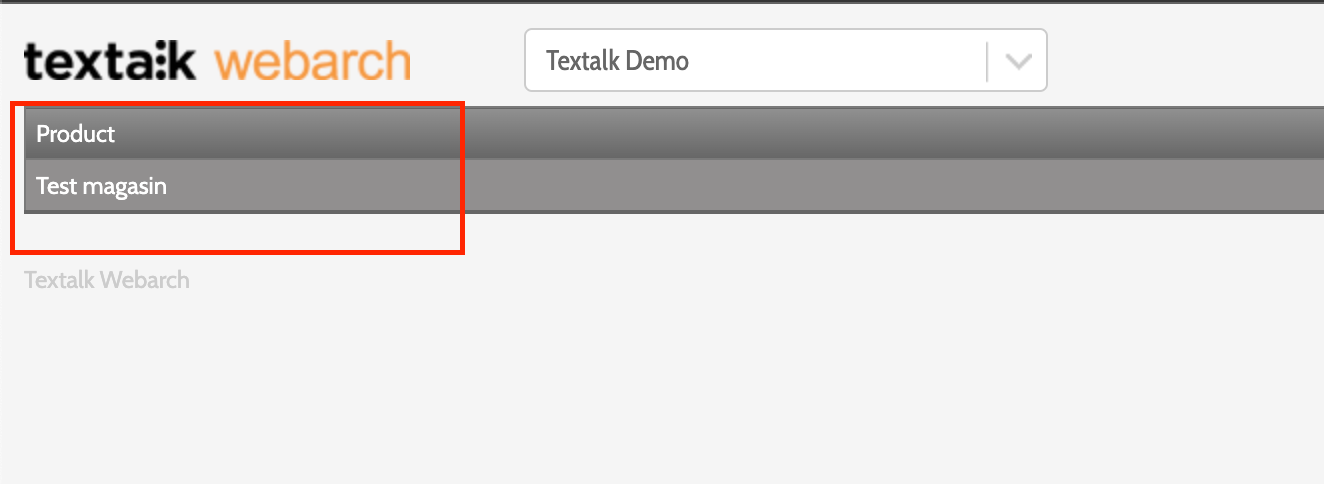
2. To create a new edition, click on "Create new issue" and fill in the publication date in the box that appears and select the PDF's to be uploaded.
NOTE: You can only upload one issue per publication date in Webarch. If you upload multiple issues on the same date, only the most recently exported issue will be available in Prenly.
In the "External ID" box, you do not need to write anything if you do not want to. It may be that for internal use you wish to write, for example, No. 10, for the edition.
In the "PDF actions" menu, you only need to click on "Cut pages at crop marks" IF the edition contains crop marks, otherwise leave it blank.
Likewise, "Split spreads into pages", if the edition is structured as spreads instead of pages, click in this box, otherwise leave it blank as well.
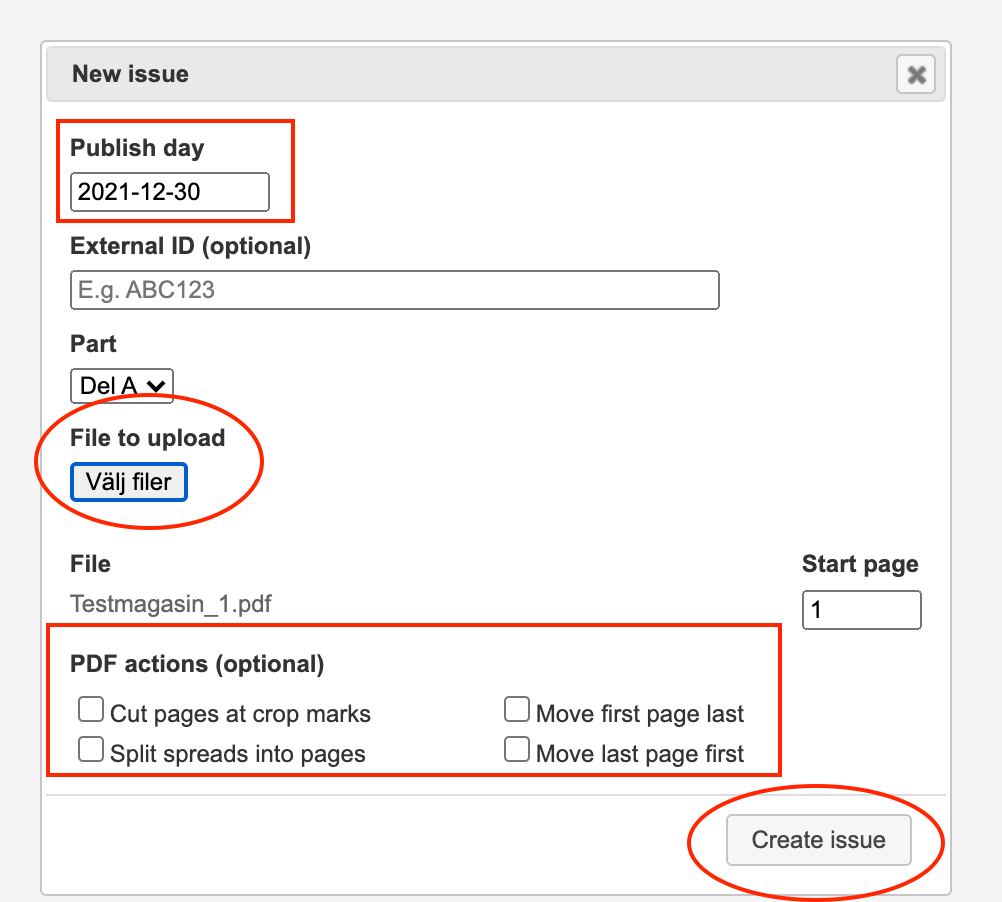
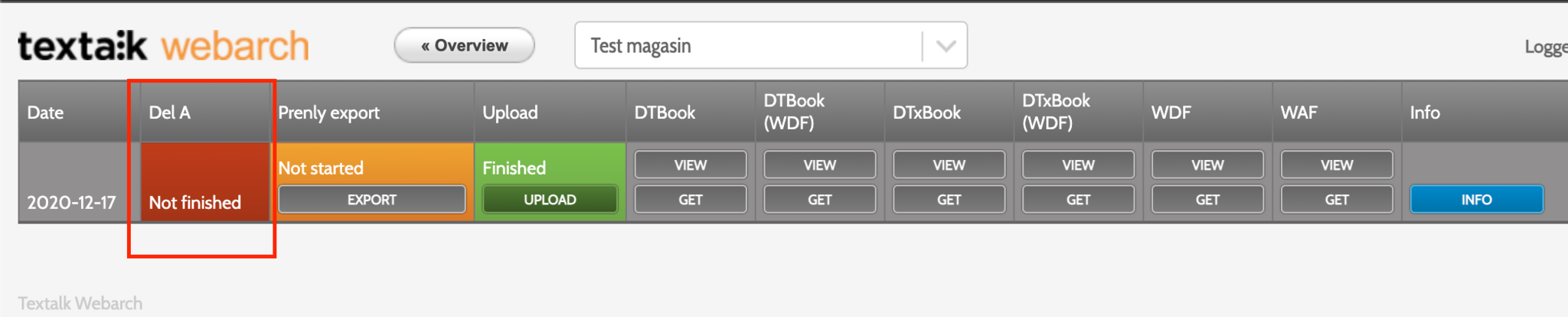
3. Once done, click the "Create issue" button and the new issue will be uploaded. Everything is uploaded correctly if the issue looks like a stop light; "red" "yellow" & "green". Now everything is ready and our operators will take over and manage the issue.