Annotate links in Webarch imported issue - Prenly
One way to annotate a link (text or article linked to an external URL link) is to do it directly in Webarch.
Here we easily show you how it is done in the system (should you not have the right rights to do so, please contact hello@prenly.com so that we can help you)
1. Log in to: https://prenly.webarch.se/
2. Click on the title (if you have several titles, select the one you want to change)
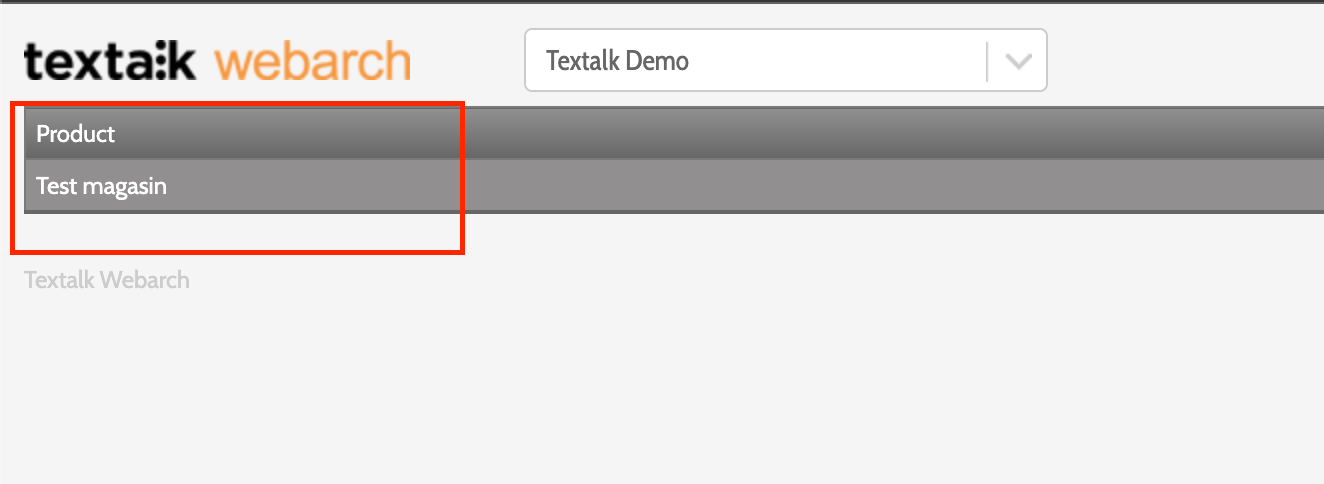
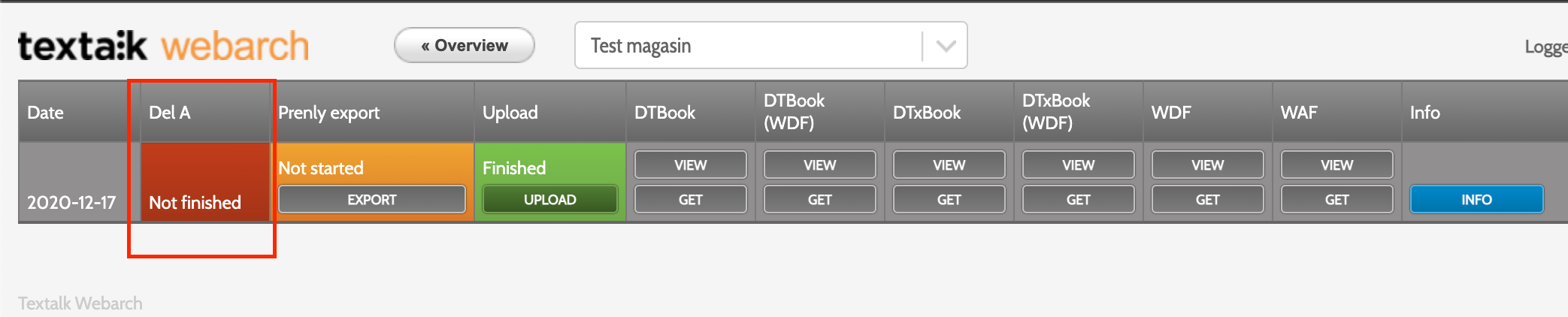
3. Upload the issue that is to be edited; or if it is already imported click on the red field "Not finished" to enter the issue.
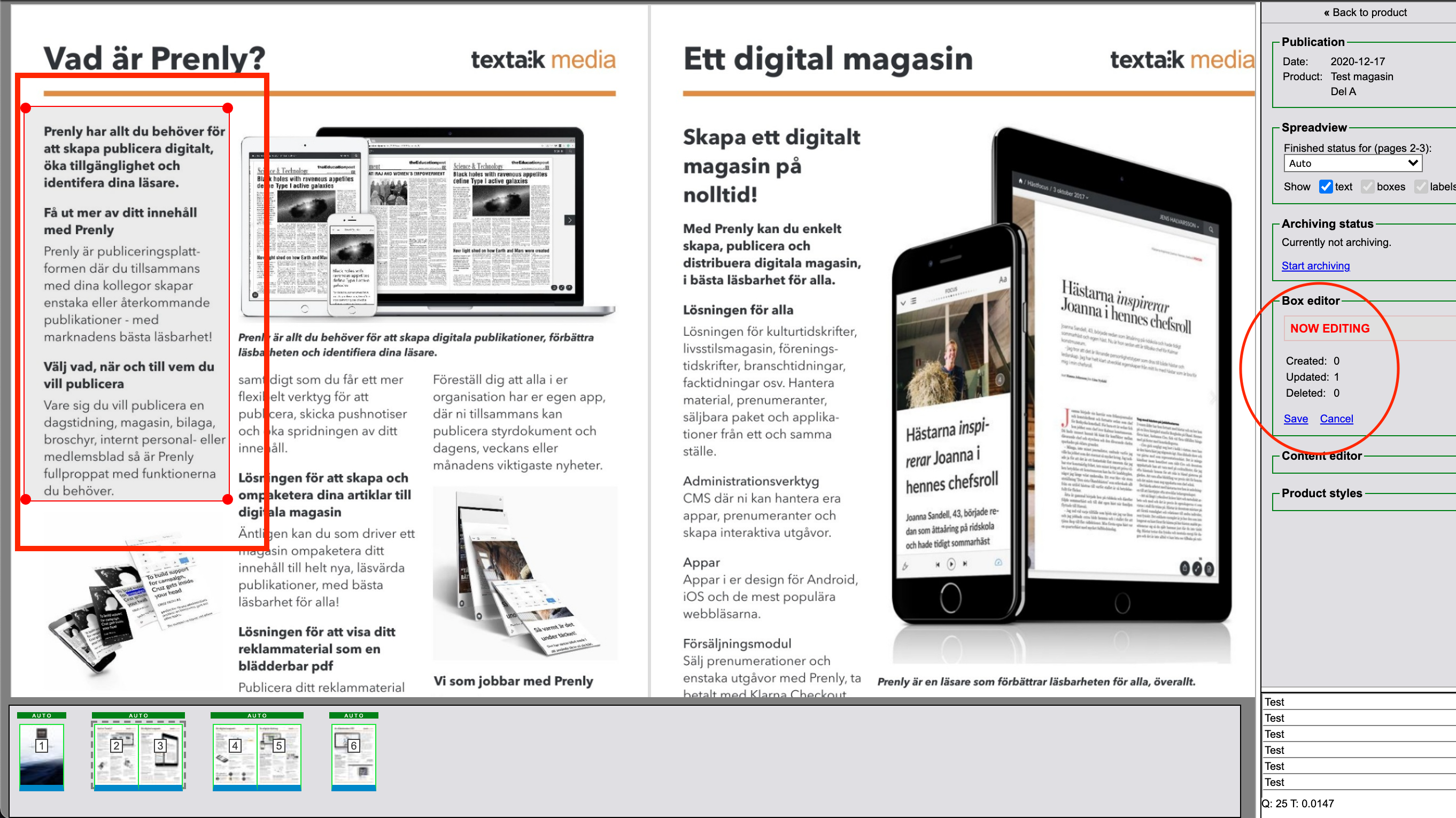
4. Once inside Webarch, unless there is already a "picture box" on the text you want to annotate, click on "Box Editor" and then "start editing".
Here you now need to drag an "image box" over the text you want to add an URL link to so that a red box is created. When you are done with the box click "save".
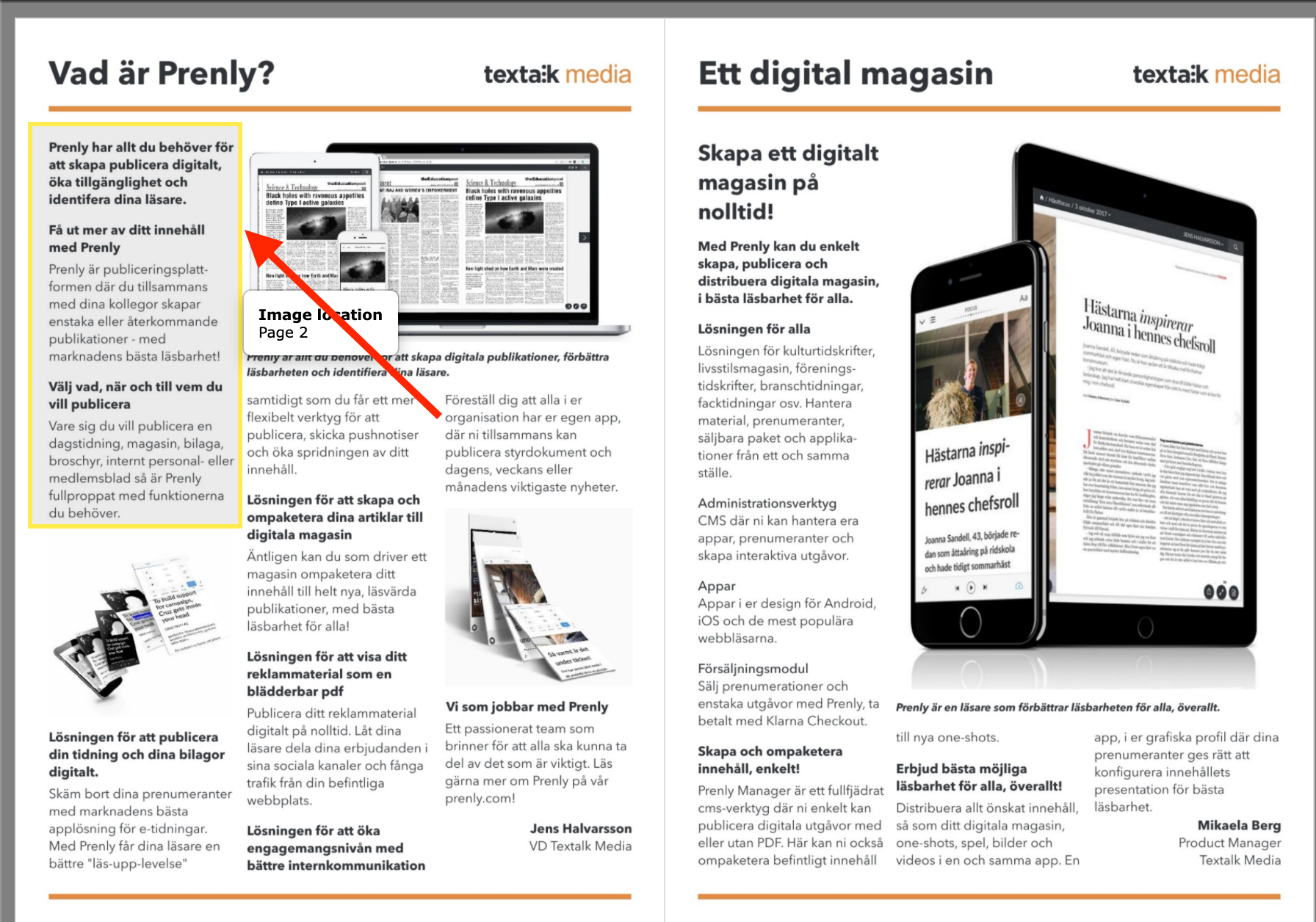
5. Once you have saved the "image box", it will change colour to yellow and then light blue.
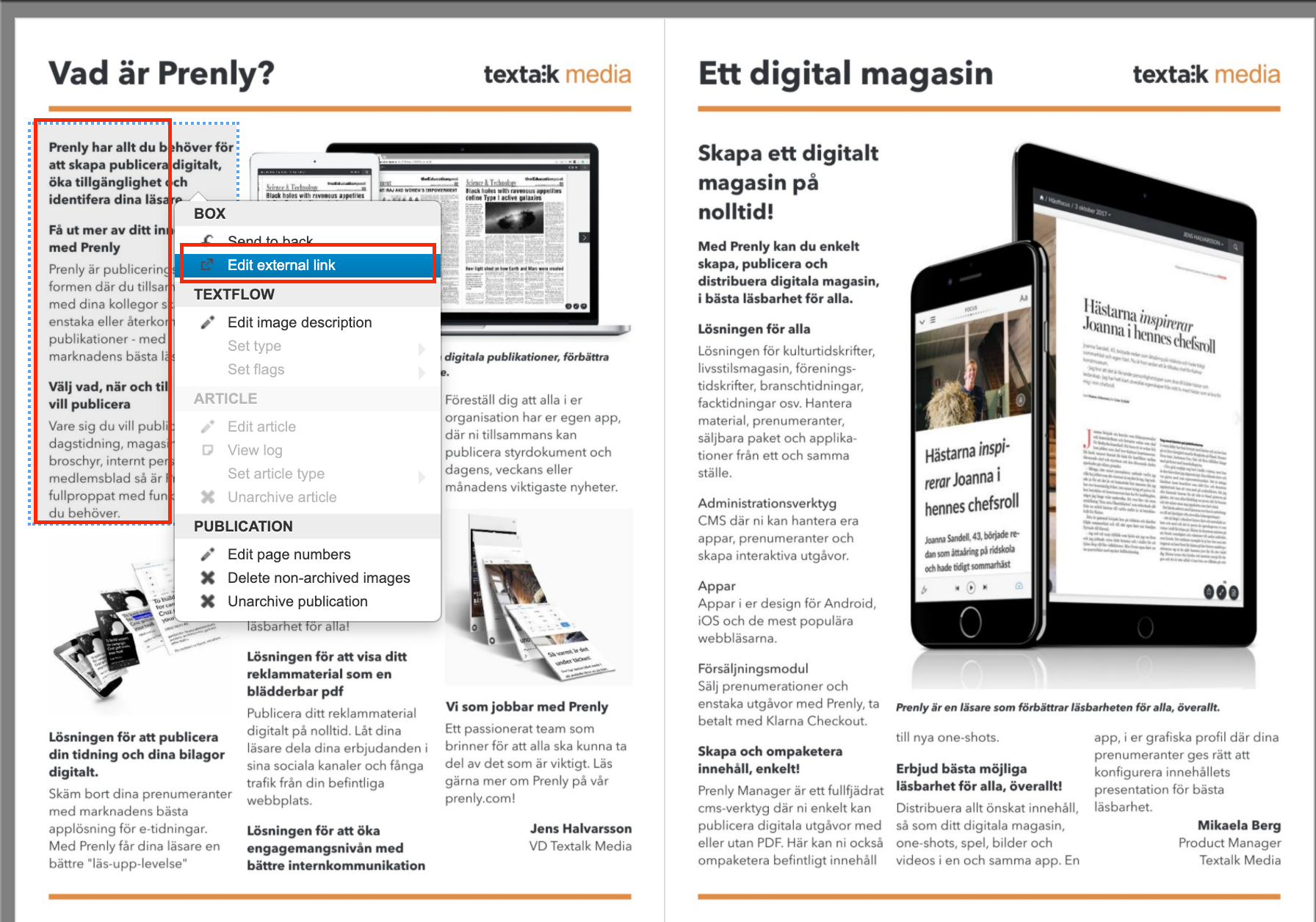
6. Right-click on the image box and select "Edit external link" in the box that appears.
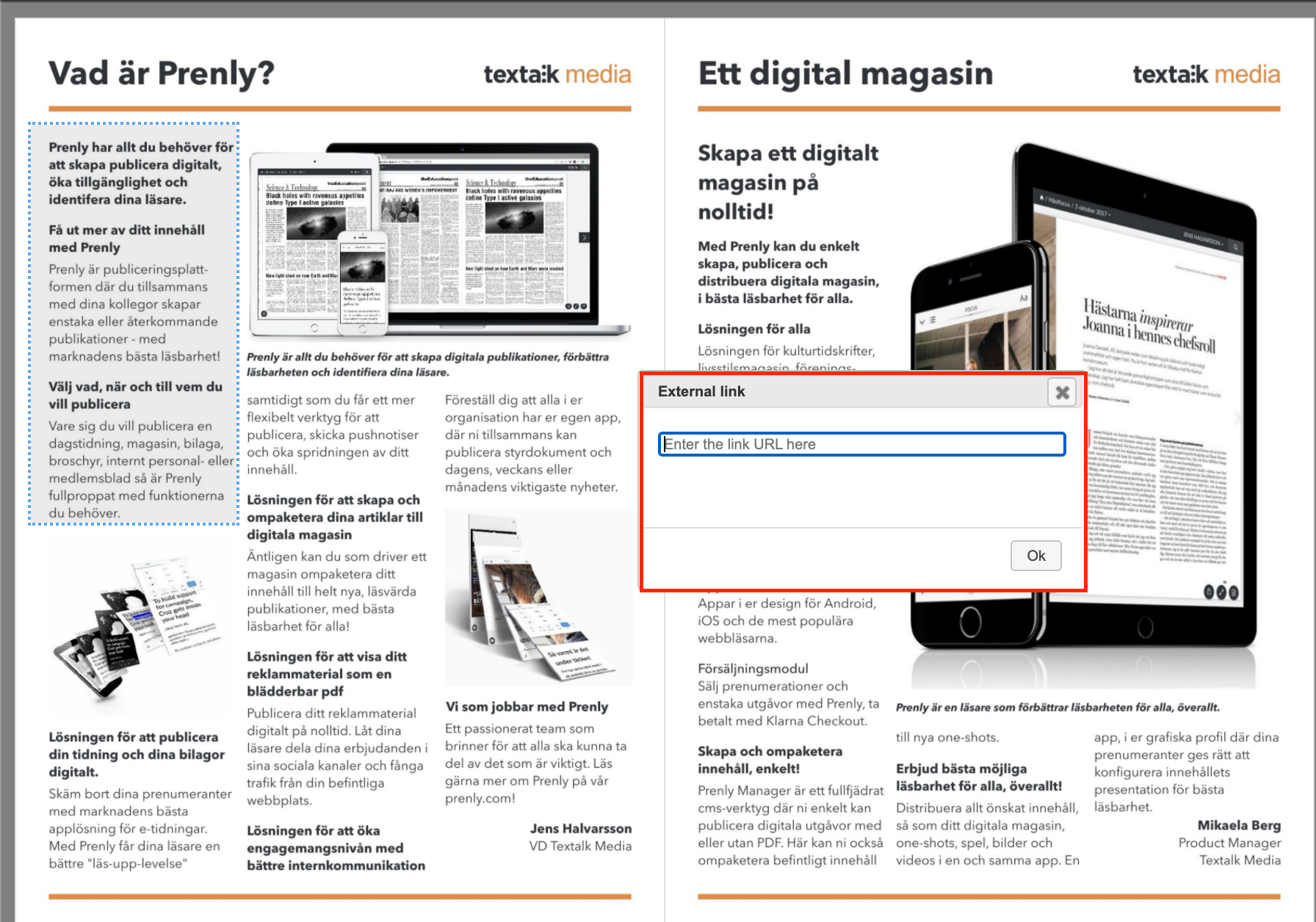
7. In the pop-up box "External link" paste the URL link you want to add to the text and then click "Ok".
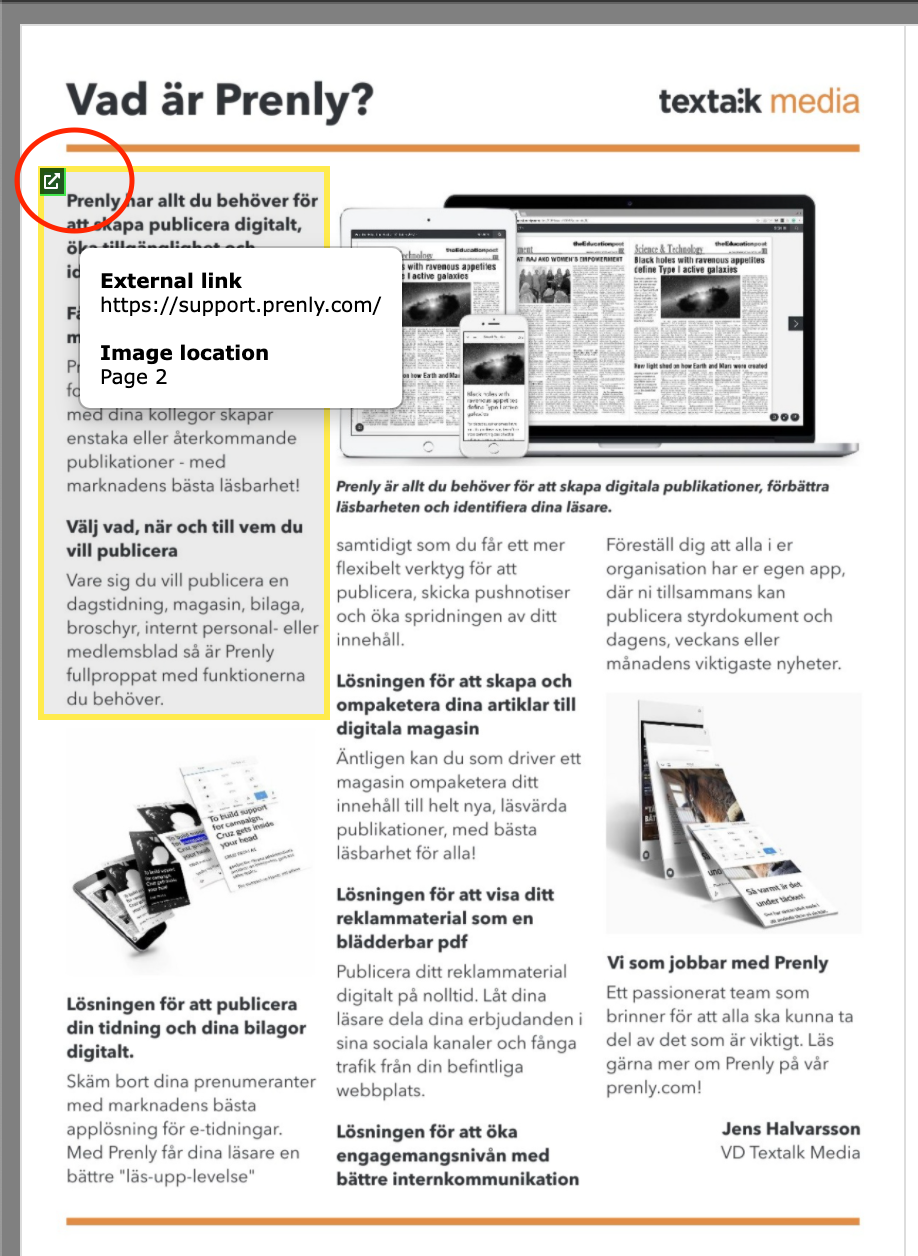
8. When the link is inserted and saved, a "green box with an arrow" appears, indicating that this article has now been correctly annotated with a URL link.
Now you can exit the issue and let our operators handle it and as soon as it is ready it will be exported to Prenly!