Create/send push notification - Prenly
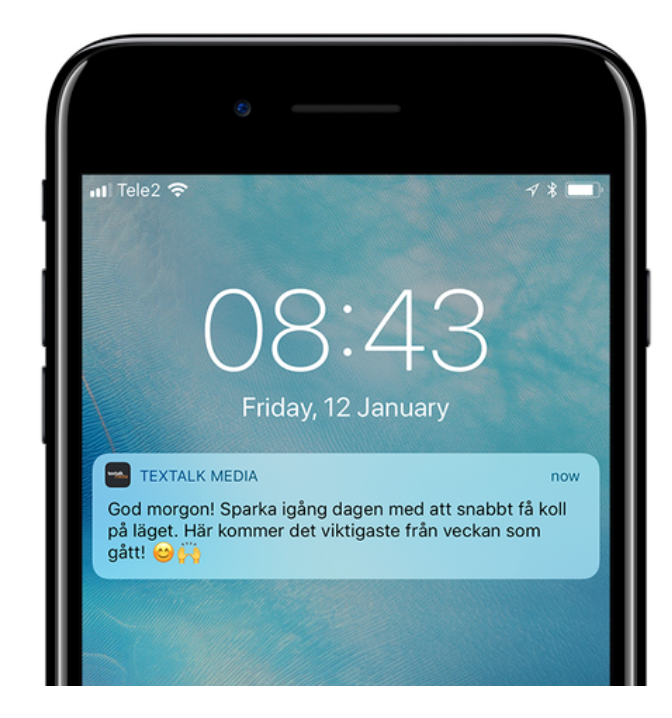
From Prenly Editor, you can send an unlimited number of push notifications to your reader's iOS- and Android devices. This article will help you get started.
When a user clicks on a push notification, the app opens and displays the page you set up when you created the push notification in Prenly Work Space.
How to send a push notification
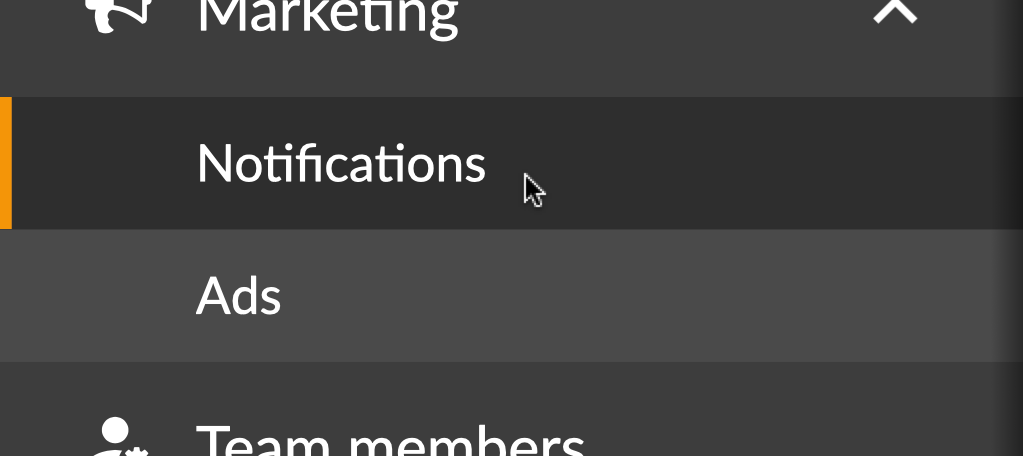
Click on the drop-down menu "Marketing" and select "Notifications"
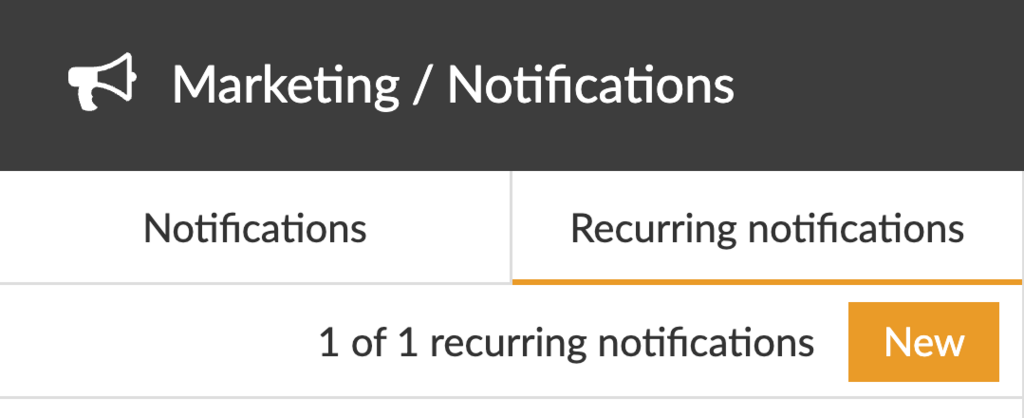
Select "New"
1. Name your push notification
Name your push notification to make it easier to search for it later. This name will not be visible to the user.

Tip! With the tab key on your keyboard, you can easily jump to the next field, for example from "Name your push notification" to "Which applications should the push notification be sent to".
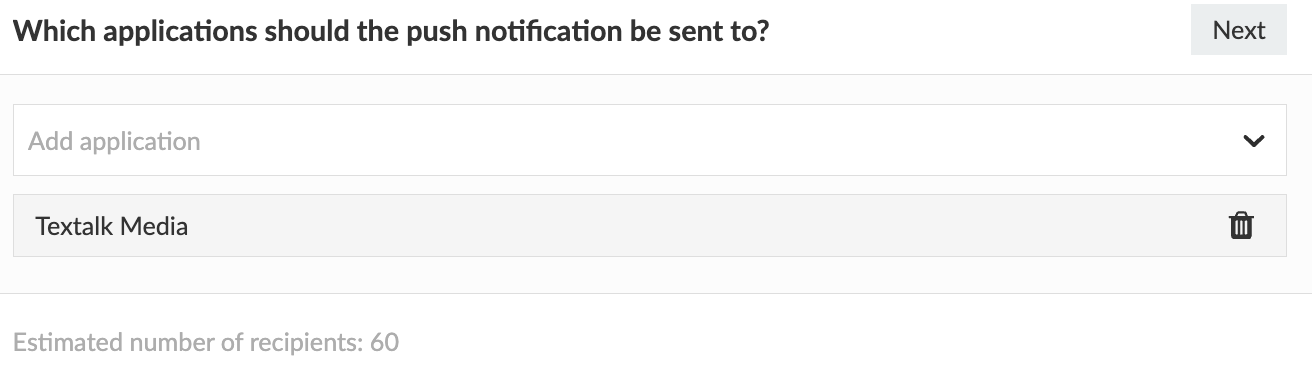
2. Select which application(s) the push notification should be sent to
Since your notification can be sent to multiple applications, you need to choose which application(s) will deliver your push notification.
If you choose to send the push notification to more than one application, in the next step you will only be able to choose to open the application itself, not for example a specific issue or article.
3. Select what the push notification should open
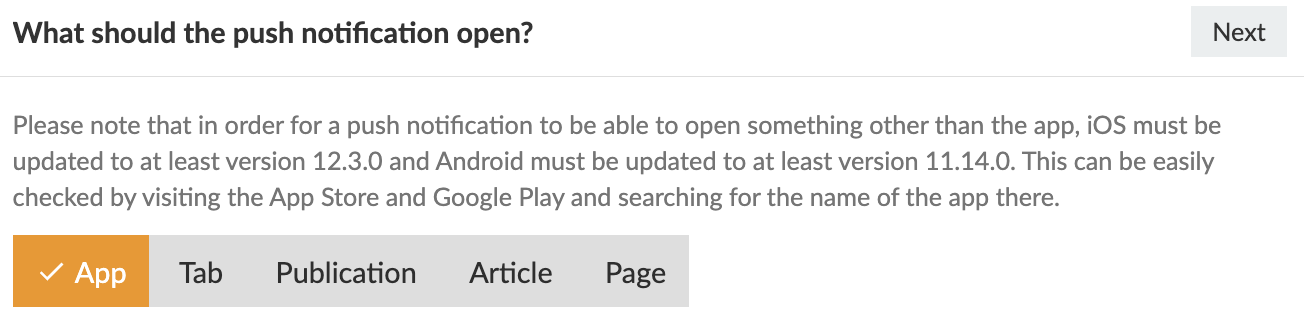
Select what the push notification should open when the user clicks on it. There are five possible choices: App, Tab, Publication, Article, Page.
If the user has not updated their app (iOS app version 12.3.0 or later and Android app version 11.14.0 or later), the user will receive your push notification as if it was sent as open as App.
If you are unsure what app version you have for your app, visit the App Store and Google Play and search for the app, where you will find the latest published app version number.
App
If you choose App, simply the application itself will open.
Tab
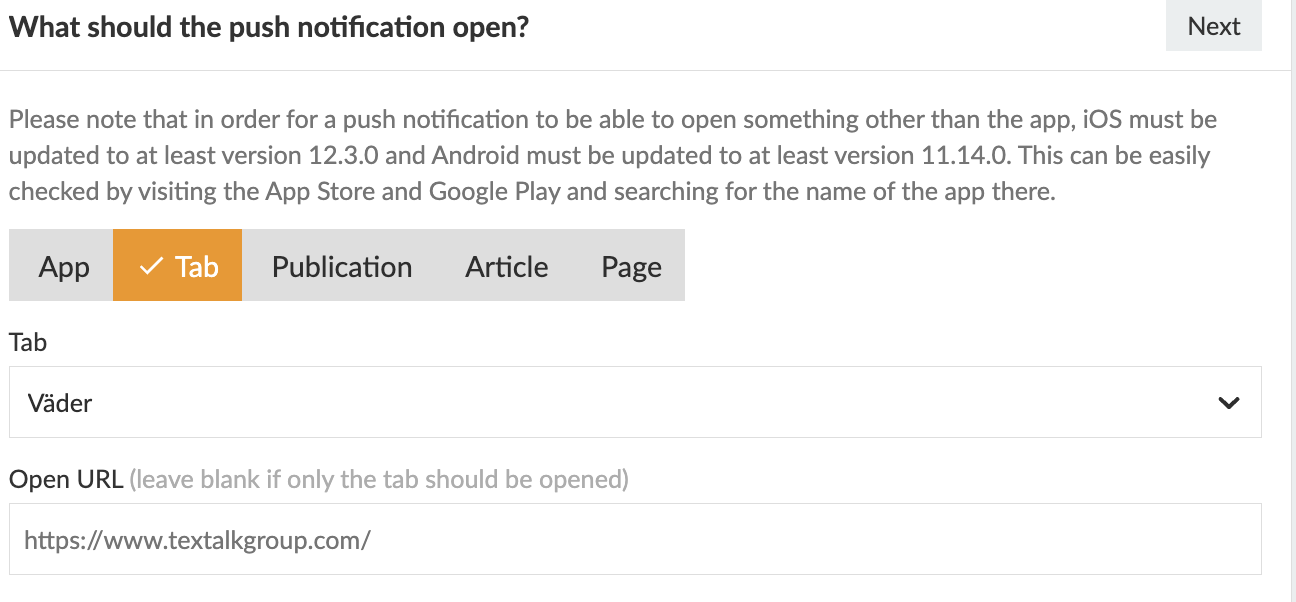
If you choose Tab, a new menu will appear where you can select which tab in the application should be opened.
If you choose a tab that displays content from a web domain, you also have the option to enter a specific address, for example to an article. Note that the article needs to be on the same web domain as the tab is set to display. That is, the article you want to show must be available on the same domain as the one pre-filled in the field. If you just want the tab to open, you can simply leave the specific URL field blank.
Publication
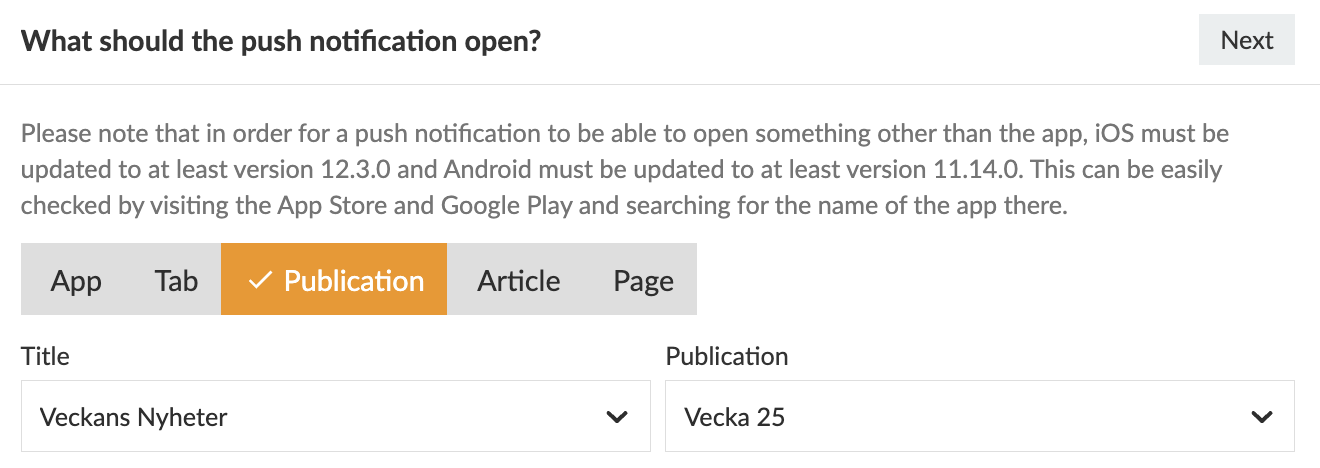
If you choose Publication, you first need to select which Title you want to send the push notification to, and then which publication should be opened.
Article
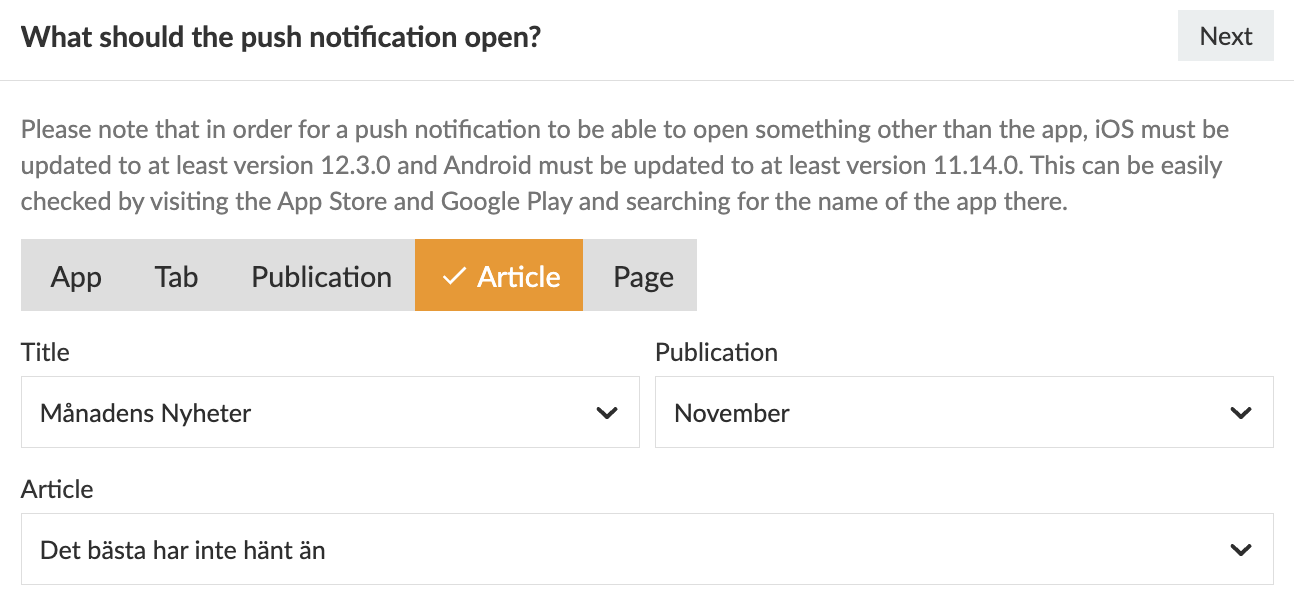
If you choose Article, you first need to select Title, then Publication, and then which article should be opened.
Page
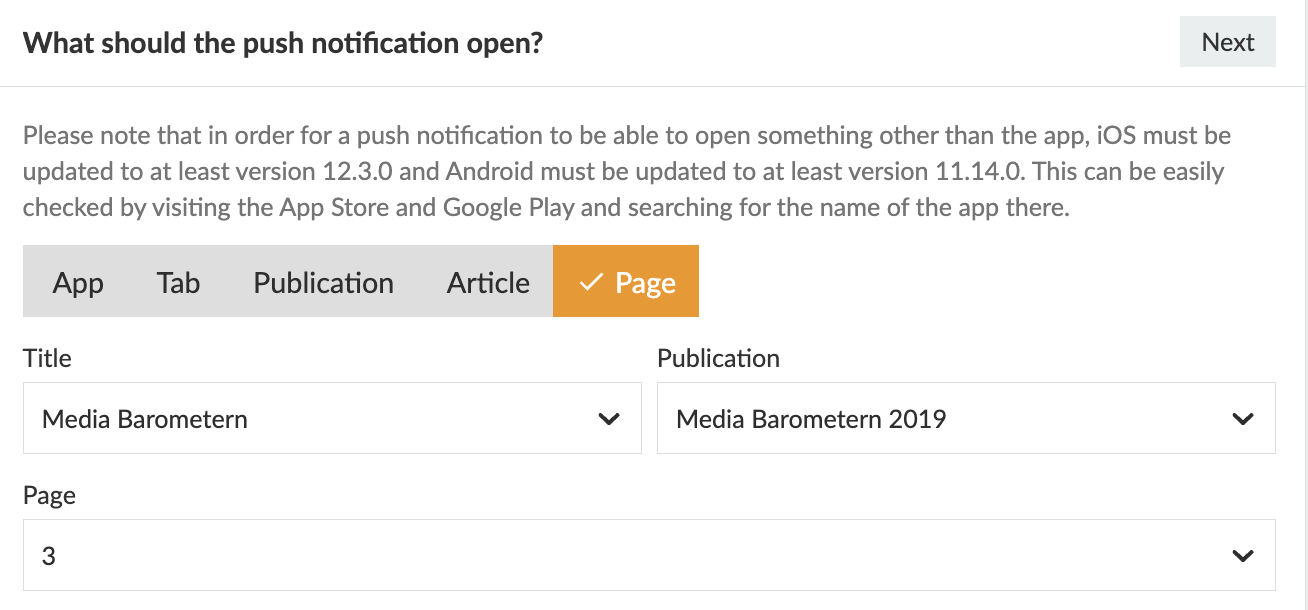
If you choose Page, you first select Title and Publication, and then which page should be opened.
4. Adjust your audience
If you have set up topics, you can target push messages to readers with specific interests. Your readers can subscribe to any of these topics in their mobile apps.
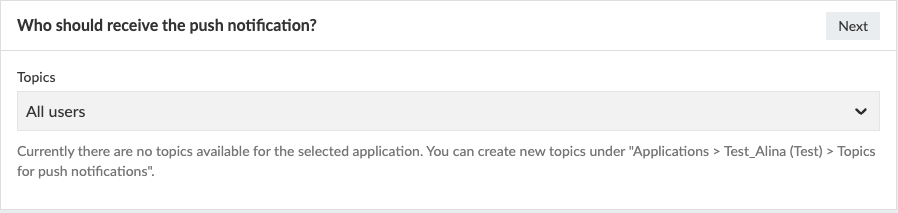
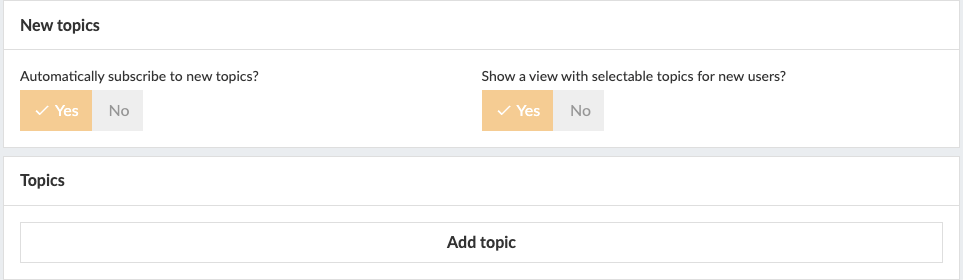
You can create and manage topics by going to Applications, selecting your application, and navigating to Push Notification Topics.
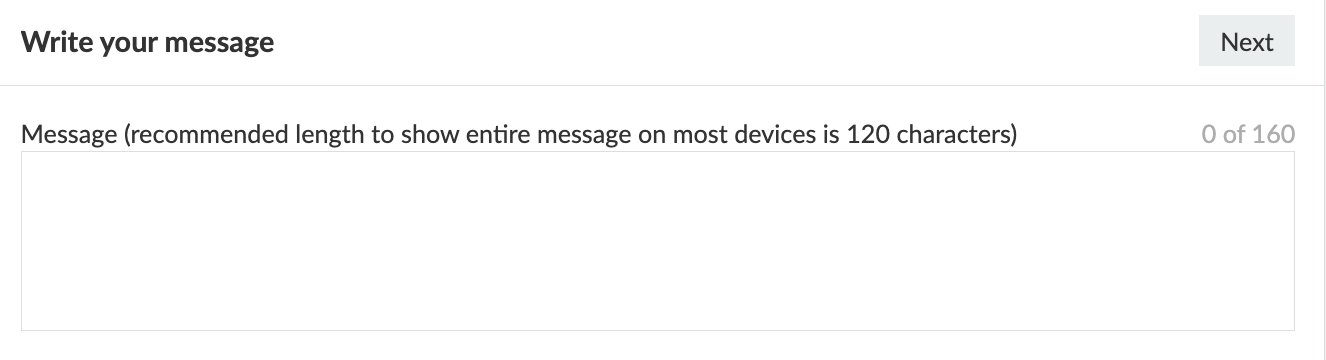
5. Write your message
Write your message. Keep the message under 160 characters to ensure readability on older devices. Feel free to use emojis as these can help you achieve a higher open rate. getemoji.com
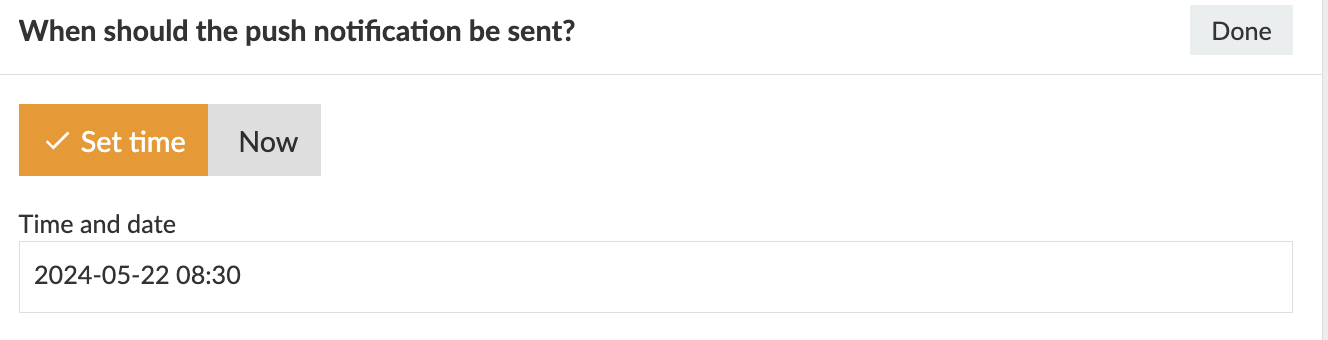
6. Set the time for sending the push notification
The final step is to set the time for when the push notification is to be sent. You can choose a specific date and time, or click on 'Send Now' if you want it to be sent immediately after approval.
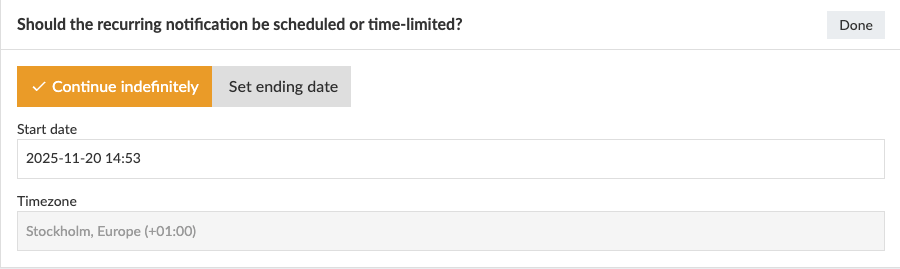
7. Set an end date for your message [only for recurring notification]
For recurring push notifications, you can choose to continue the delivery indefinitely or set a specific end date.
Change the "Draft" toggle button to "Approved for delivery"
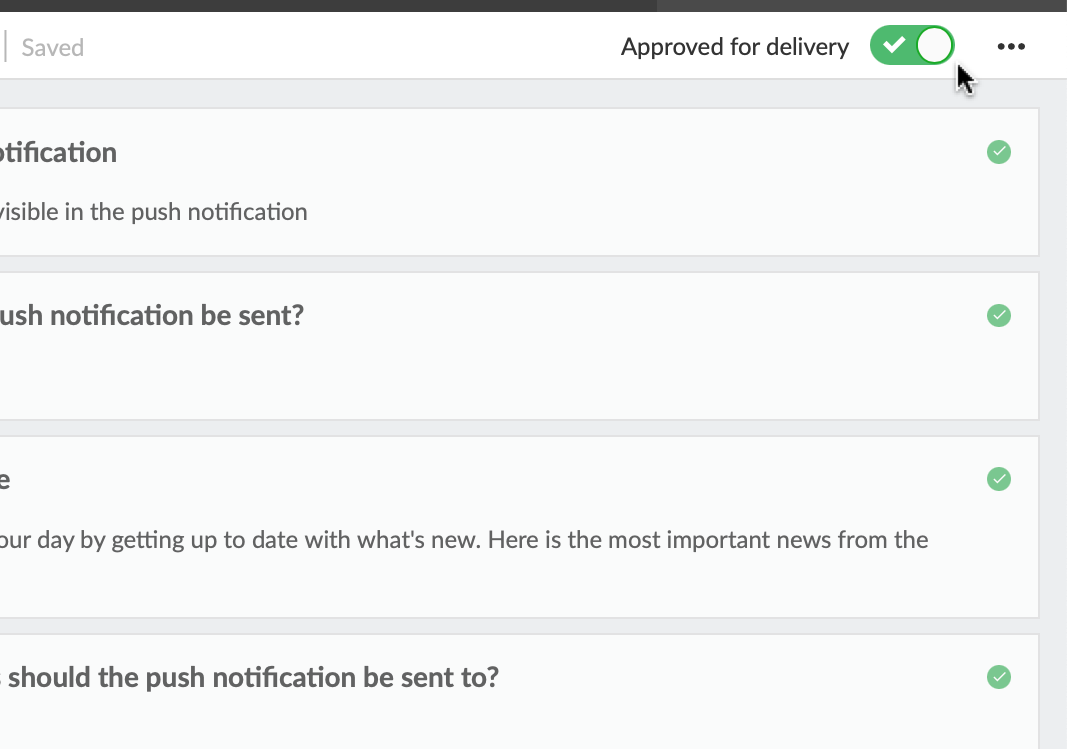
Good work! You have now scheduled your first push notification!
See previous push notifications
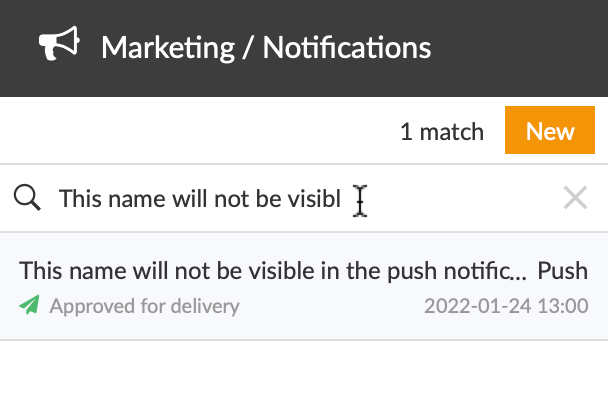
To find a started or completed push notification, you can use the search mode and enter either the name of your push notification, the date or time you've chosen to have the push notification sent, or the current status - for example "Approved for delivery" or "Sent ".
Delete a push notification
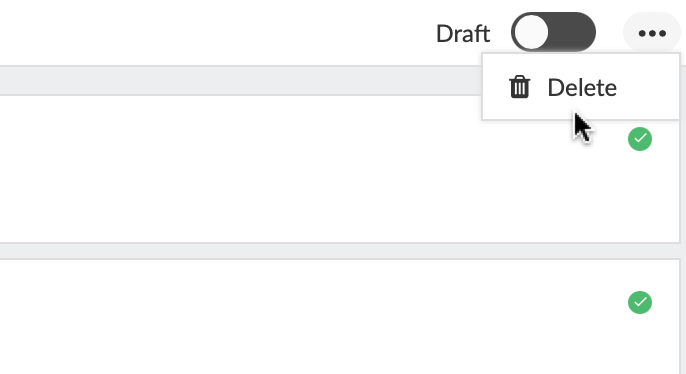
By clicking on the "three dot menu" in the upper right corner and then on "Delete", you can delete your notification.