Activate vouchers for easy access to your apps - Prenly
The voucher function allows you to give readers temporary access to your content through redeemable voucher codes.
These vouchers can be used for promotions, partnerships, giveaways, or temporary free access to your application.
You can either:
- Create one shared code for all users (Generic Voucher)
- Generate individual codes for specific users (Unique Vouchers)
How to Activate the Voucher Function
- Click Applications in the left-hand menu. Select the application you would like to add vouchers for.
- Go to Application settings. Scroll down until you see the Vouchers section.
- Toggle the function on.
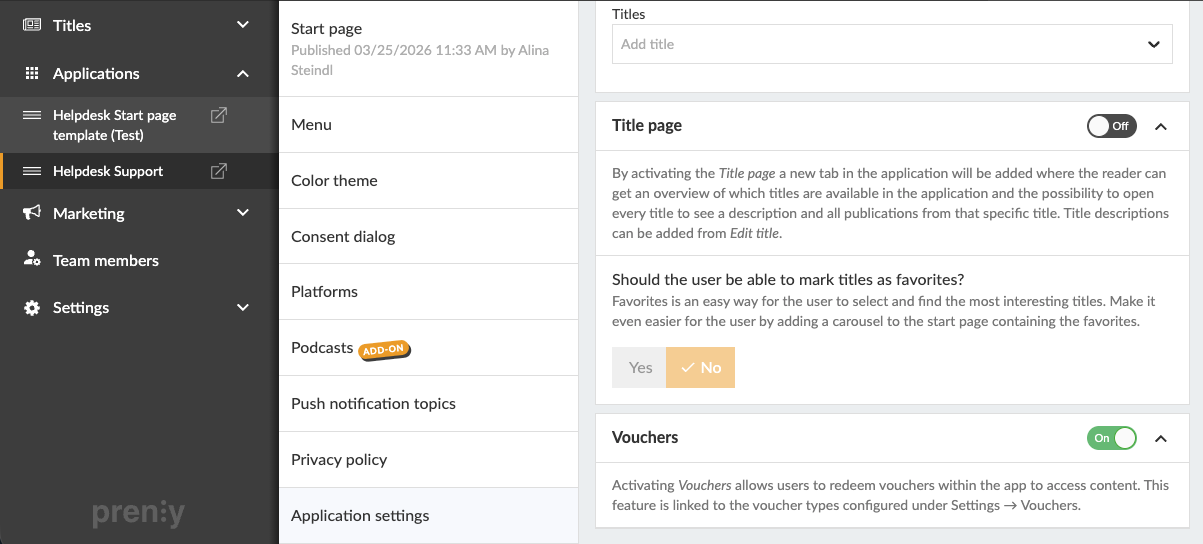
- In the left-hand menu, go to Settings → Vouchers.
- Click New.
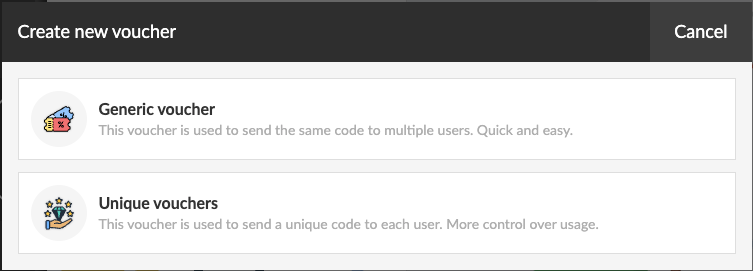
You will now see two different voucher types:
Generic Voucher
Every user redeems access using the same voucher code.
Unique Voucher
Individual voucher codes are generated for each user.
General Setup Steps
The following settings are available for both voucher types:
Name and Description
Add an internal name and description for the voucher.
Package
Choose which package the voucher should give access to.
Find out here how to create packages →
Application
Select the application where the voucher will be valid.
Valid for Days After Redemption
Choose how many days of access the reader should receive after redeeming the voucher.
Max Number of Redemption
This determines how many times in total the voucher can be redeemed.
Redemption Period
Choose the period during which the voucher can be redeemed.
If a reader redeems the voucher on the last valid day, they will still receive access for the full number of days configured in Valid for days after redemption.
After activation, the voucher can no longer be edited. However, it can still be terminated whenever needed.
Setting Up a Generic Voucher
Code
Choose the voucher code readers should use, for example: SUMMER26
Once everything is configured: Click Activate.
Setting Up Unique Vouchers
Prefix
Optionally choose a custom prefix for the generated codes.
If left empty, the prefix will be generated automatically.
Codes
Choose how many unique voucher codes should be generated.
Once everything is configured: Click Activate and Generate.
A download button will then appear.
Click the button to download a CSV file containing all generated voucher codes.
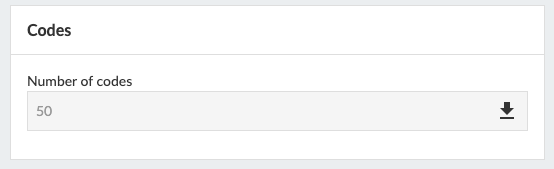
If you download the CSV file again later, you will also be able to see which codes have already been redeemed and which are still unused.
Make Voucher Redemption Visible for Readers
Web Application
- Go to applications and select menu, then choose web.
- Click add menu section and select Redeem voucher.
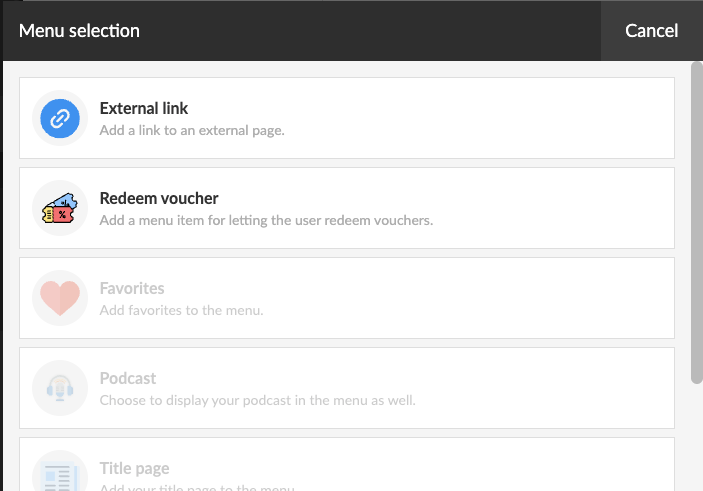
You can change the menu name if wanted and select an icon.
This adds the voucher redemption option to the menu of your web application.
Native Apps (iOS & Android)
In native apps, readers can redeem vouchers under Settings.