Edit in Prenly - Prenly
Do you need to make changes to a digital publication or a publication with article reading mode? You can do that in Prenly editor, but keep in mind that what you change in the article reading mode does not affect the content in your PDF pages.
Choose the publication you would like to update
Choose the publication in your selected Prenly title by clicking the publication card either on the cover image or name field.
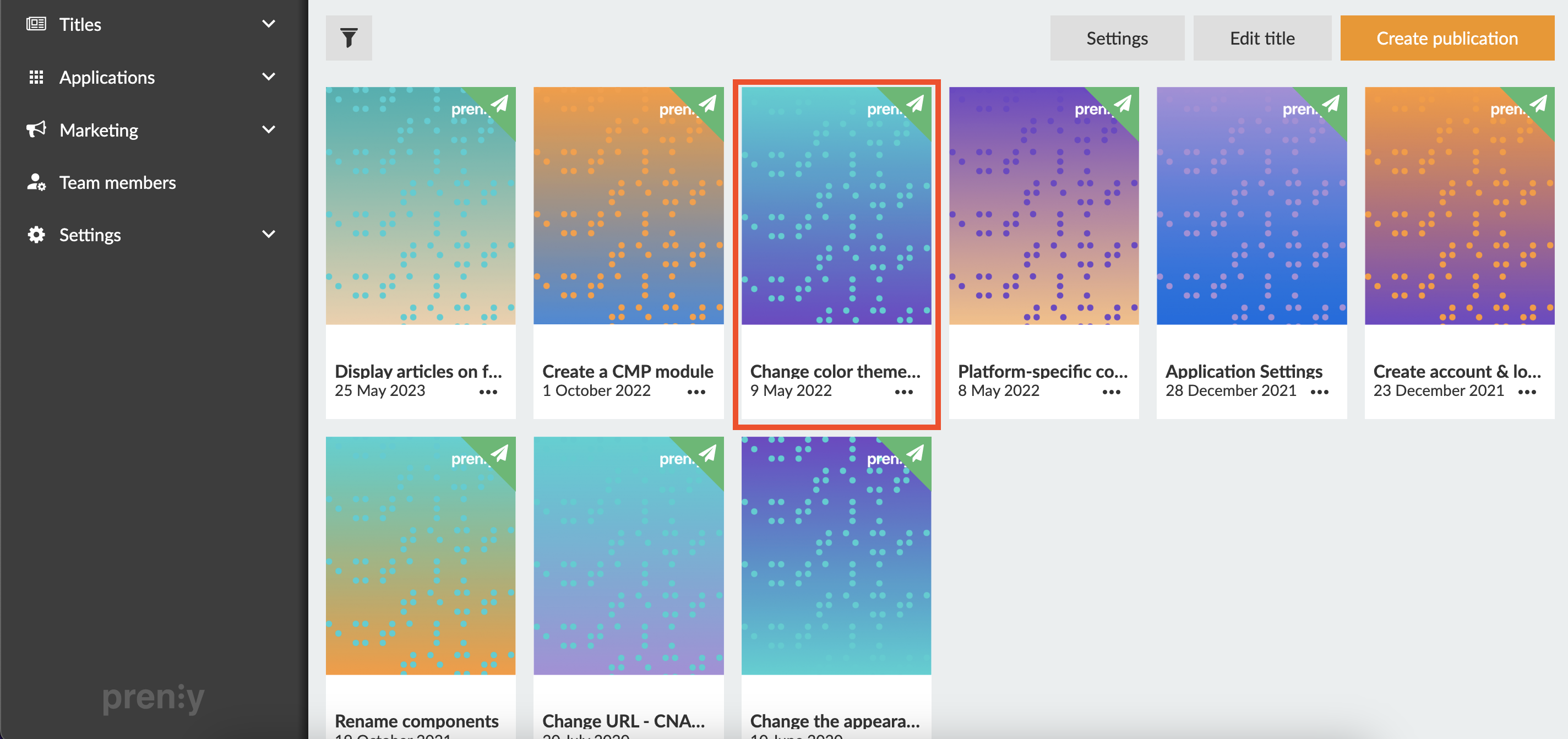 Click on a publication under the menu Titles
You will enter the Prenly Editor when you have chosen a publication.
Prenly Editor
Make sure that you are in the tab "Articles".
Find your article in the list, you can search for the article headline by the magnifying glass.
Each article has a circle to the left in the article list, this shows the status of the article - it's either shown as an empty circle, or filled with a green or red bullet.
Green bullet - the article is Approved to be published
Red bullet - the article is Stopped and will not be able to publish until this bullet has been changed
Empty circle - the article is in Draft and not approved to be published, in this state you are able to edit the article
You can change the article status, a green bullet or empty circle can be clicked - then it will change between Approved and Draft. A red bullet needs to be handled from the menu in the top right corner.
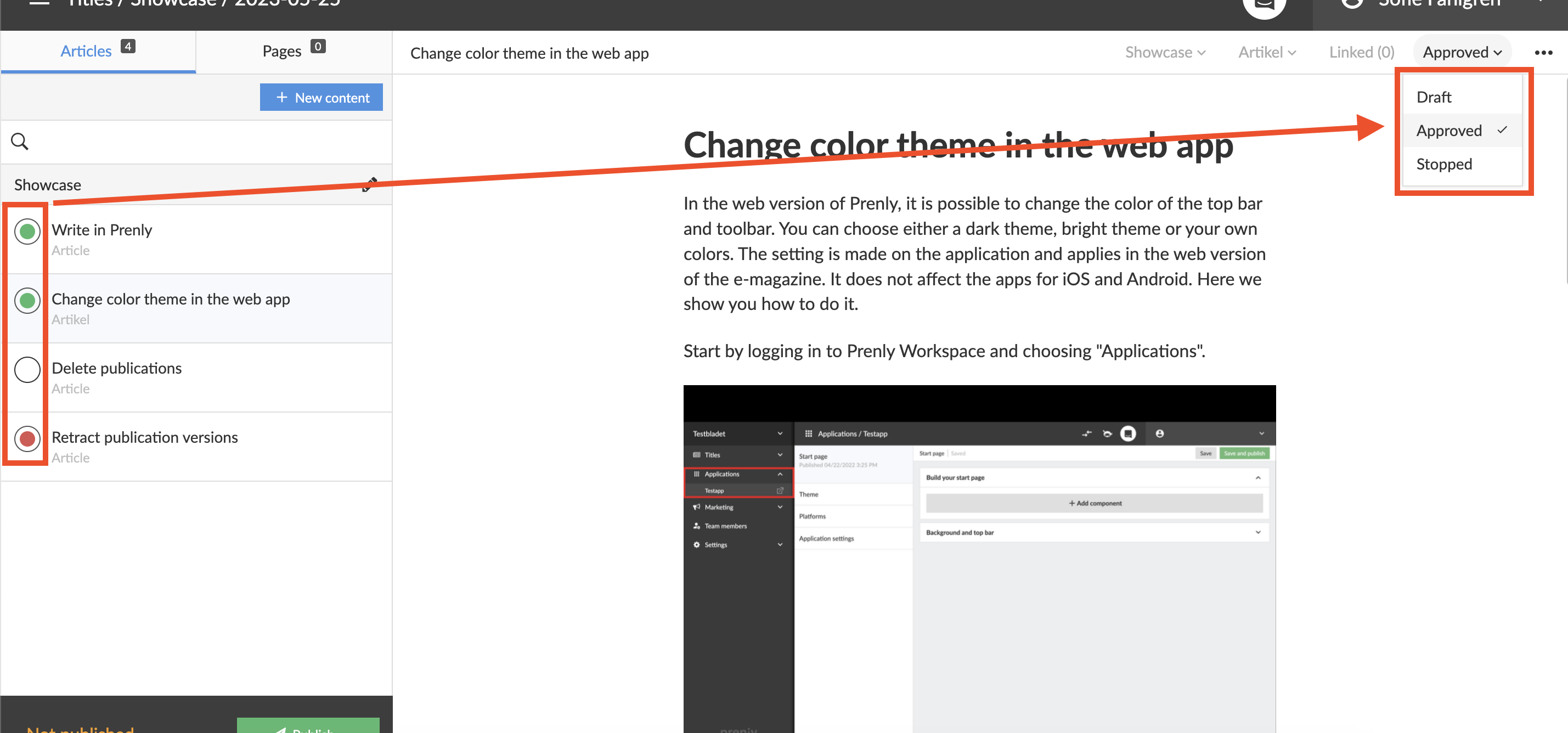 Click in the circle or the menu in the top right corner to update the articled status between Approved, Draft or Stopped
When an article is in draft you are able to update the content of an article. Here are a few examples of what can be done:
1. Update the text, write, add or remove text.
Create a new content fragment by selecting the previous content fragment, and tap the ENTER key on your keyboard. You can change levels of the fragments in the drop-down-menu to the left of your content fragment.
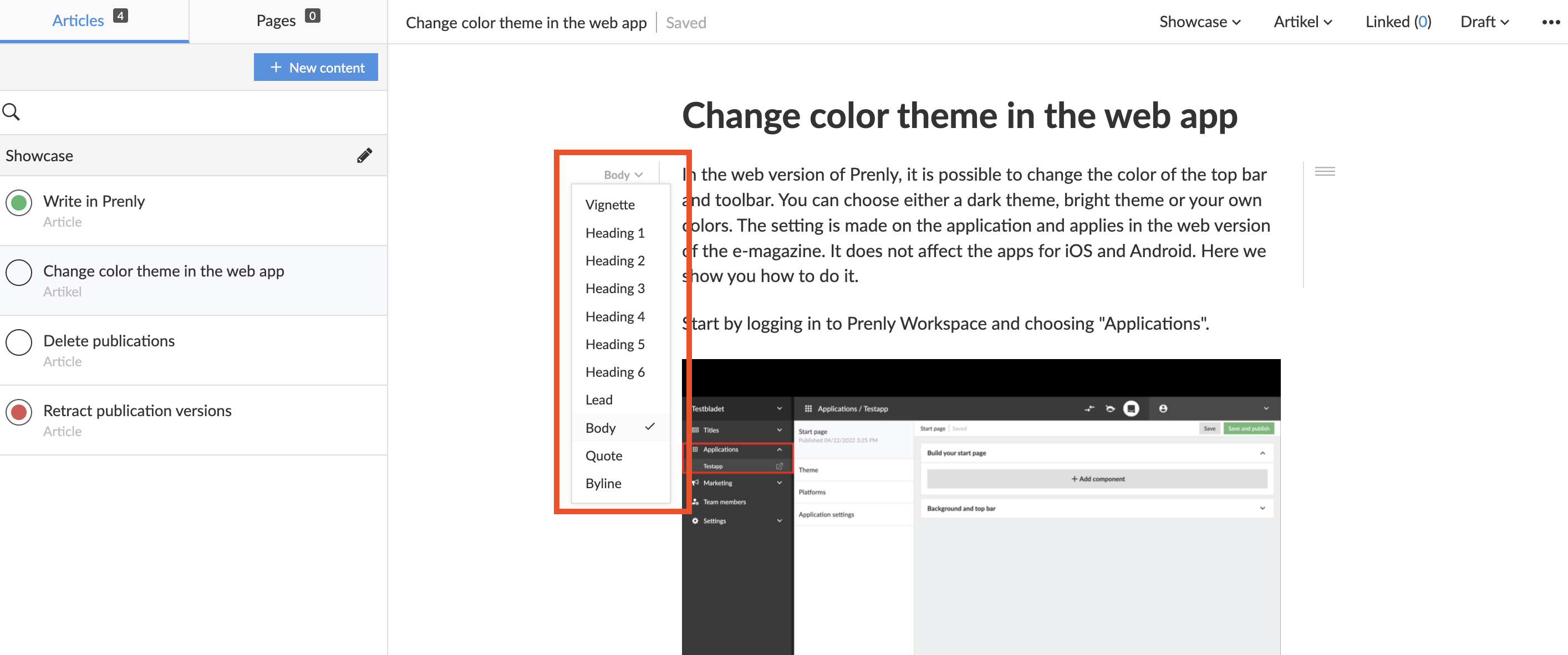 Here, for example, you can decide whether the fragment should be of the type Body, Ingress, Vignette or a headline of a certain Heading level
2. Add hyperlinks.
Mark the text that should be clickable, in the bubble that appears you click on the link icon to add a URL or a mail-to-link.
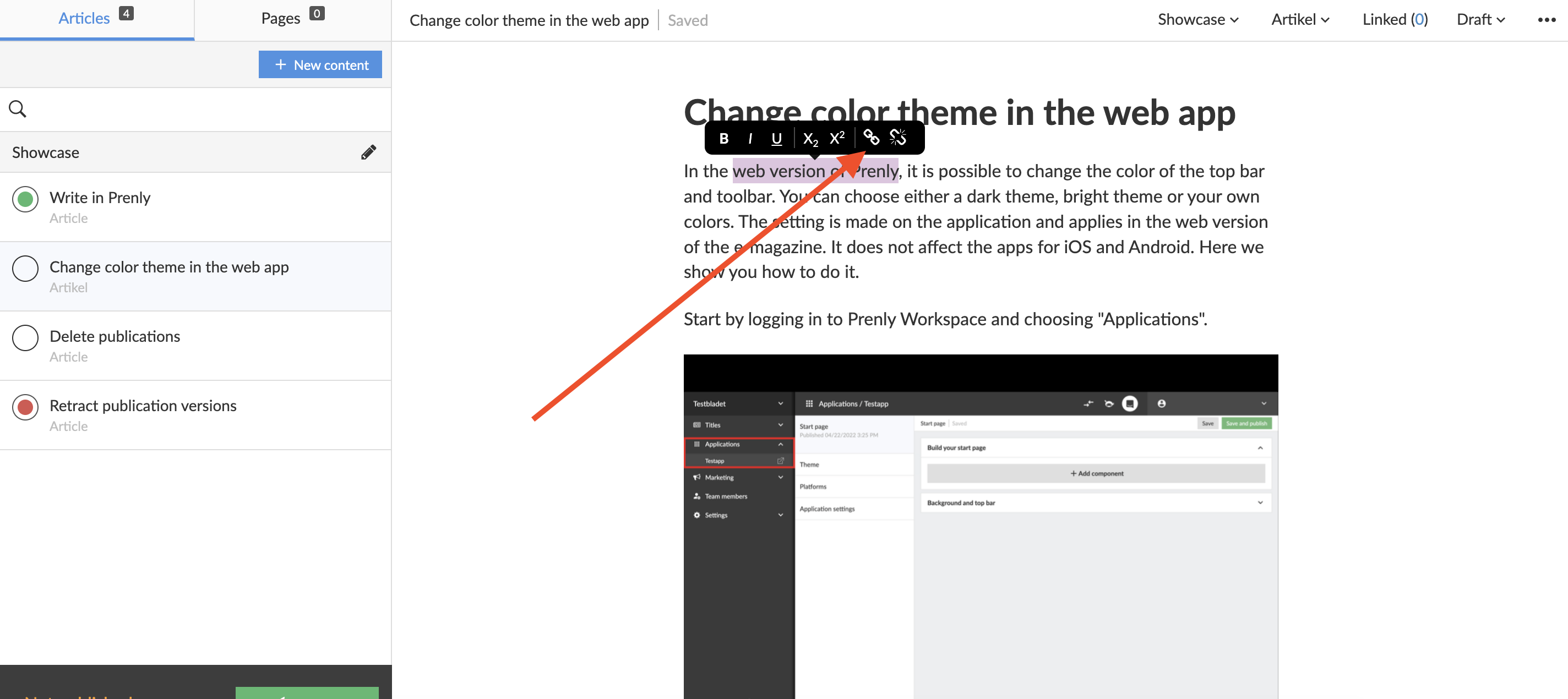 Click the link icon to add a hyperlink. The broken link on the right removes an existing link
3. Handle the content in a media container.
On the icons to the left of your media container you can
• add images from your article, publication or from your computer.
• add videos by pasting a video URL or embed code.
• sort the order of the content in your media container by clicking and dragging them in order.
• delete your entire media container.
You can also crop and delete single images from a media container by browsing to the image you would like to remove, and click on either of the icons in the lower left corner of the media container.
To create a new media container you make a new content fragment by selecting the previous content fragment, and tap the ENTER key on your keyboard, you will then get a camera icon and a play button that you can click on - this can be done anywhere in the article.
Approve your changes
When you are done editing you will need to make sure that the status of the articles you have edited are marked as Approved.
Click the circle or the menu in the top right corner to change the articles status to Approved - the circle by the article in the list should be marked with a green bullet to be approved.
Don't forget to publish your changes
You can read about how to publish your changes in our guide
Re-publish <- click here to get there.
Good luck! ?