Delete page or spread - Prenly
You can choose to delete a page or spread from the uploaded PDF.
Delete the page (you need to repeat the process to delete the spread) by following these steps:
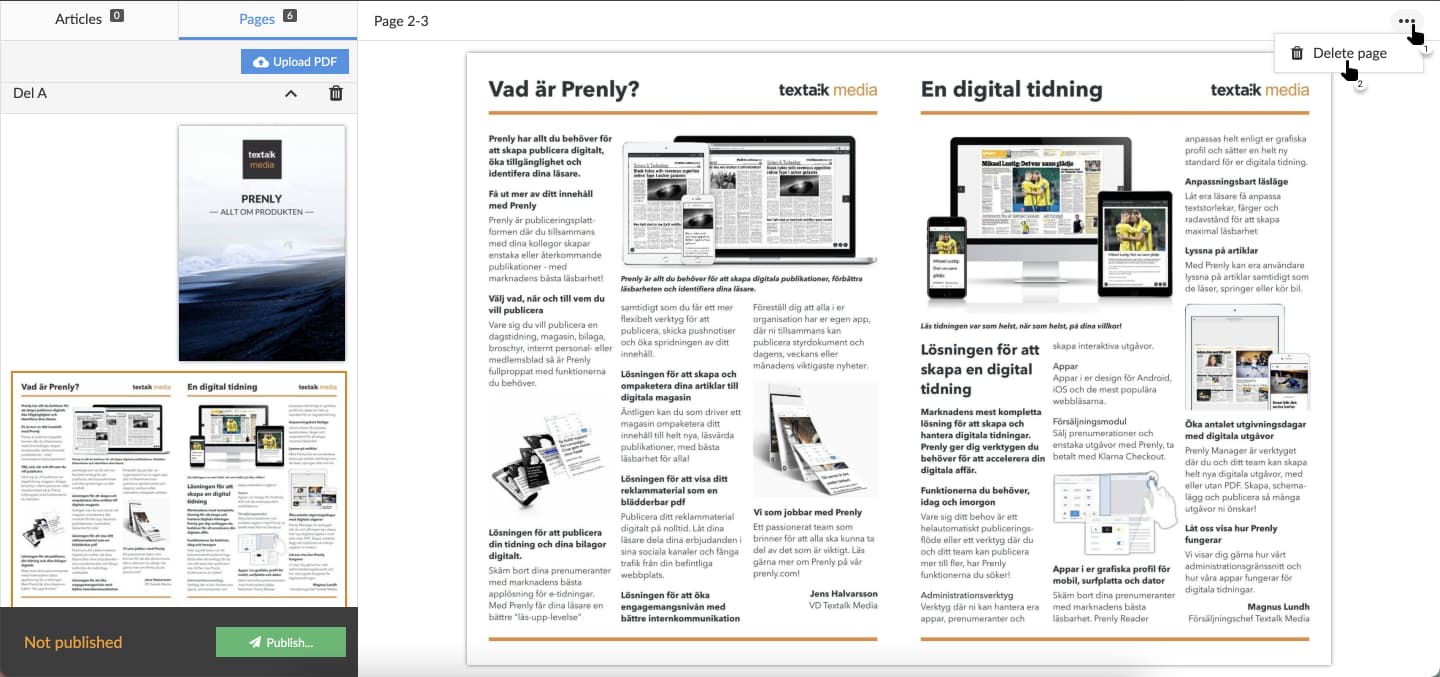
1. Select the three-dots menu and select "Delete page".
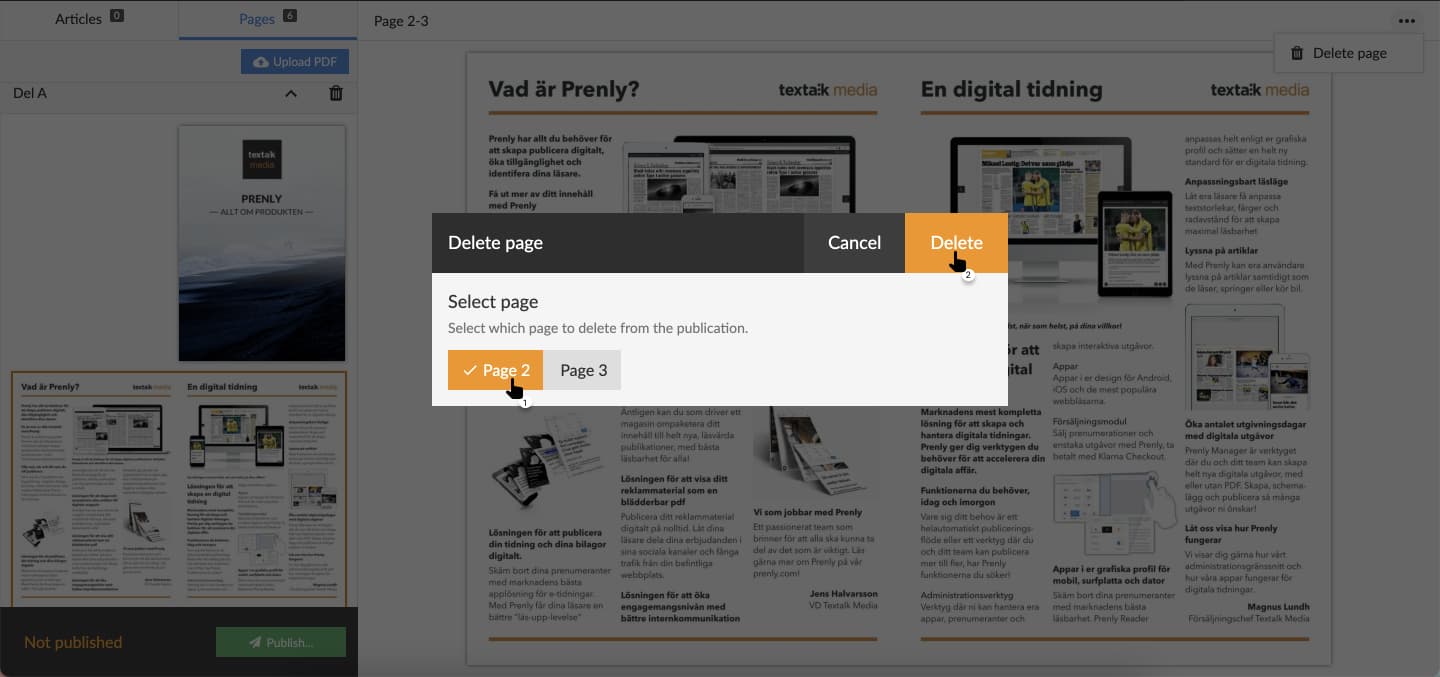
2. Select the page you want to delete and then select "Delete" to delete the page. Repeat this step to delete the spread by selecting the other page; you can only delete one page at a time.
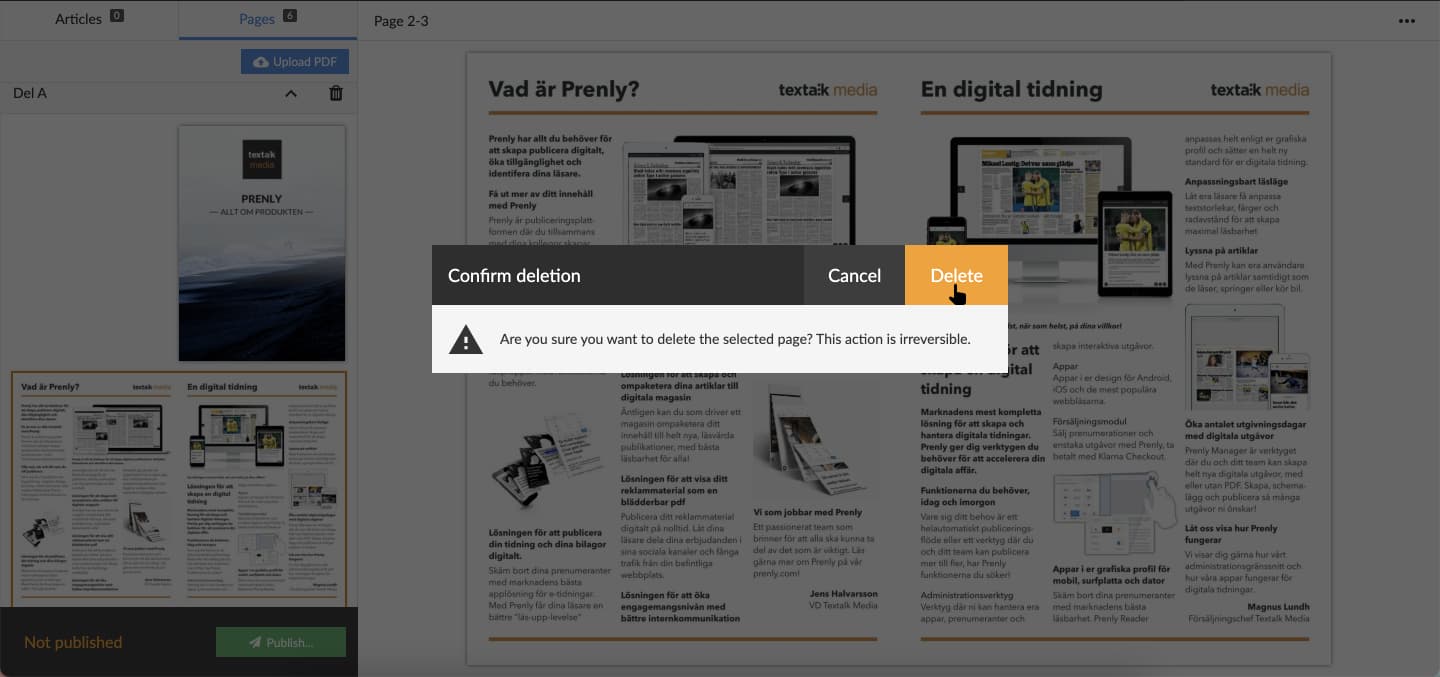
3. Confirm the page deletion.
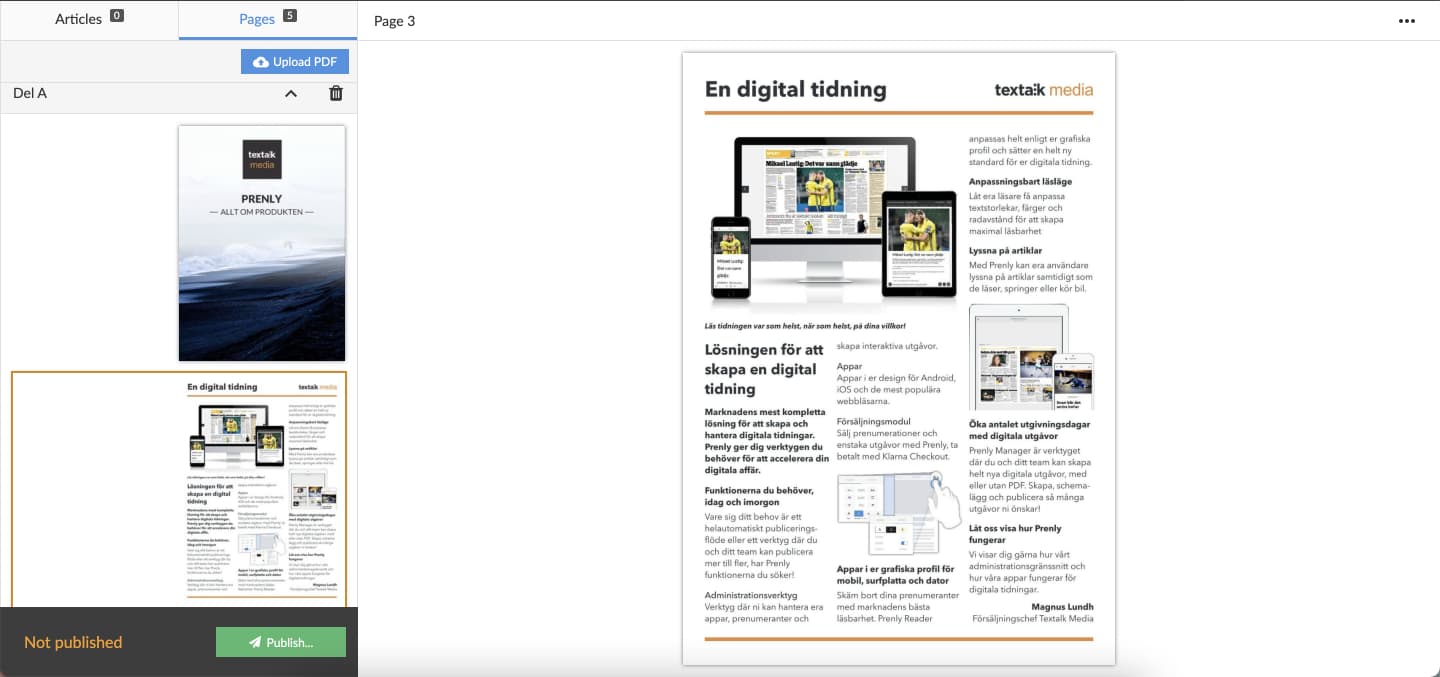
Prenly will delete the chosen page and present the result.
In order for the readers to get the same result, i.e. the page removed, you need to publish a new version of your publication.
Select the video below to see how to delete a page as a video guide.