Annotate link in Prenly - Prenly
Adding a URL link to an article is easy. Let us show you how!
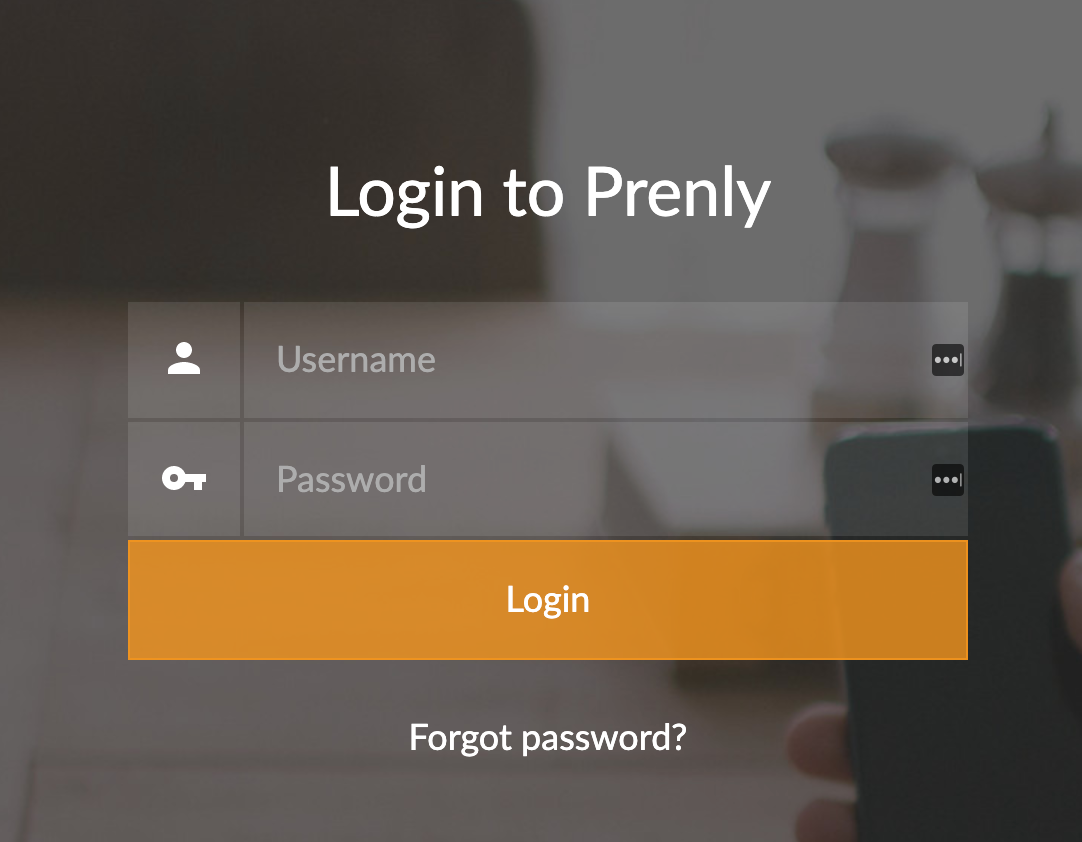
1. Log in to Prenly Workspace; https://content.textalk.se
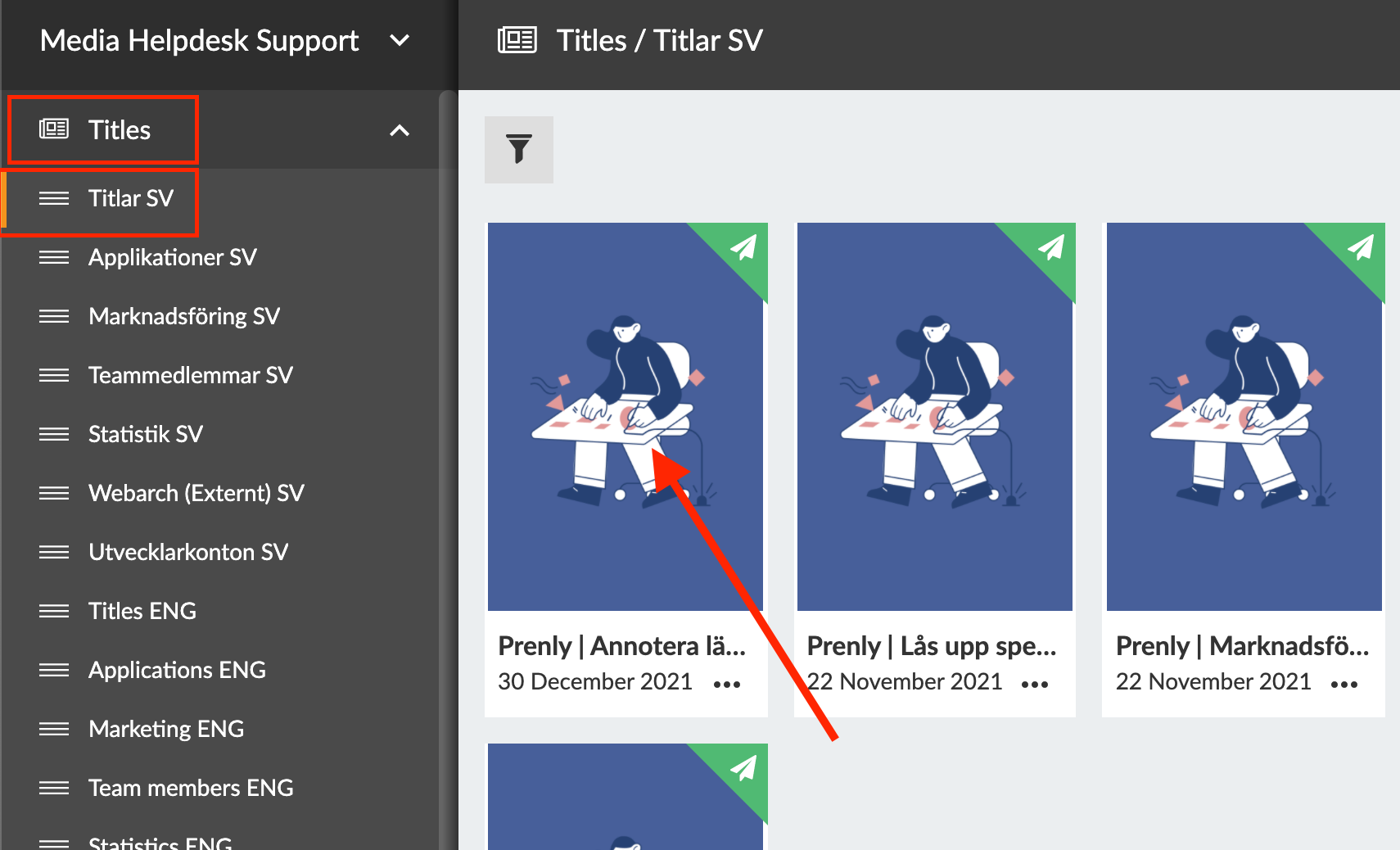
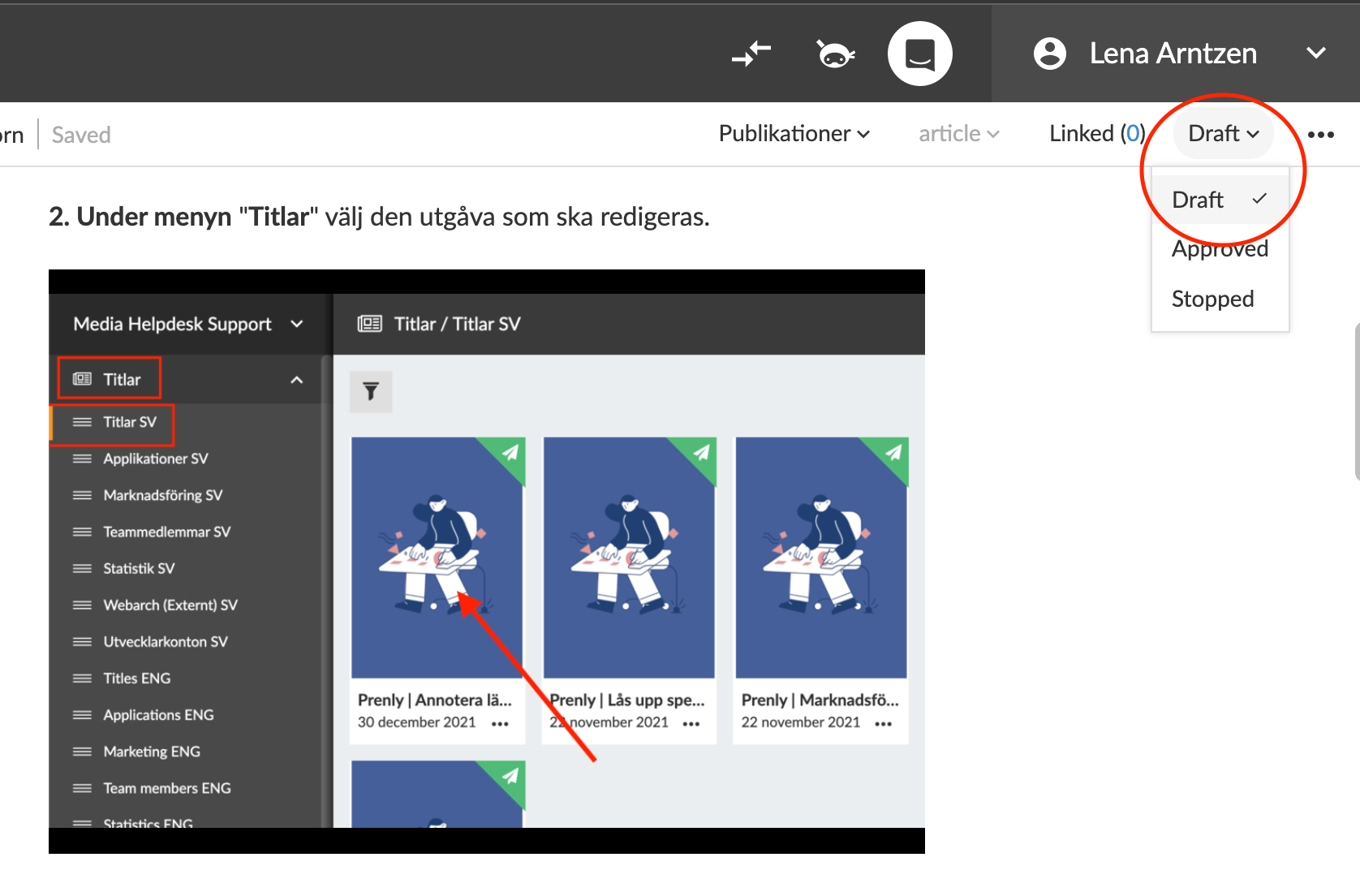
2. In the Titles menu, select the issue you want to edit.
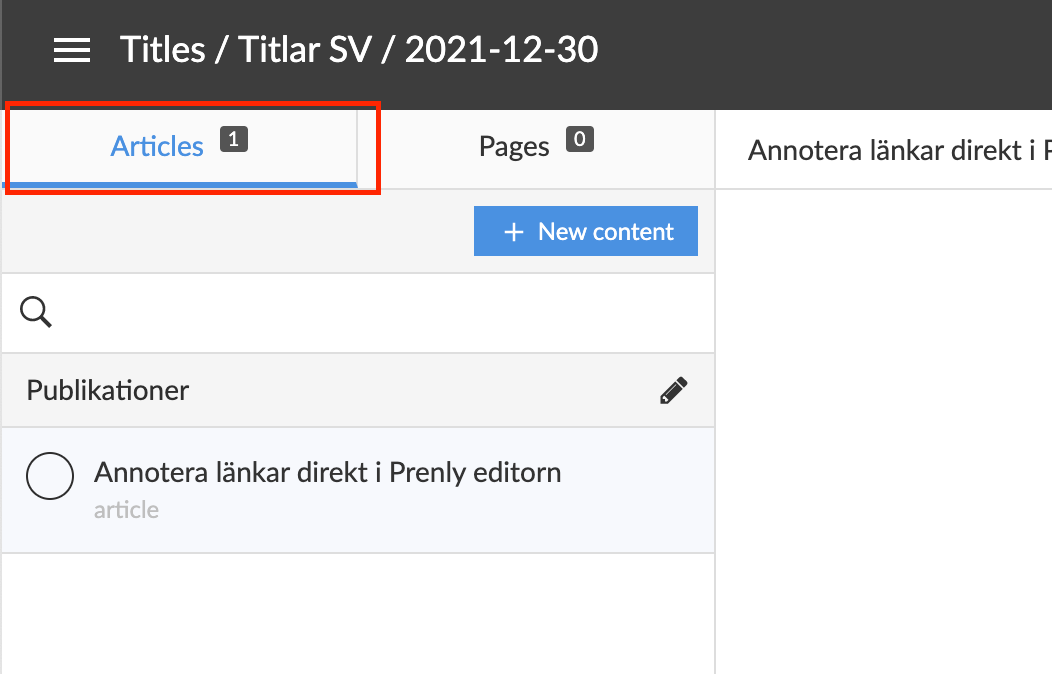
3. Inside the issue, make sure that you have selected Articles in the menu on the left and not Pages.
4. In the menu on the right, change the edition from Approved to Draft.
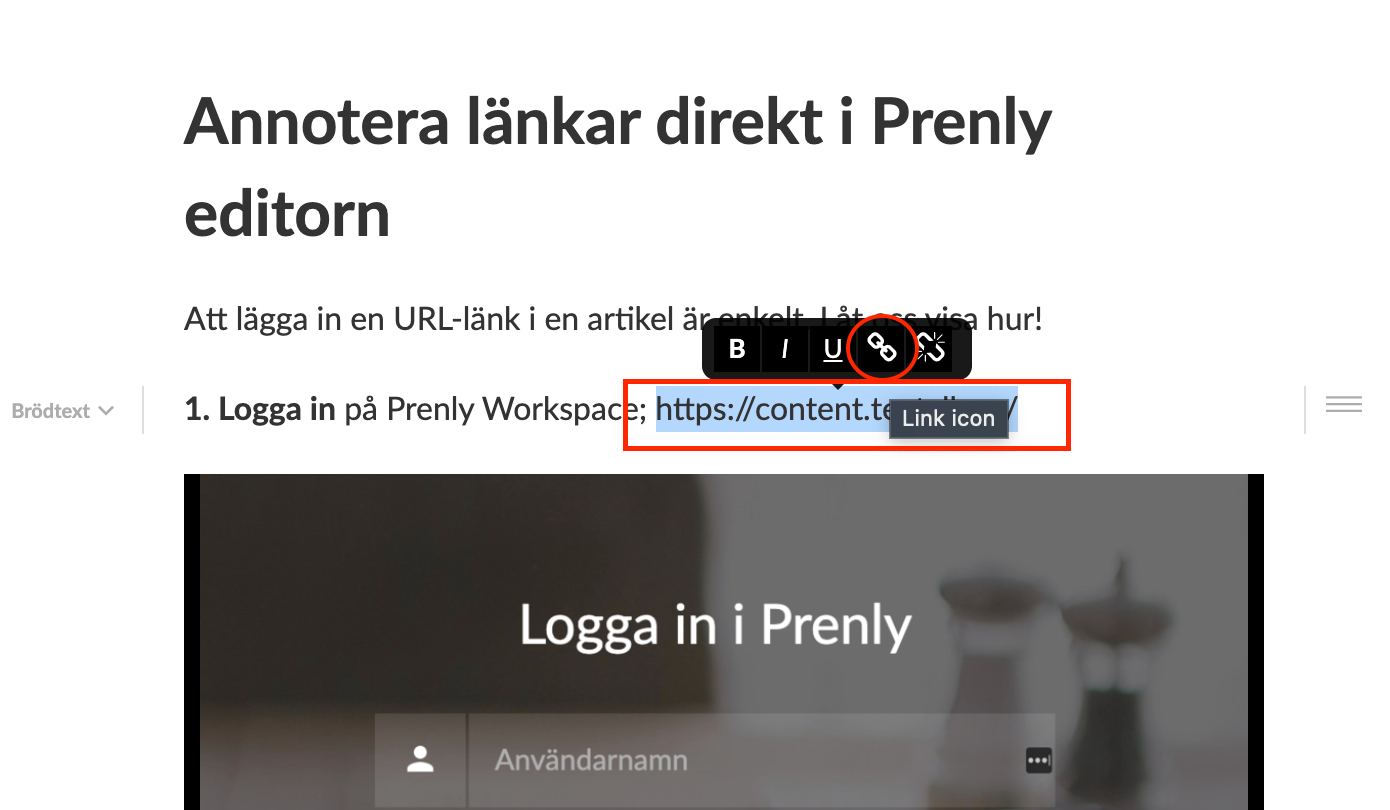
5. Select the text, sentence or URL link to be annotated and then right-click and a new menu will appear above the text. Click on the chain icon.
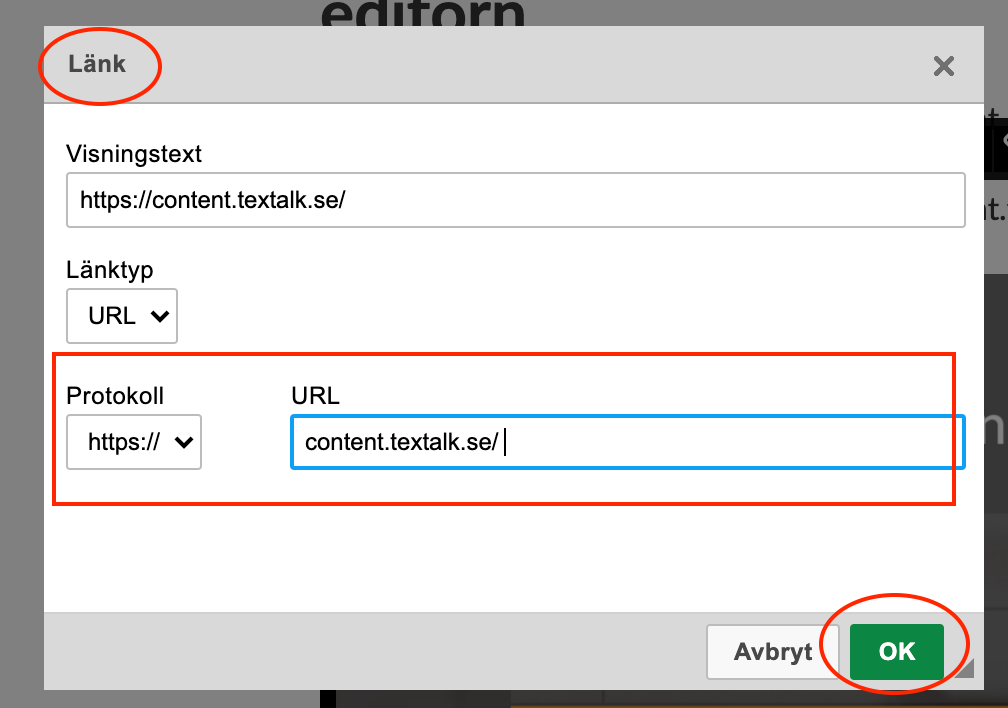
6. In the box Link under the URL menu, insert the link you want to annotate. To save, click OK.
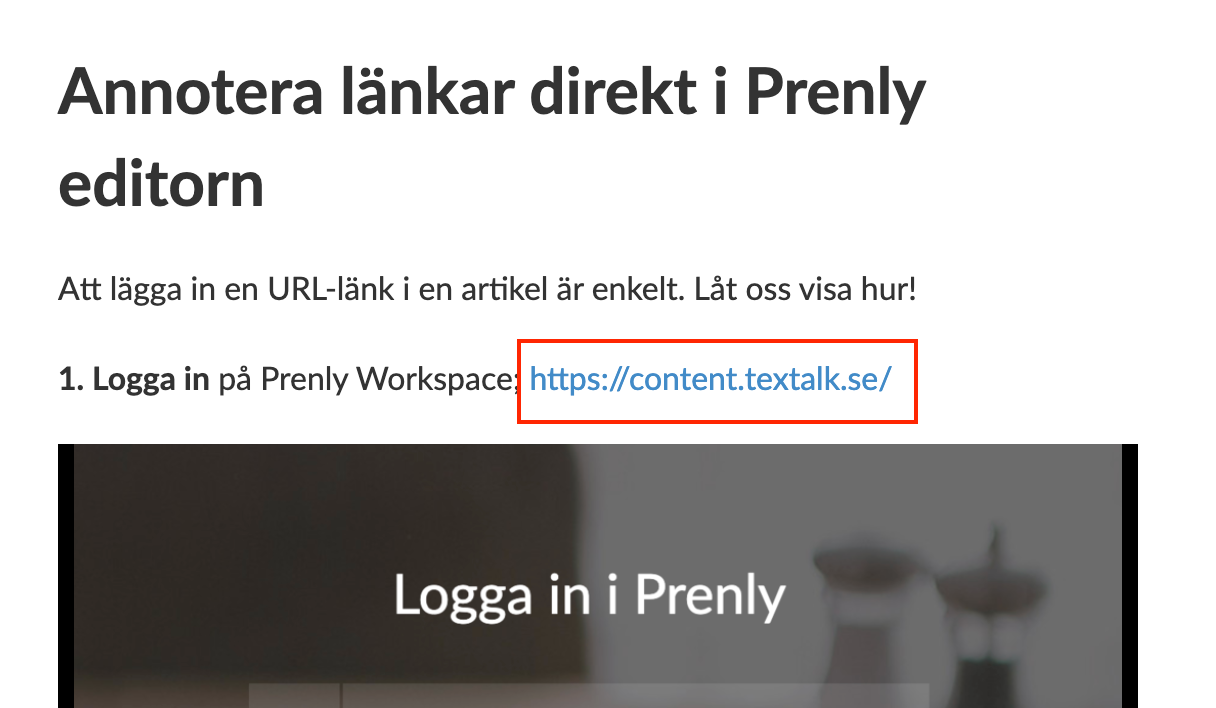
7. When you have saved the text, sentence or link you annotated, it will change colour to blue, which is the correct behaviour.
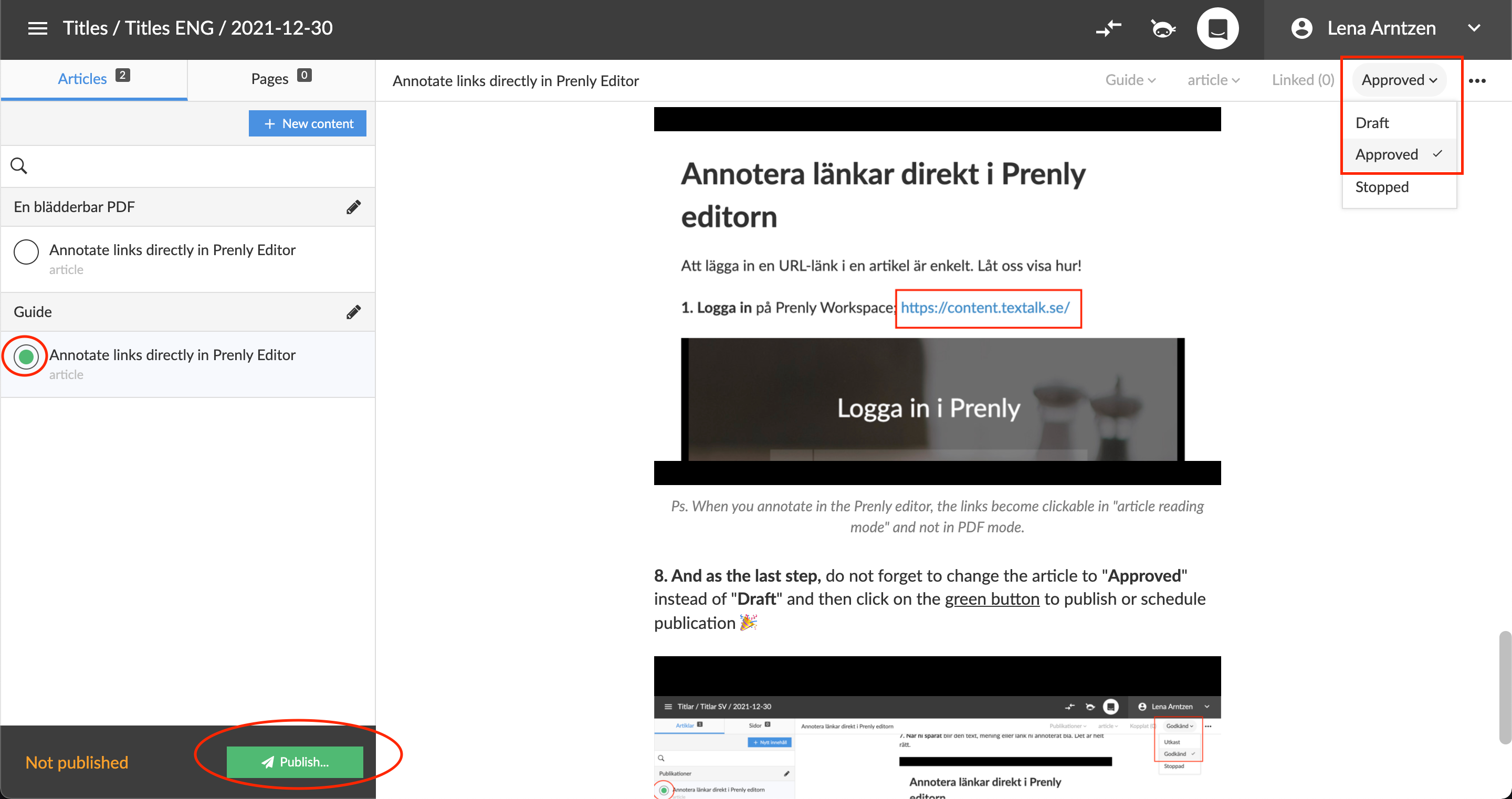
8. And as the last step, do not forget to change the article to Approved instead of Draft and then click on the green button to publish or schedule publication! ?