Add video to article - Prenly
Here's how to add a video to an article in Prenly Workspace.
1. Log in to Prenly Workspace
2. Select an existing publication (that contains articles) or create a new article
3. Choose to edit an existing article or create a new one
4. Create a new paragraph and click the video icon ▶️ (see image).
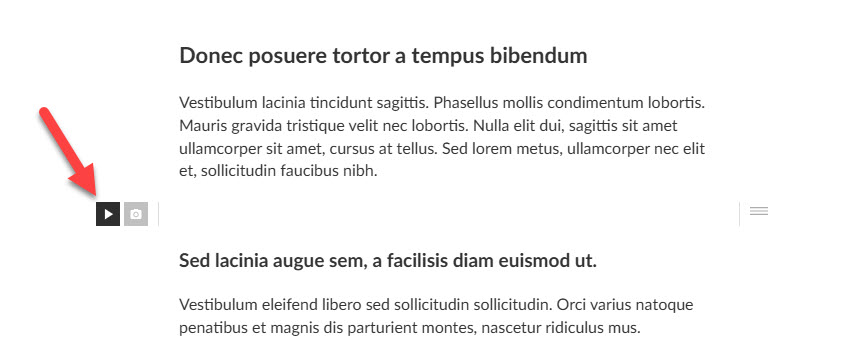 Click on the video icon
5. Paste the embed code in the field for the video you want to add. In some cases, you can also paste a link that will render automatically.
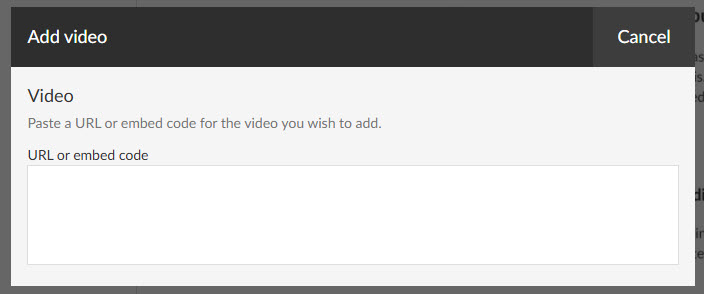
This is an example of what an embed code might look like:
<iframe width="560" height="315" src="https://www.youtube.com/embed/youtubeid" title="YouTube video player" frameborder="0" allow="accelerometer; autoplay; clipboard-write; encrypted-media; gyroscope; picture-in-picture; web-share" referrerpolicy="strict-origin-when-cross-origin" allowfullscreen></iframe>
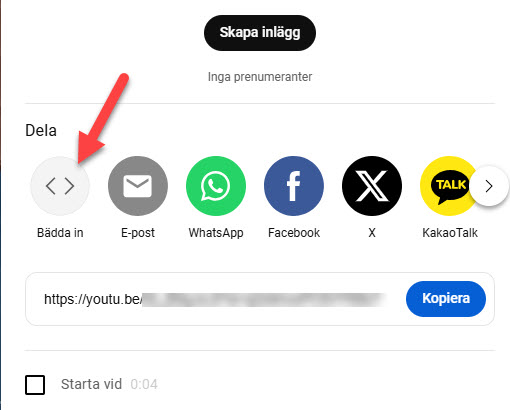
If you use Youtube Shorts, for example, there is no option to copy an embed code by default. However, there is a workaround so that you can generate such a code.
Just replace the word shorts in the link with watch. Then go to the link to find the embed code as on regular Youtube clips.
For example
https://www.youtube.com/shorts/{video-id} will then become https://www.youtube.com/watch/{video-id}
If everything works, you should see your video rendered in the article like the example video below. You can adjust the width via the icons above the video.
Good luck!