Add fact boxes to an article - Prenly
Preparations
Start by logging into Prenly Workspace.
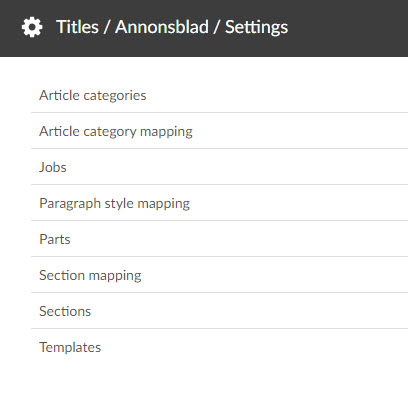
Select a title in the left menu and click Settings (a gray square or gear icon) in the upper right corner.
Now you see a list.
Click on Article categories.
Click on the button Add Artice Category
Give your article part a name (for example "Factbox") and set Article type to Article part.
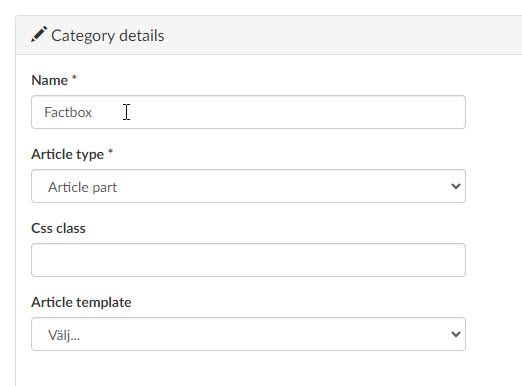
Click Create
Create or locate the article to have a fact box
Navigate again to the title where you want to create your fact box.
Open the issue where this article is to be placed or is placed.
The fact box will now be created separately, and then linked to the article where you want it to appear.
Create the Fact Box
Click on New Content and New Article in the In the Articles-tab.
Create the content for your fact box, i.e. write the title, text and/or add media files.
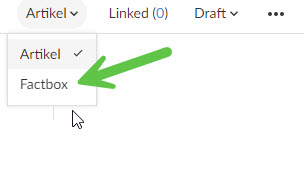
At the top right is a menu/drop-down. Click on it and select your new article part (in the example it was named 'Factbox').
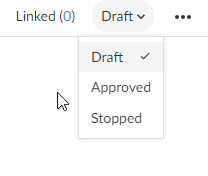
When the fact box is ready, navigate back to the article that will receive the fact box. Make sure the article has a Draft status, if not, change it to this.
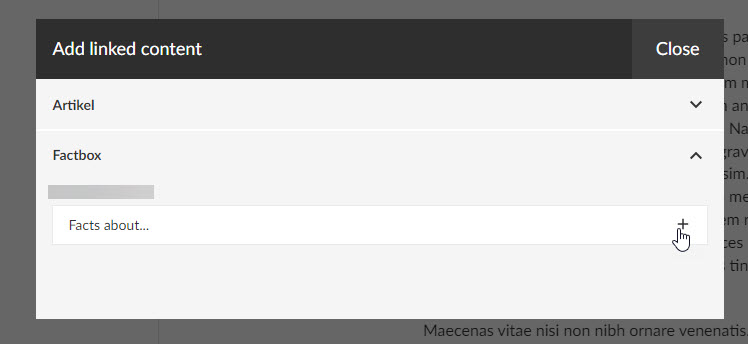
Then click Linked. Here you can expand the section that you named, for example, "Factbox" and select your newly created factbox by clicking on the + (plus sign).
Once that's done, you can close the modal.
In the menu item Linked you should now be able to see a one (1) and when you click on the arrow you can see your fact box. Click on the pen if you want to edit your fact box.
Change the status from Draft to Approved and publish the article. Navigate to the article in your application, and when you open the article, you can see your fact box.