Menu settings for the app (custom tabs) - Prenly
You can create your own menu in your app. It is possible, for example, to add external links, cookie and privacy policies. For each menu item, you can choose from a number of different icons.
Required app version:
Android: 11.6.0
iOS: 10.9.0
Note that some of the icons require newer versions.
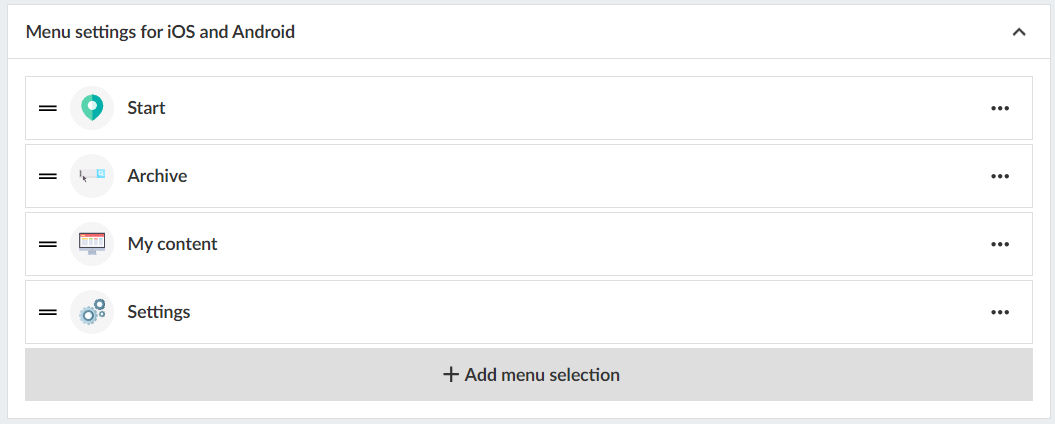
Menu settings for iOS & Android
You can go in at any time and edit how you want your menu to look.
To manage your menu in Prenly workspace here is a quick guide:
1. Log in to your Prenly Workspace account
2. Go to "Applications"
3. Select the application you want to manage the menu for
4. Click on "Menu" on the right
5. Select "Menu Settings for iOS and Android"
6. Manage your menu by drag and drop, add menu items or edit existing content
Note: If the setting "Title page" is activated in Prenly Workspace, it may take one of the available places depending on how the settings look before.
Add / change menu items
1. Click on "add menu" choice
2. Choose external link (or podcast if you have this feature in your agreement)
3. Enter a name
4. Select icon (note that some icons are only available in specified releases)
5. Click "add"
6. Drag the object to the desired position
Change the icon or name of a menu item
Click on the bar or select edit. Enter name, select icon and "update".
Change order of menu items
Click on a beam and hold down the mouse button. Drag the object to the desired position.
Remove menu items
Click the three dots and delete to remove a menu item you have added. System links cannot be deleted.
Enable browser navigation
If the external page does not provide its own back/forward navigation, enable Browser navigation to add a small navigator.
What can be added in the custom tab
The content of the custom tab can be as simple as an external web page or you can develop an advanced and mobile optimized set up.
Read more →
Guidelines to avoid problems with future app updates
• Never create links to a page where you can subscribe, or include further links, buttons, or content that could lead to a purchase or subscription page.
• The page cannot mention Google, Android, or related services on an Apple device - and vice versa, pages viewed on Android devices should not reference Apple or iOS.
JS Bridge
When adding a custom tab with external content, it cannot communicate with Prenly by default. To enable this, you can use our JS Bridge, which lets the custom tab access app information (e.g. user consent).
Read more →
Technical details
Isolation
External pages in a custom tab are isolated from the app. Menus, tracking, and cookies are not shared. If needed, you must provide your own menu on the external page
Link behaviour
Link behaviour follows standard HTML:
• Default or non-"_blank" → opens in the same view.
• "_blank"→ opens in a new browser tab/WebView.
• SPAs usually keep users in the same view without _blank targets.
HTTP Headers
HTTP headers are additional information exchanged between your browser (or app) and a website to guide how requests and responses are handled. They are part of the HTTP protocol and are managed automatically by browsers, servers, or frameworks. Every webpage interaction includes request and response headers.
There are three Prenly custom HTTP headers a customer can use to help identify the device and user status, allowing tailored content for each user, where each custom HTTP header needs to be enabled:
• "X-Prenly-Client-Type" → "android" or "iOS"
• "X-Prenly-Is-Logged-In" → 1 (yes) / 0 (no)
• "X-Prenly-Logged-In-User-Id" → user ID (special approval required, GDPR)