Create a CMP module - Prenly
According to new digital laws all web pages and Android / iOS apps must have a consent dialog for the collection of cookies and other personal data. This is easily done using a CMP (Consent Management Platform) module that you create in Prenly Workspace. Here we show you how!
You can also use external CMP platforms where we currently support Didomi, Cookiebot, Usercentrics and Sourcepoint. Read more
To configure external CMP platforms in Prenly Workspace you will need them to be activated for your application. Please contact our Help desk and ask them to activate the CMP platform you want to use.
Please note that you have to be a workspace owner with full rights in order to create these modules and modify the consent dialogs.
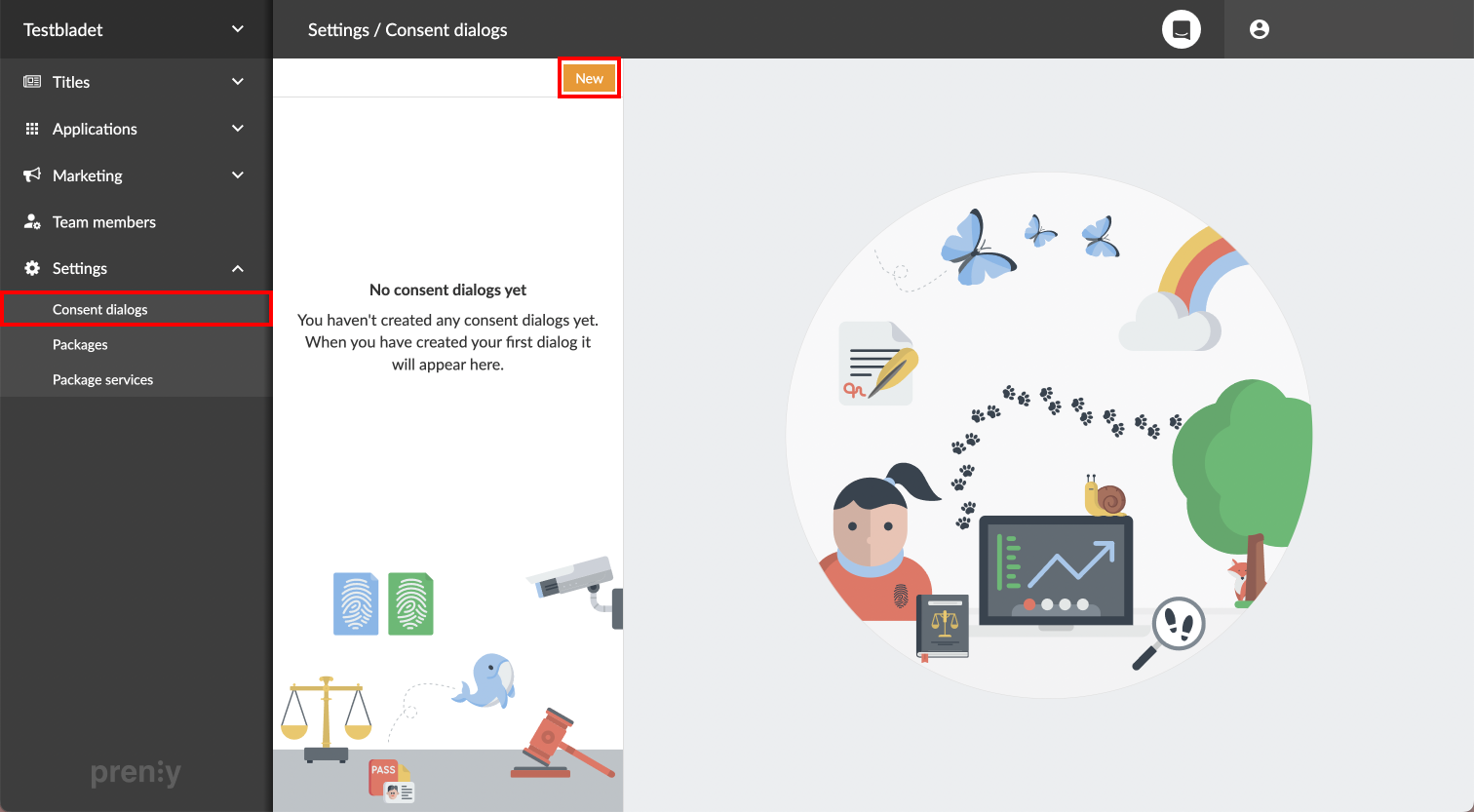
Start by logging into Prenly Workspace and going to Settings -> Consent dialogs -> click New.
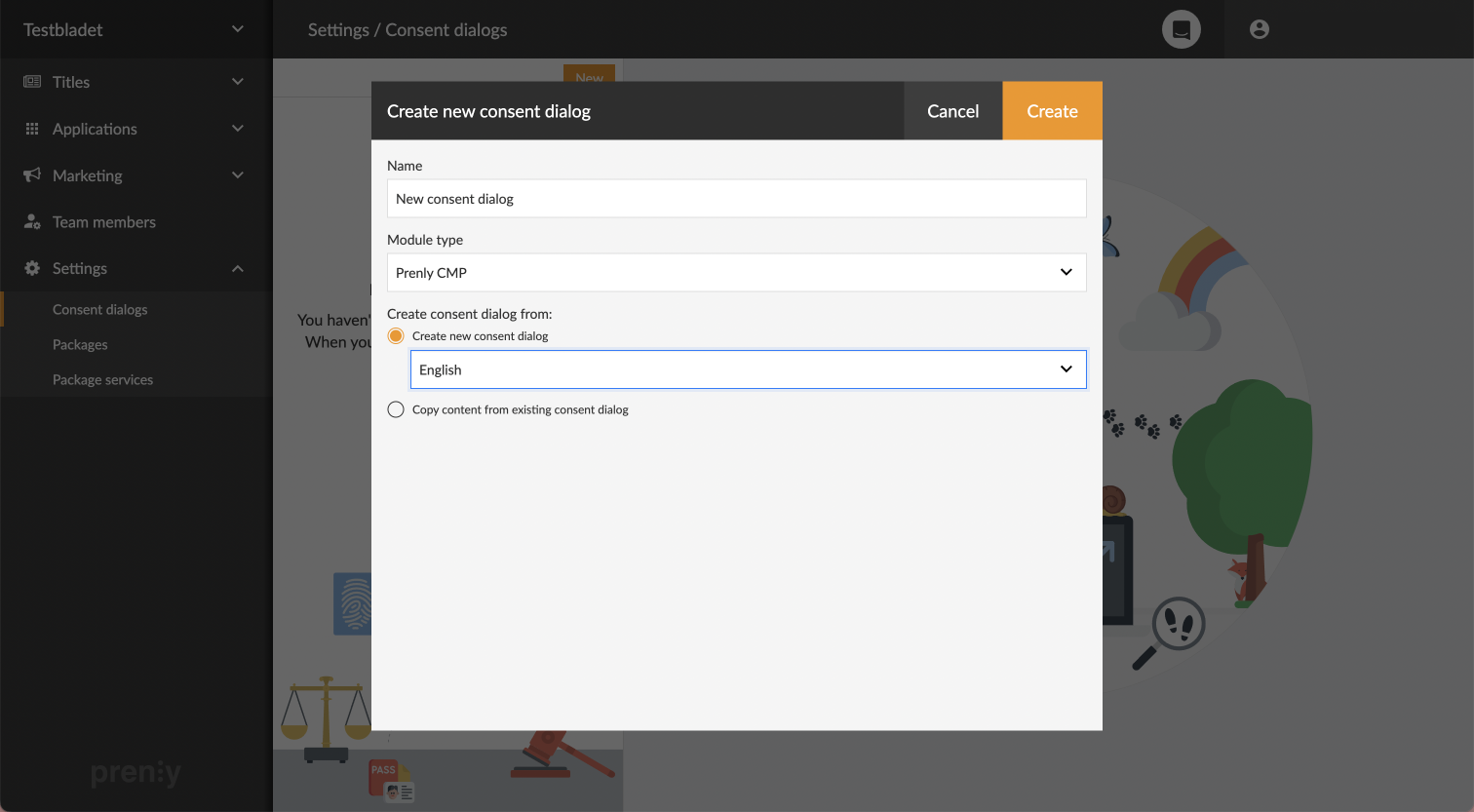
A window appears in which the module is to be created. Start by filling out its desired name. Then choose which type of module you want to use. (Prenly CMP is the standard preset, but you can also choose Didomi, Cookiebot or Usercentrics if these are used by your company and have been enabled) Finally you have to choose if you want to generate a new standard dialog text (and also in what language) or if you want to copy the dialog from an already created module. Then click Create to create the module.
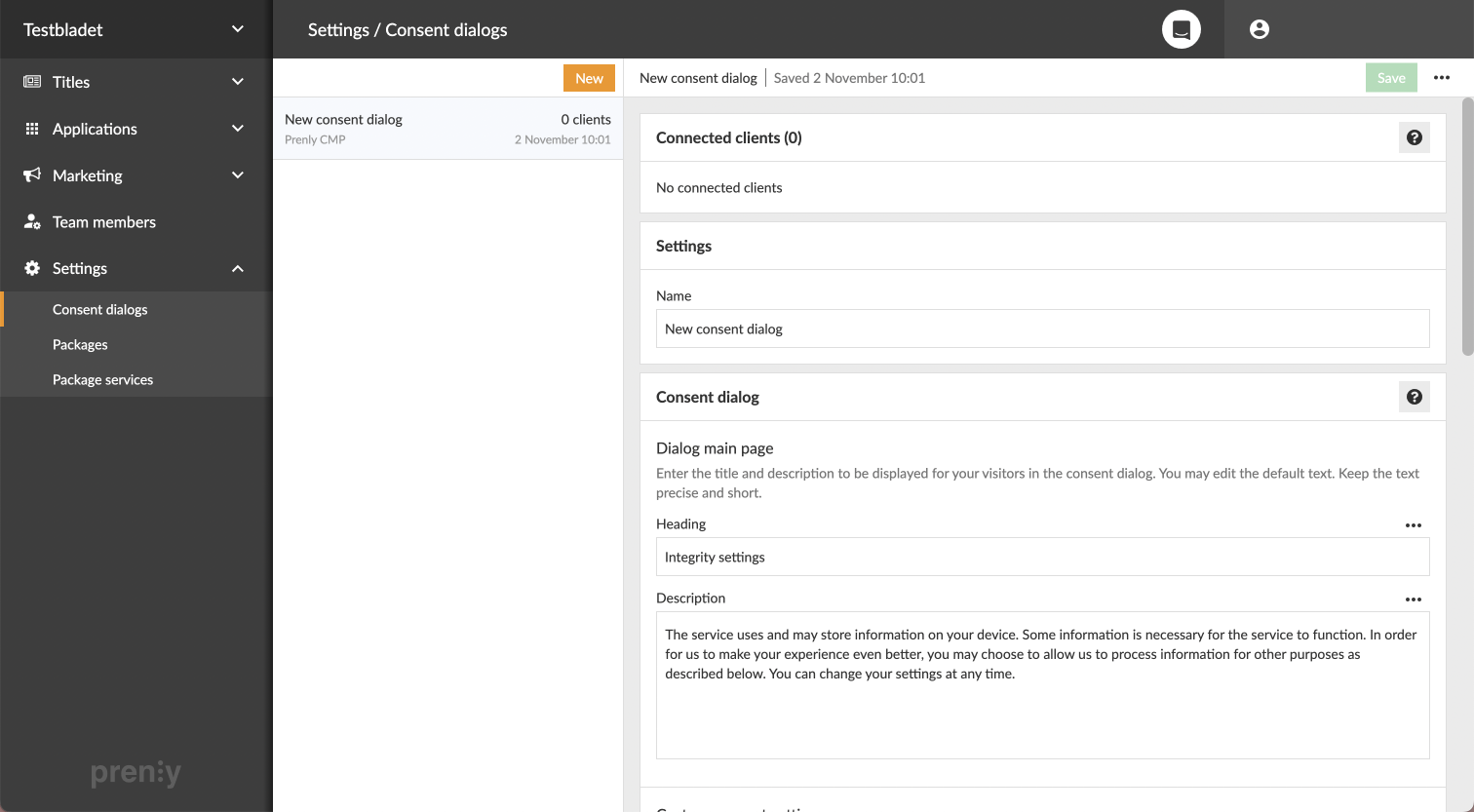
When the module is created it ends up in the list of available modules. If we click on a module in this list we can see which clients it's connected to and add new connections.
Here we can also edit the module's name and title - and to a large extent configure its contents by scrolling further down on the page. Next to each segment are helpful explanations that we can read by clicking the question mark buttons or the three dot menus further down. Using the three dot menus we also have the option to reset each segment to its default text.
If we want to save changes made we click the green Save button in the upper right corner. If we want to delete a module we can find this option when we click the three dot menu next to the Save button.
Should the module already be connected to a client when we want to save our changes, the next step will be affected depending on how extensive our changes are. If we try to save major changes, a new consent from the users will be required. If, on the other hand, only a misspelling or similar is corrected, the changes are simply saved in the module without new consent being required.
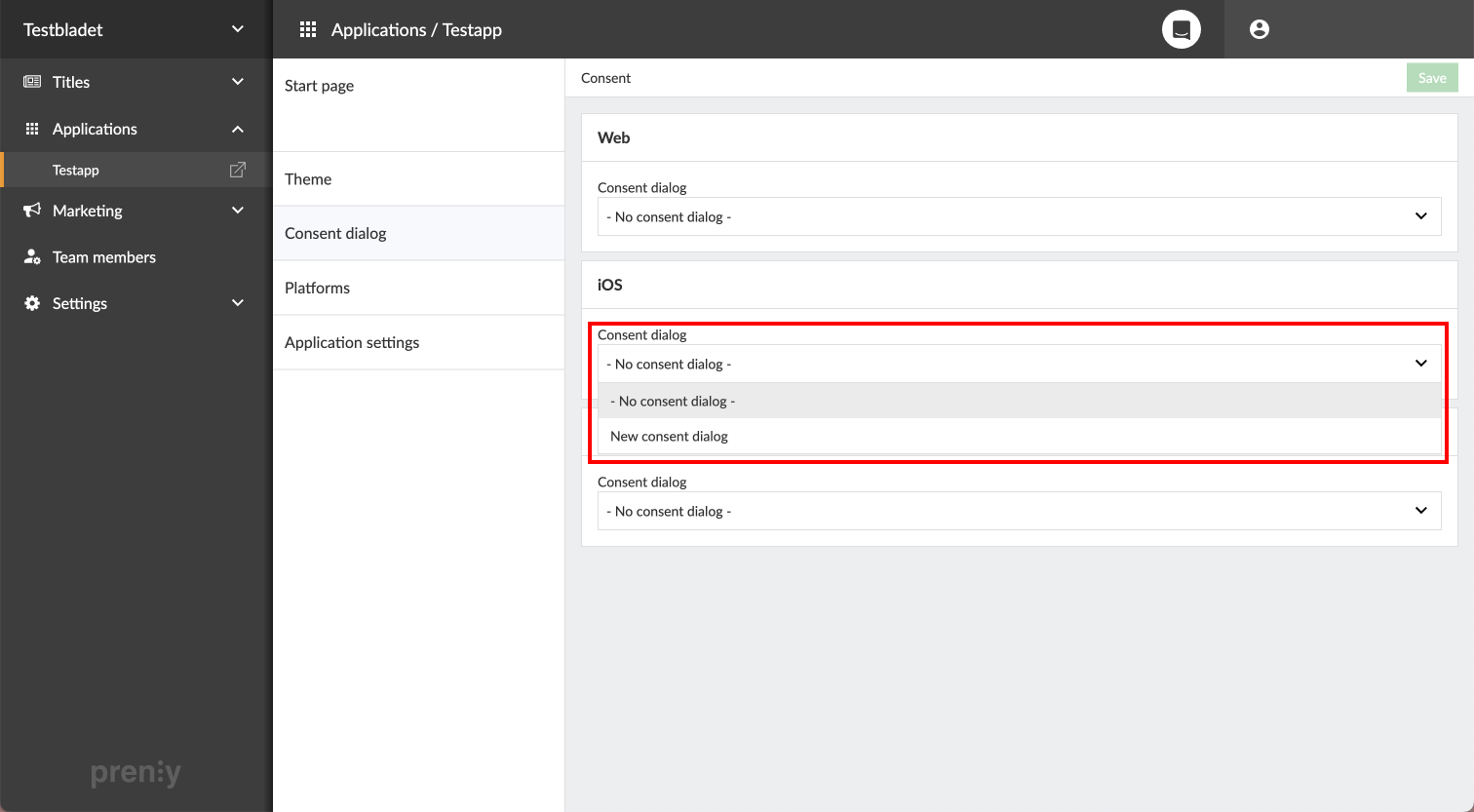
To connect the newly created module with an application, we go to Applications -> select an application -> Consent dialog. There we easily connect any client (Android / iOS / Web) with a consent dialog by selecting the module in the respective client's list. Finally, save the new connection using the green Save button in the upper right corner. All done!
Please note that the consent dialog will not appear on the mobile applications until they are updated to version 11.0.4 (Android) and 10.0.0 (iOS). For the web app, however, the dialog is displayed immediately.
For those who use Google Tag Manager
If your e-magazine uses its own Google Tag Manager container to send statistics for the e-magazine, you need to ensure that the user's consent in Prenly CMP is respected.
This instruction assumes you are familiar with Google Tag Manager.
Step 1. Create a new variable
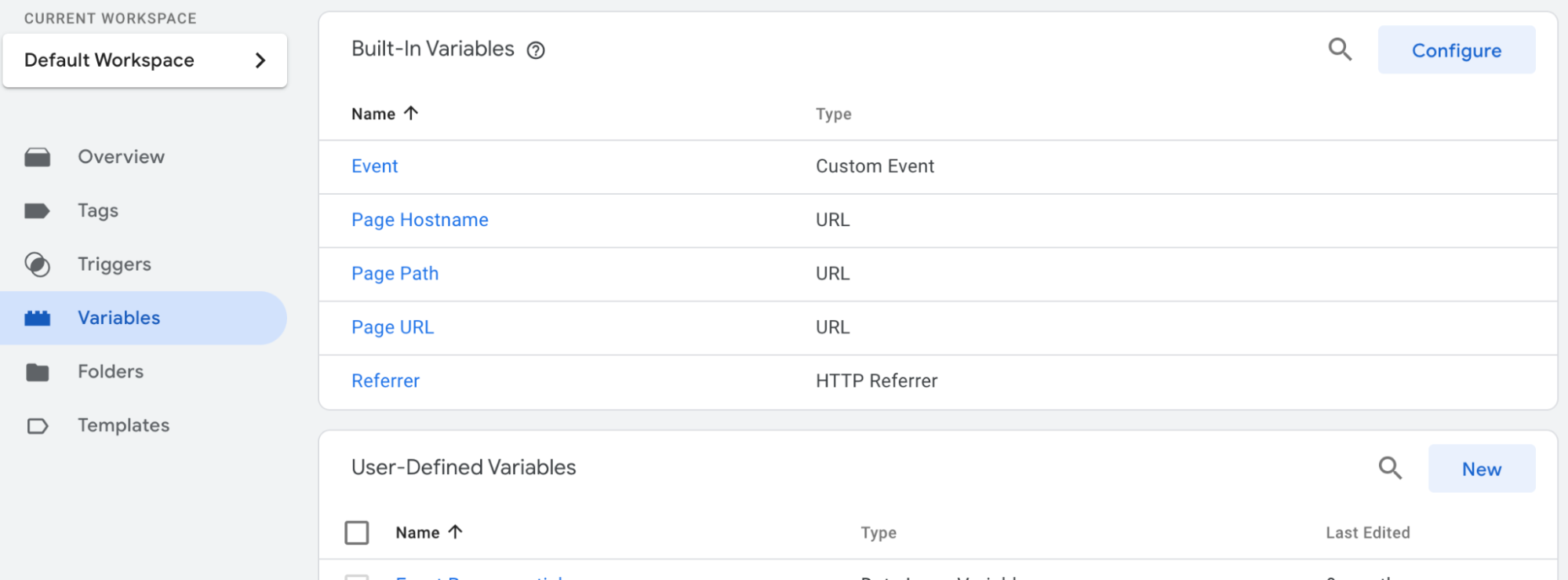
Press “Variables” in the left menu.
Go to “User-defined variables” and press “New”
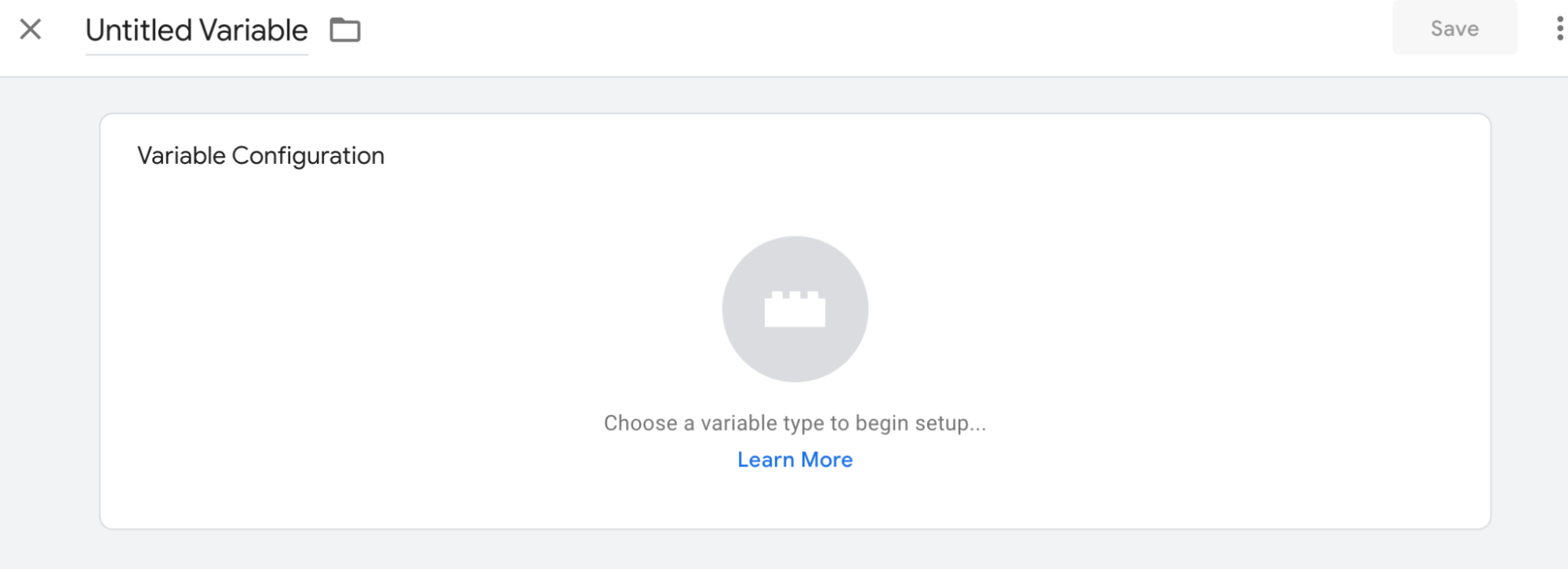
Select variable type "Data Layer Variable"
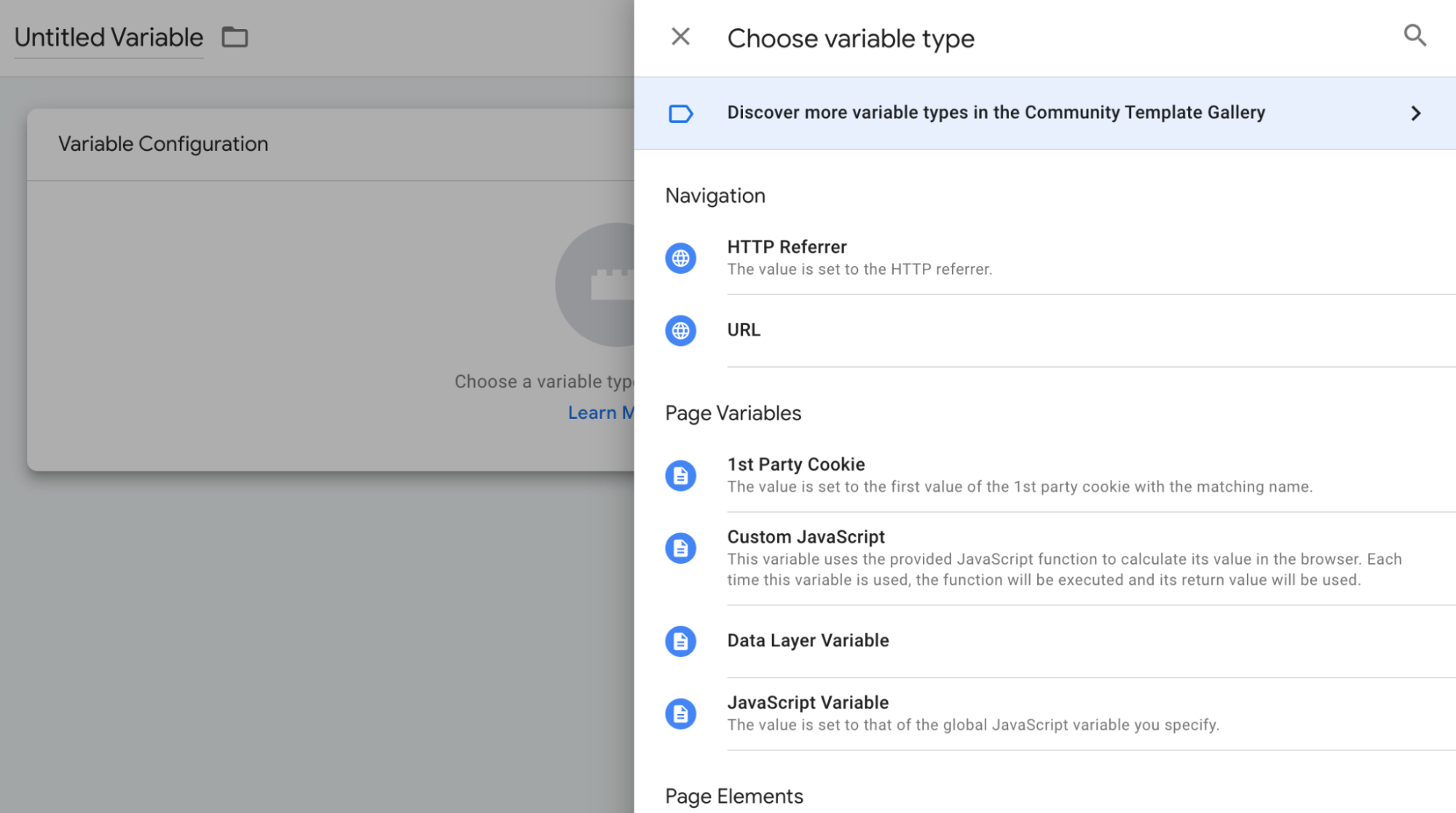
Select variable type "Data Layer Variable"
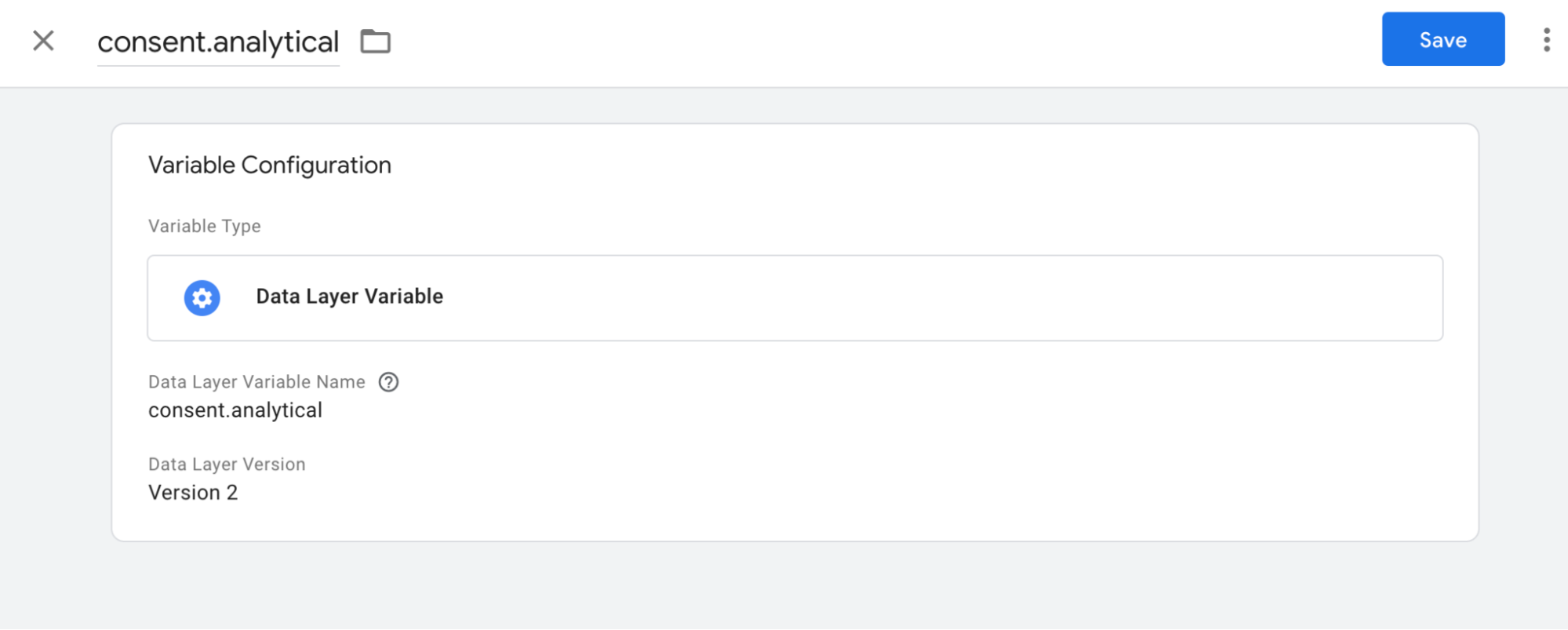
Enter “consent.analytical” in the “Data Layer Variable Name” field
Also enter “consent.analytical” as the name at the top.
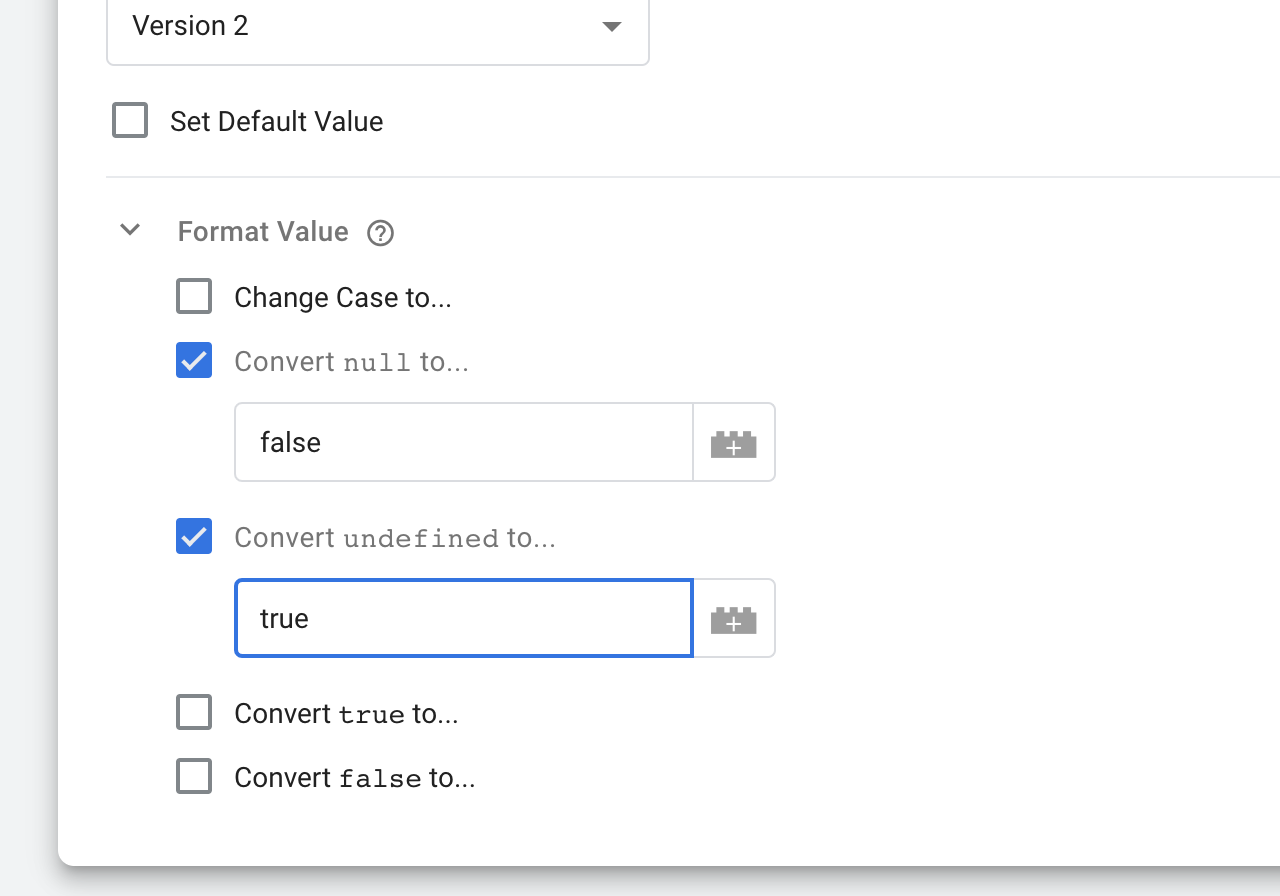
Tap the box so it expands and you can select “Format value”
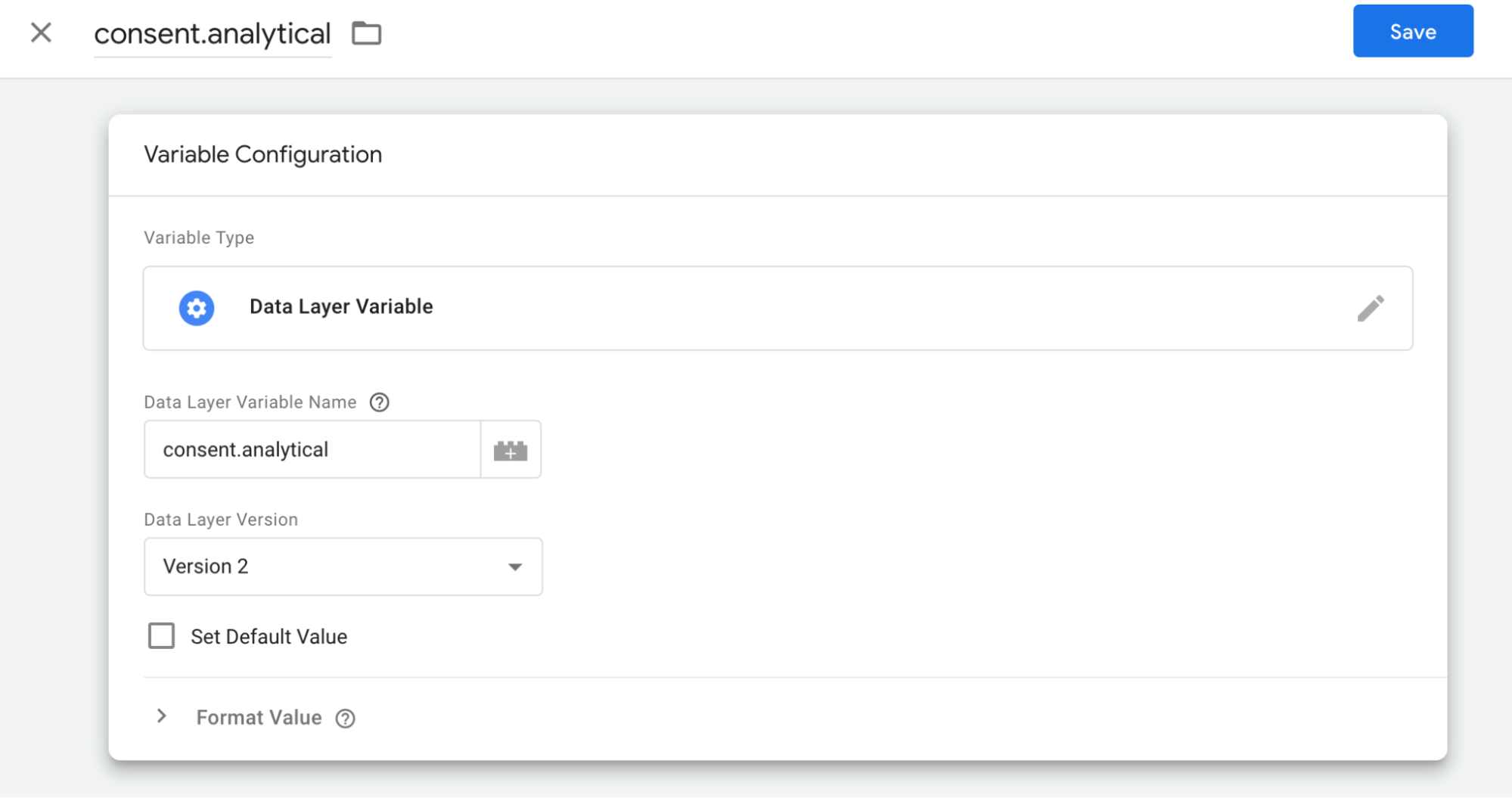
Set "Format Value" so that the value “null” is set to “false” and the value “undefined” is set to “true”.
Press "Save".
You have now created your data store variable. It appears in the list of "user-defined variables".
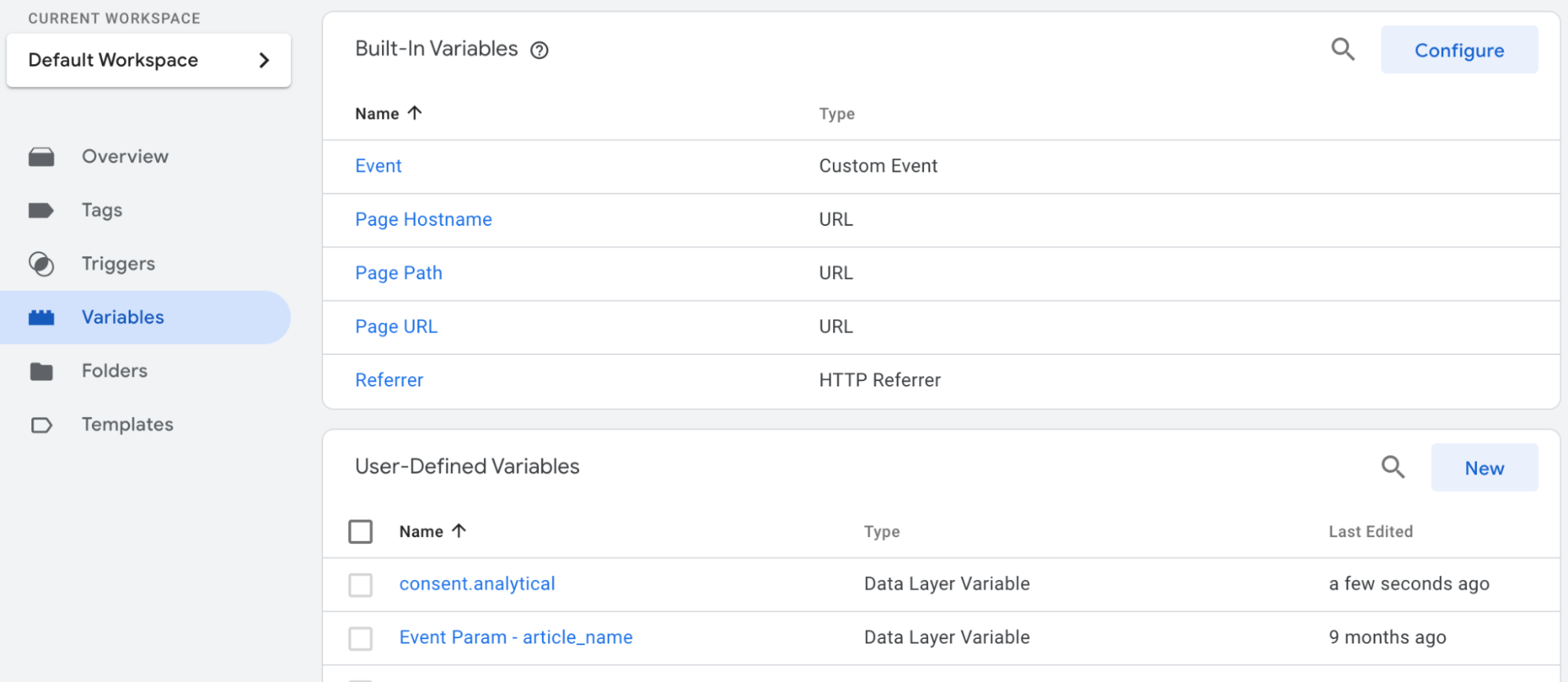
Step 2. Set your “triggers”
Now set your triggers to include the variable as a condition.
Tap on “Triggers” in the left menu.
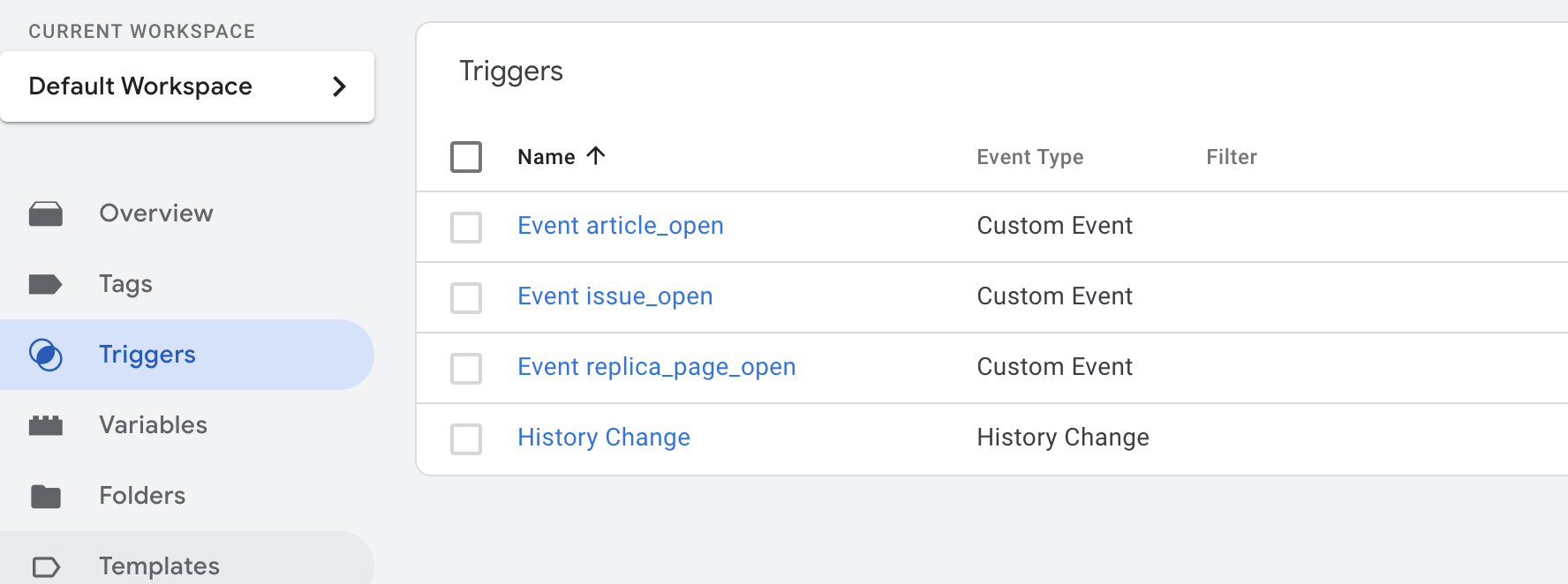
Open each trigger and add a condition that “consent.analytics” should be set to “true”. This means that the visitor's choice to reject statistics is respected.
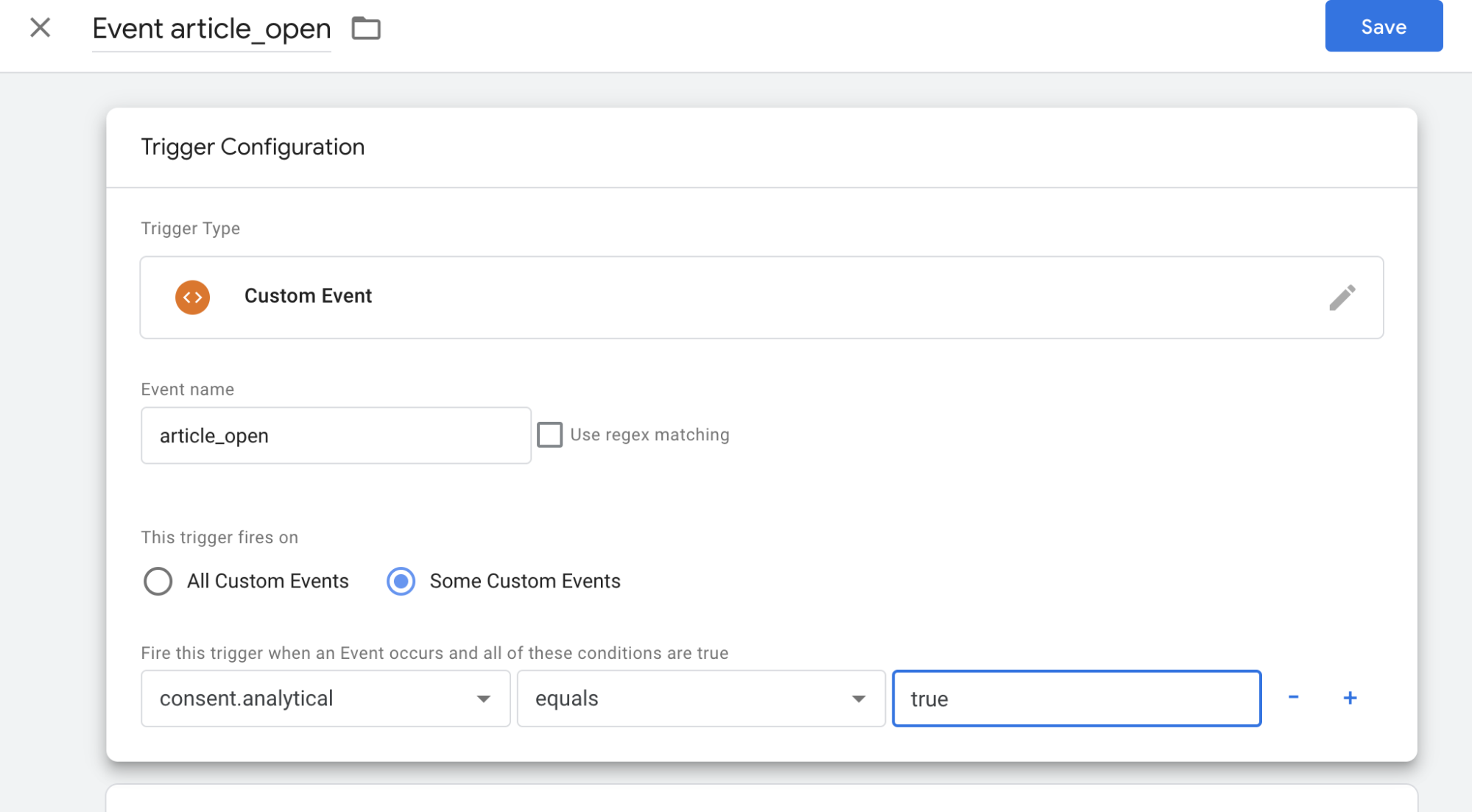
Add this condition to all your triggers. Save them.
Check that all triggers have this condition.
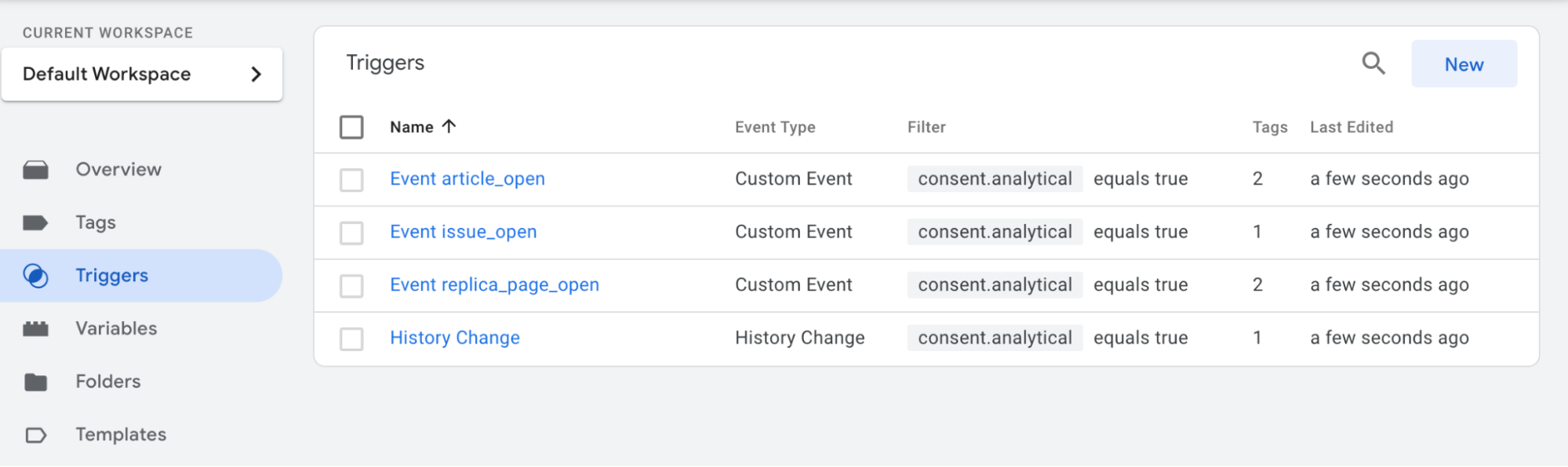
Step 3. Preview and publish your container
If you have not yet added the Prenly CMP module to Workspace, the statistics will work as usual.
Once you have added the Prenly CMP module, statistics will not be sent from the users who chose to reject statistics in their privacy settings.
If you use other types of tags, there are also data layer variables for “consent.marketing” and “consent.functional”.
The instruction above only applies if you use your own GTM container that you administer yourself. In that case you must configure GTM before activating the CMP module in Prenly Workspace.
If you are using Prenly's Google Tag Manager container GTM-5B22TM then this configuration is done by us at Textalk Media. The same applies if your statistics are sent via Firebase for web. In these cases, you only need to activate the CMP module in Workspace.