Change color theme in the web app - Prenly
Easily adjust the color theme to match your brand on both web and mobile (iOS & Android), for both light and dark mode. You configure your colors in Prenly Workspace in two places: Color Theme and Start page. Settings made on Start page apply only to the start page, while settings made under Color Theme apply to the entire app.
We’ll start with Color Theme.
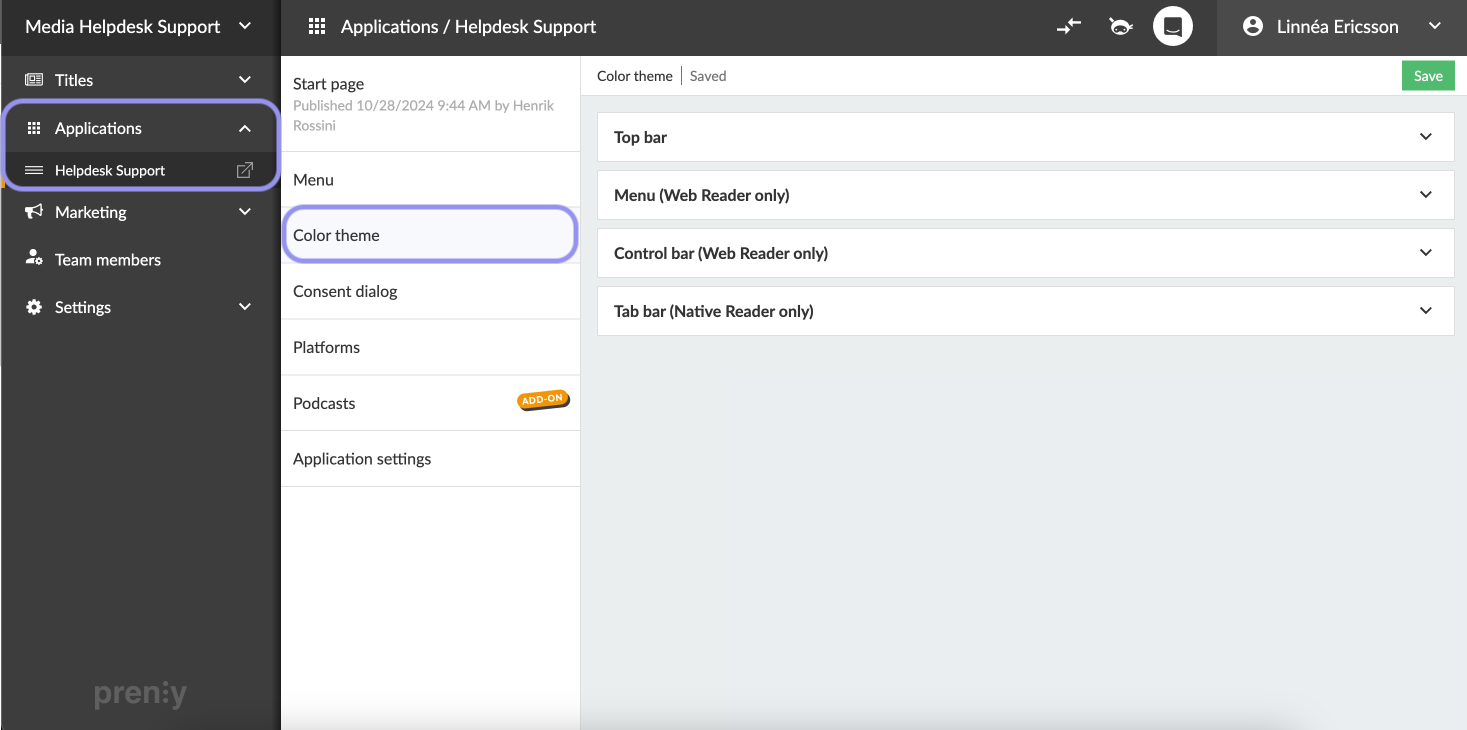
Log in to Prenly Workspace and select Applications, then choose the application you want to modify. Click Color Theme to display the color settings.
Here you will find five categories:
Top Bar - Change the color for both web and mobile apps
Menu - Web only
Control Bar - Web only
Navigation Bar - Mobile app only
Podcast - Change colour of premium labels for both web and mobile apps
Buttons and Links – Both web and mobile apps
 In the color settings, you will find a color picker where you can choose which color to use in light mode and dark mode.
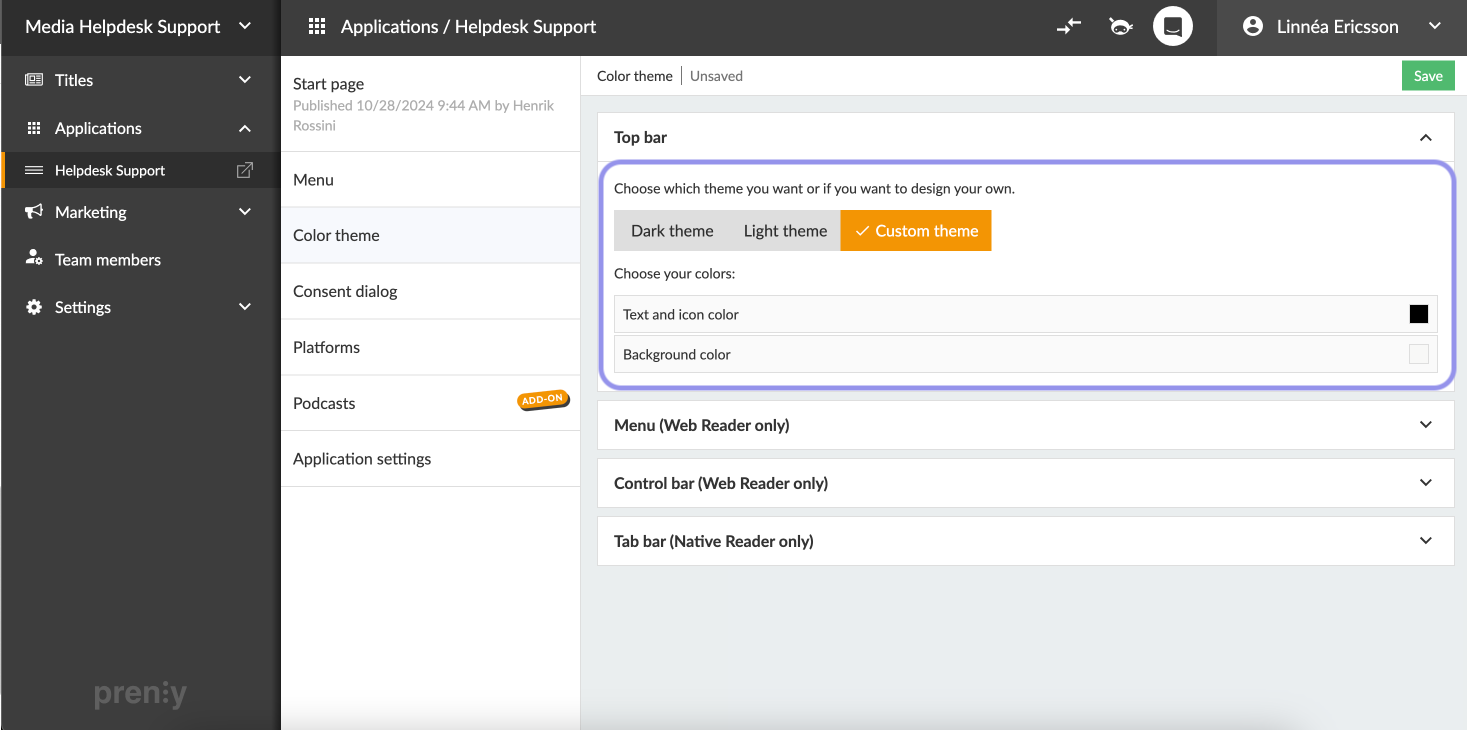 Choose color theme per area. If choosing Custom theme you can experiment with the color selector.
 Next, go to Start page.
Here you will find all your home page components. Each component includes color options such as background, text, and heading colors. Click on any component and scroll down to Appearance. There you will find a color picker where you can choose which color to use in light mode and dark mode.
For components where you can upload image files, such as the Banner component, you can also choose whether to use the same image in both light mode and dark mode, or upload a separate image specifically for dark mode.
Below the components, you will find Background and Top Bar. There you can configure colors using a color picker for both light mode and dark mode.
You can also upload a Logotype that will appear in the top bar on the Home page. If you upload a logo, it will be used in both light mode and dark mode, or you can choose to upload a separate one for dark mode.
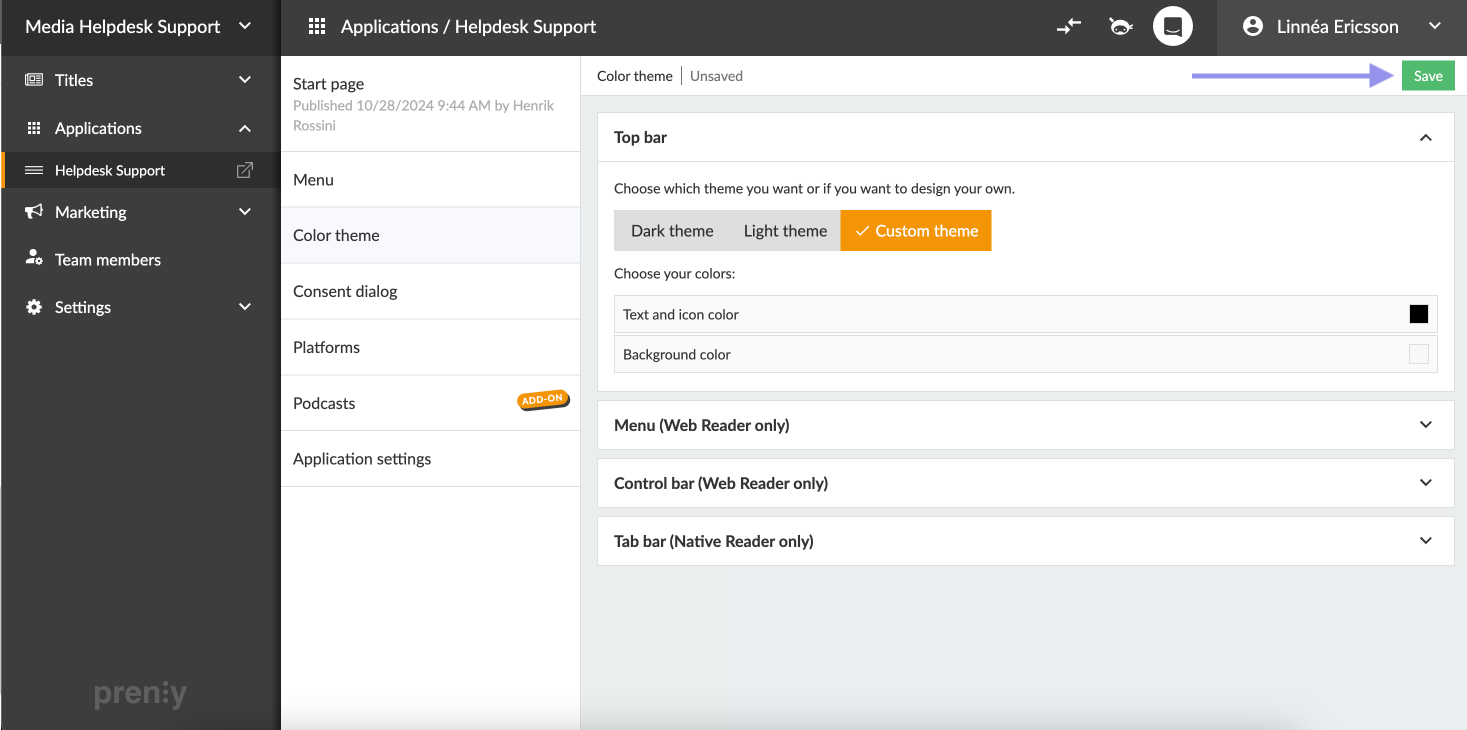
Remember to click Save when you are done.
Don't miss our Color Contrast Checker tool which helps ensure your color choices provide enough contrast so text and elements remain clear and easy to read.