Add a banner component - Prenly
Have you discovered our banner component? It can be used for a number of different purposes:
- Advertising banner
- Promote a special issue
- Link to an information page/FAQ
Here's how to insert a banner component
1. Open the startpage of your application and click Add Component.
2. Select Banner.
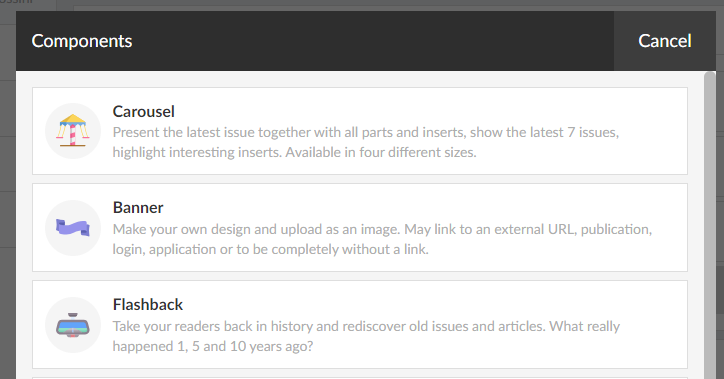
3. Name the component so you know what it contains.
4. Choose the URL for the banner:
External URL
For example a link to a news page or FAQ.
Publication
An existing published publication.
Modal login
The same as the feature Log in with the option of using an image and text.
Application
Link to an iOS or Android application.
No link
If you only want to insert an image.
5. Upload a suitable image for different screen sizes:
- Mobile devices, portrait (rec. width 1024 px).
- Mobile devices, landscape (rec. width 2048 px).
- All devices where nothing else is specified (max 5 MB, rec. width 2048 px).
6. You can choose whether the component should be displayed for a limited time. For example, start showing on Monday and end on Wednesday.
7. Select Update.
8. Select Save and publish.