Google | Validate Account - Prenly
In Google Play Console you will see this banner:
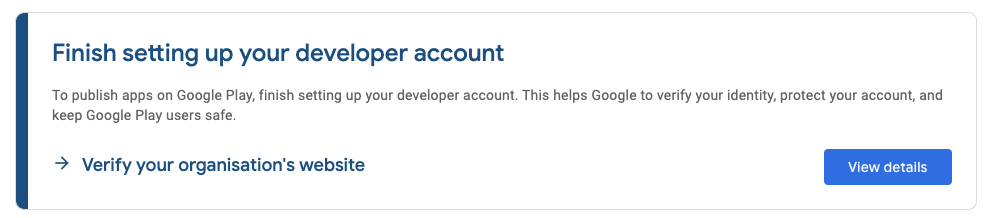
Click on “View details” and you will see the following view:
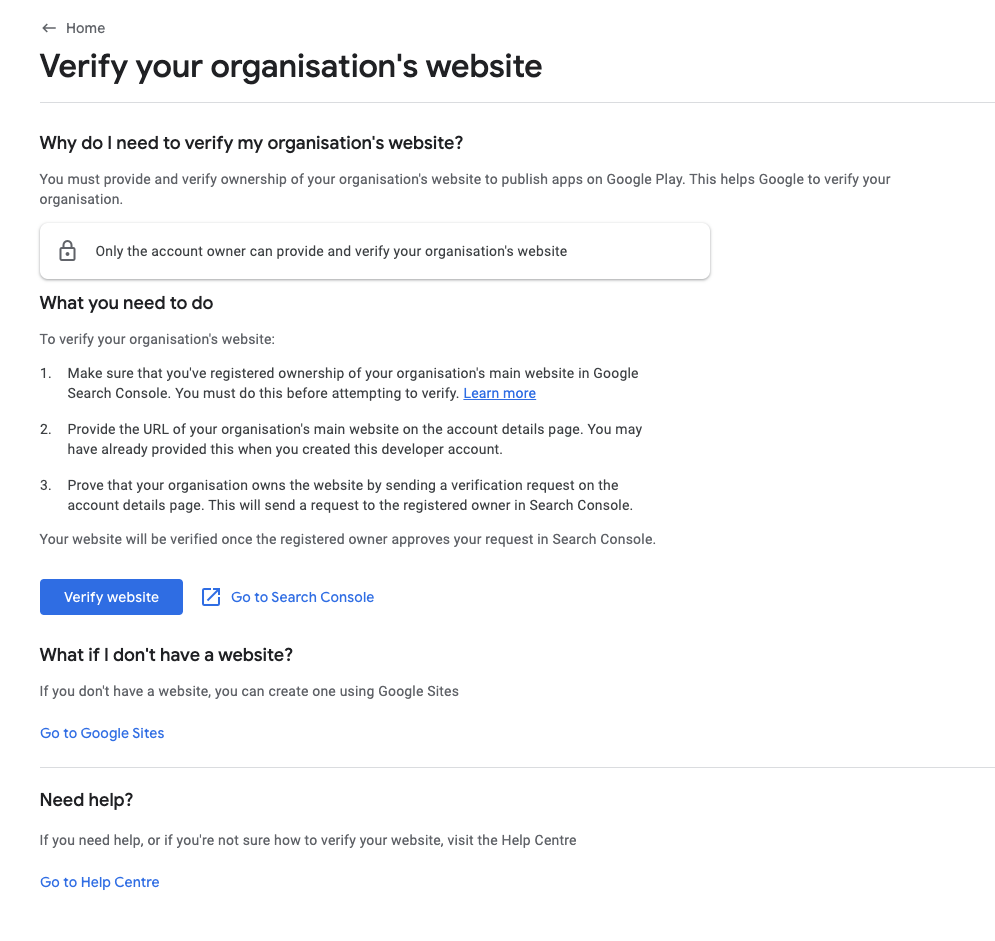
Click on “Go to Search Console”.
In Google Search Console under Domain fill in your company domain (e.g. prenly.com).

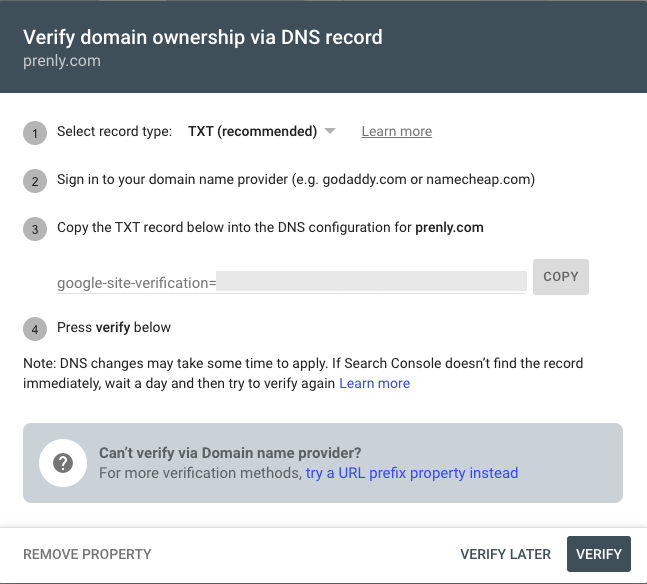
You will see something like this:
...
Google wants you to prove that you own the mentioned domain by adding a special code to your domain’s settings (this is called a DNS TXT record).
Here’s how to do it:
Log in to Your Domain Registrar
• Go to the website where you purchased or manage your domain (e.g., GoDaddy, Namecheap, Cloudflare, or a similar service).
• Log in using your account credentials.
Go to Your DNS Settings
• Once logged in, find the DNS settings or Zone Editor for your domain.
• It’s often located in a section called Manage Domains or DNS Management.
• Look for something like “Edit DNS Records” or “Zone File Settings”.
Add the TXT Record
• Record Type: Select TXT (as shown in the screenshot, this is the record type Google is asking for).
• Host/Name: Some registrars require you to enter @ (this represents the root domain). Others might ask you to leave it blank or enter your full domain name.
• Value/Text: Copy the exact TXT value from the screenshot: google-site-verification=xyz and paste this into the Value or Text field.
Save the Record
• Once you’ve entered the details, click Save or Update.
• The TXT record is now added to your domain’s DNS settings.
...
Verify in Google Search Console
• Go back to Google Search Console.
• Click the Verify button at the bottom of the screen.
• Tip: If on Google Search Console you see graphs and data, that indicates that the txt record has been successful.
Verify in Google Play Console
• In Google Play in the banner showing “Finish setting up your developer account” click on “view details”
• Click on “verify website”
• If this leads you to your account details, scroll down to your organisation's website and click on the button “...”
• Check if the banner on the Google Play Console startpage disappeared
...
Important Notes
• DNS changes may take some time (up to 48 hours) to update across the internet. If verification doesn’t work immediately, wait a few hours and try again.
• If you don’t know where your domain is registered or managed, contact the person or team responsible for setting up your website.•