Apple/Google | Get started reading in the app! - Prenly
Getting started reading the e-newspaper is easy! Start by downloading the app from the App Store or Google Play Store.
The first thing you'll see are some simple instructions on how to read the app.
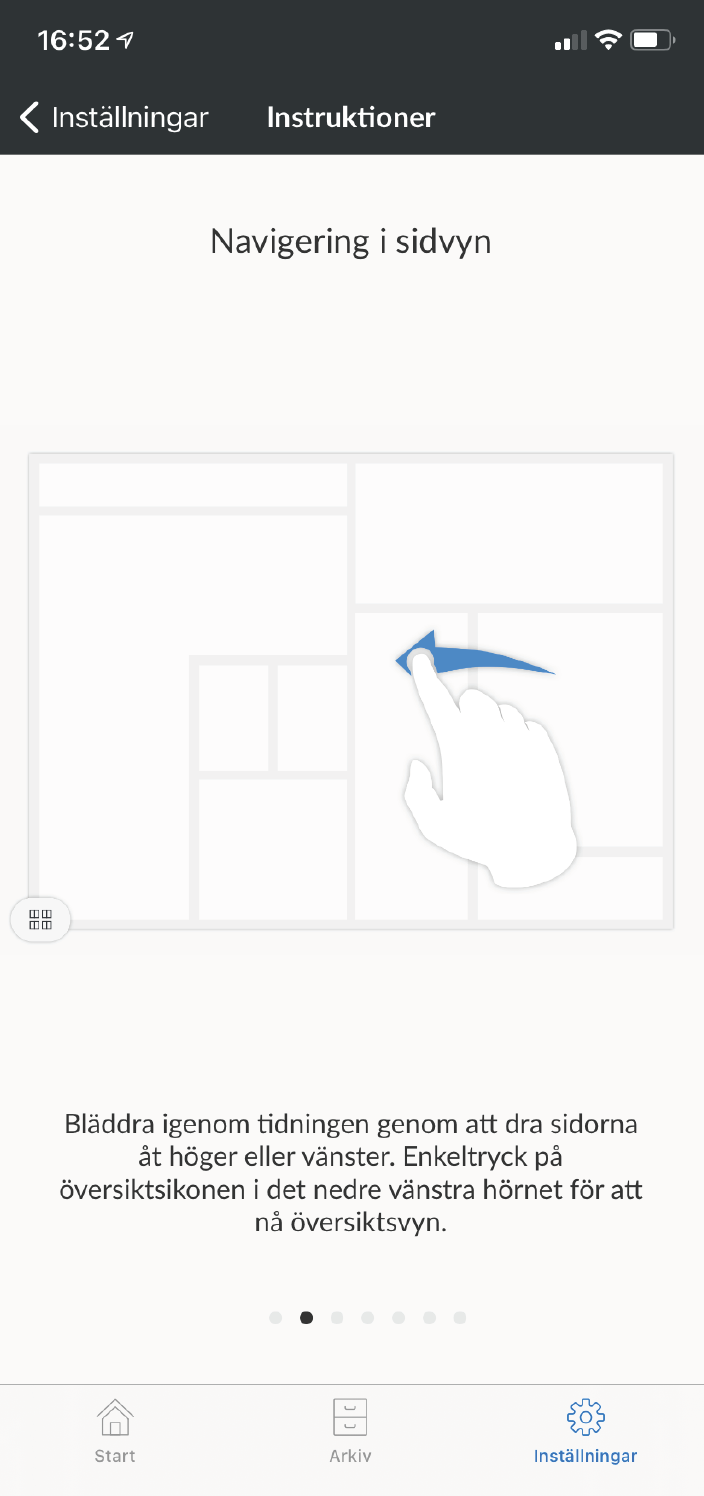
1. Navigate the page view - Scroll through the newspaper by dragging the pages to the right or left. Single-tap the overview icon in the bottom left corner to access the overview.
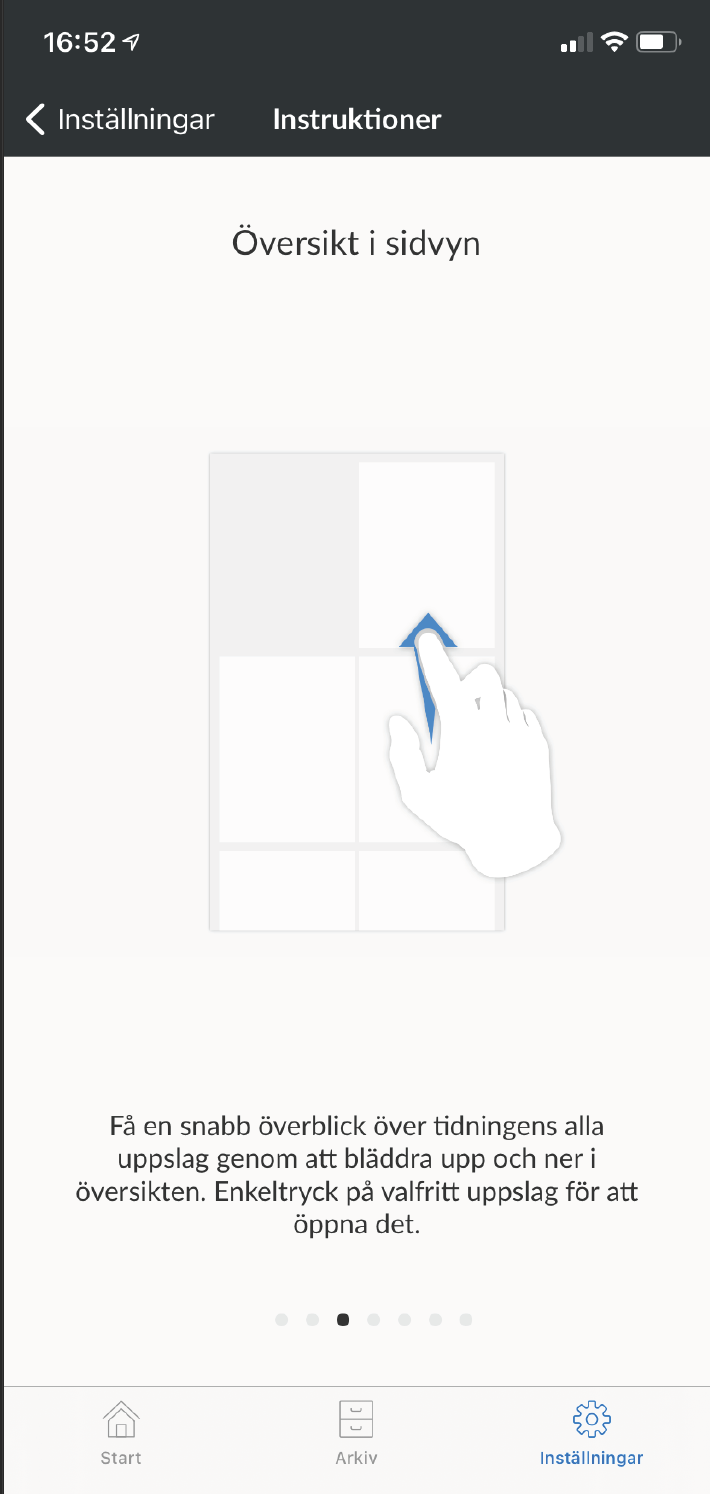
2. Page view overview - Get a quick overview of all the pages of the newspaper by scrolling up and down the overview. Single tap on any page to open it.
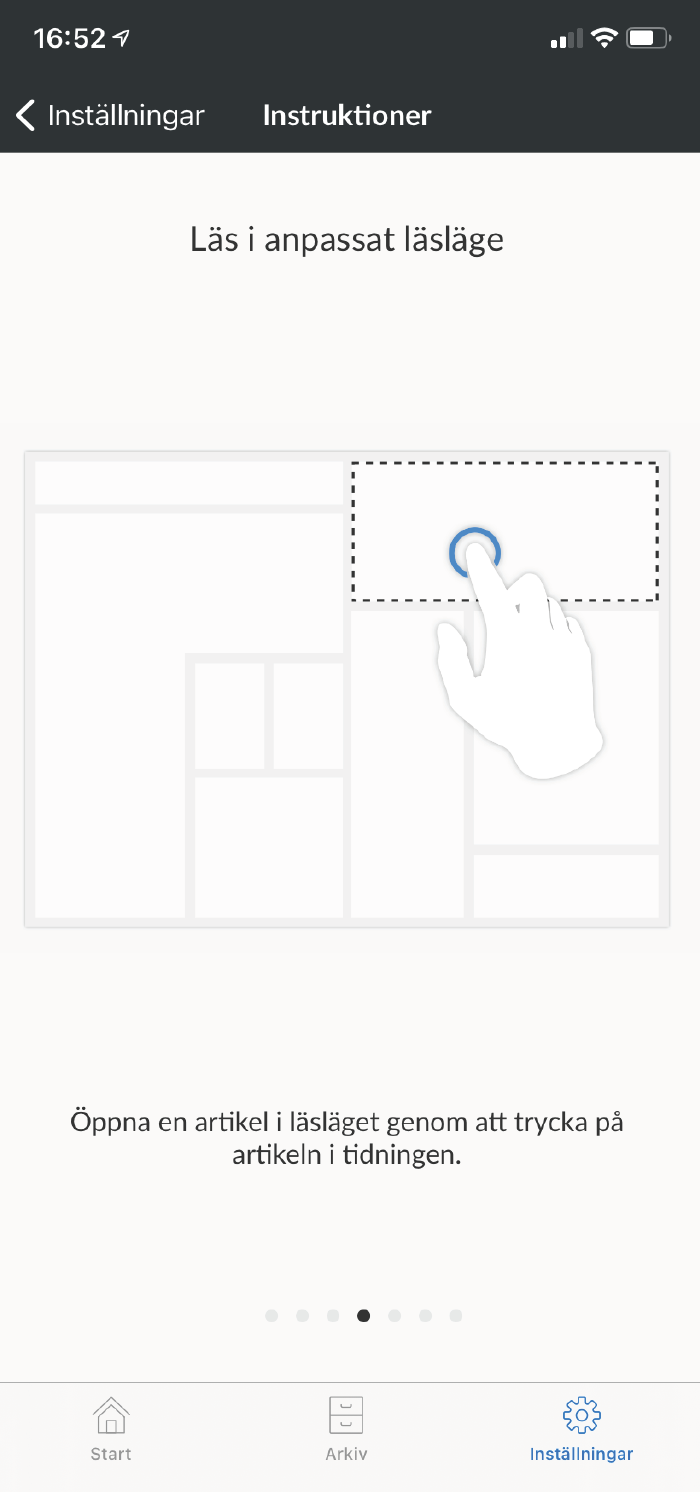
3. Read in customized reading mode - Open an article in reading mode by tapping on the article in the newspaper.
4. Text settings - Adjust the size, shape and background color of the text and turn the speech synthesis on and off by clicking on the text icon in the top right corner.

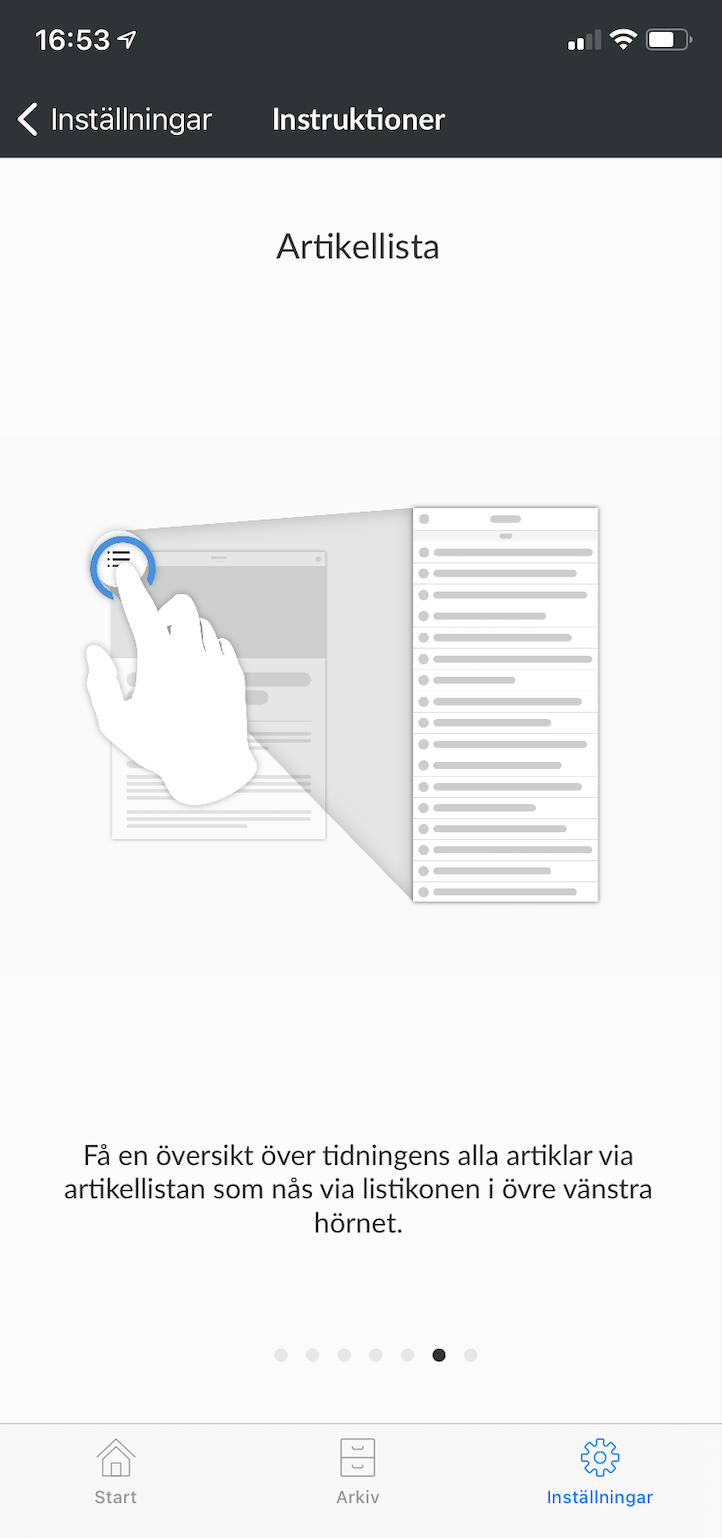
5. Article list - Get an overview of all the articles in the magazine via the article list, which can be accessed via the list icon in the top left corner.
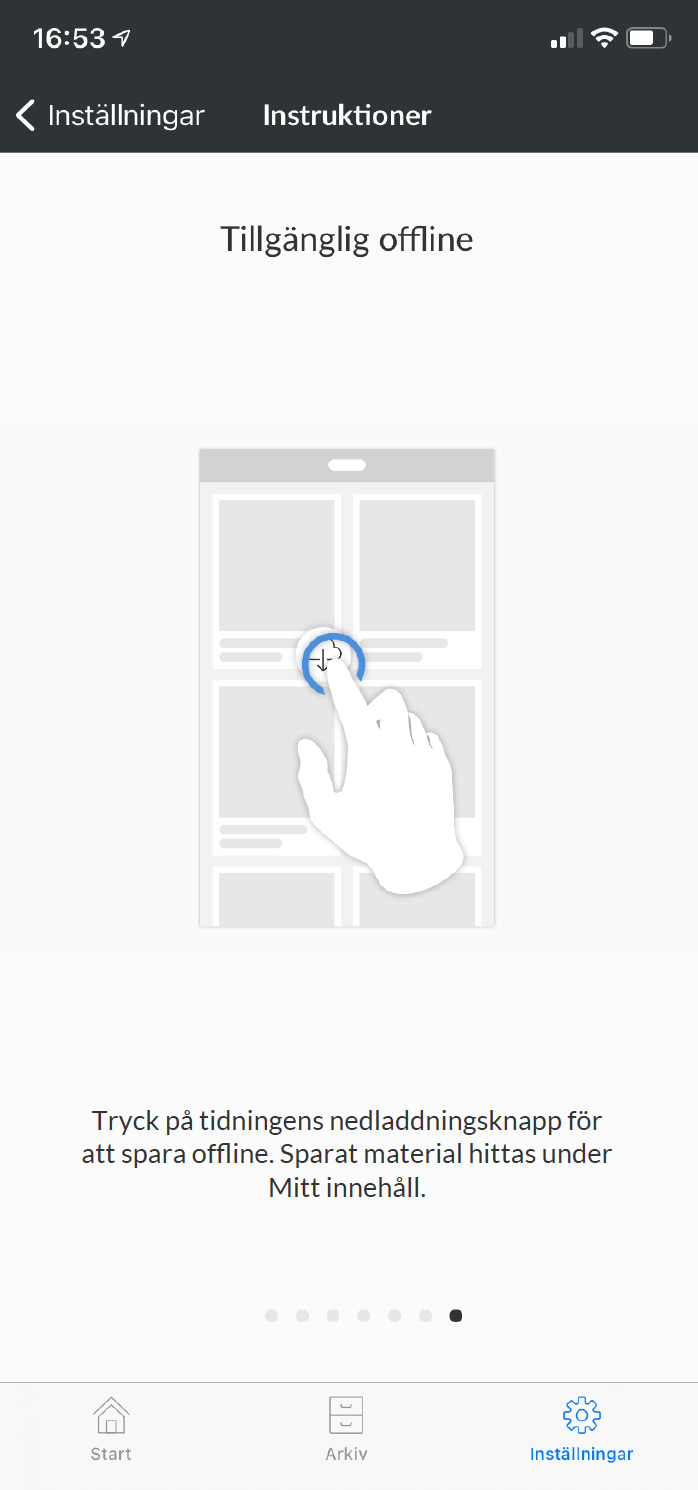
6. Available offline - Press the magazine download button to save offline. Saved material can be found under My Content.
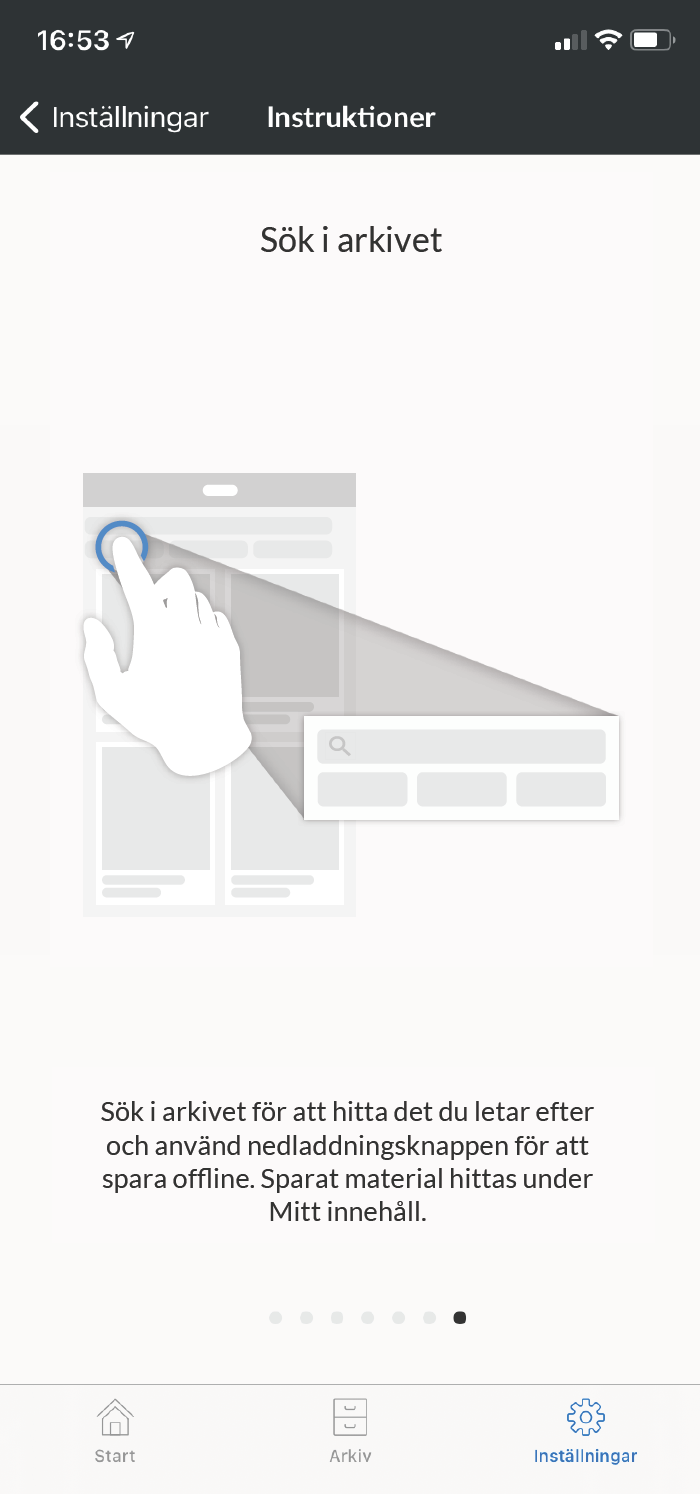
7. Search the archive - Search the archive to find what you are looking for and use the download button to save offline. Saved material can be found under My Content.
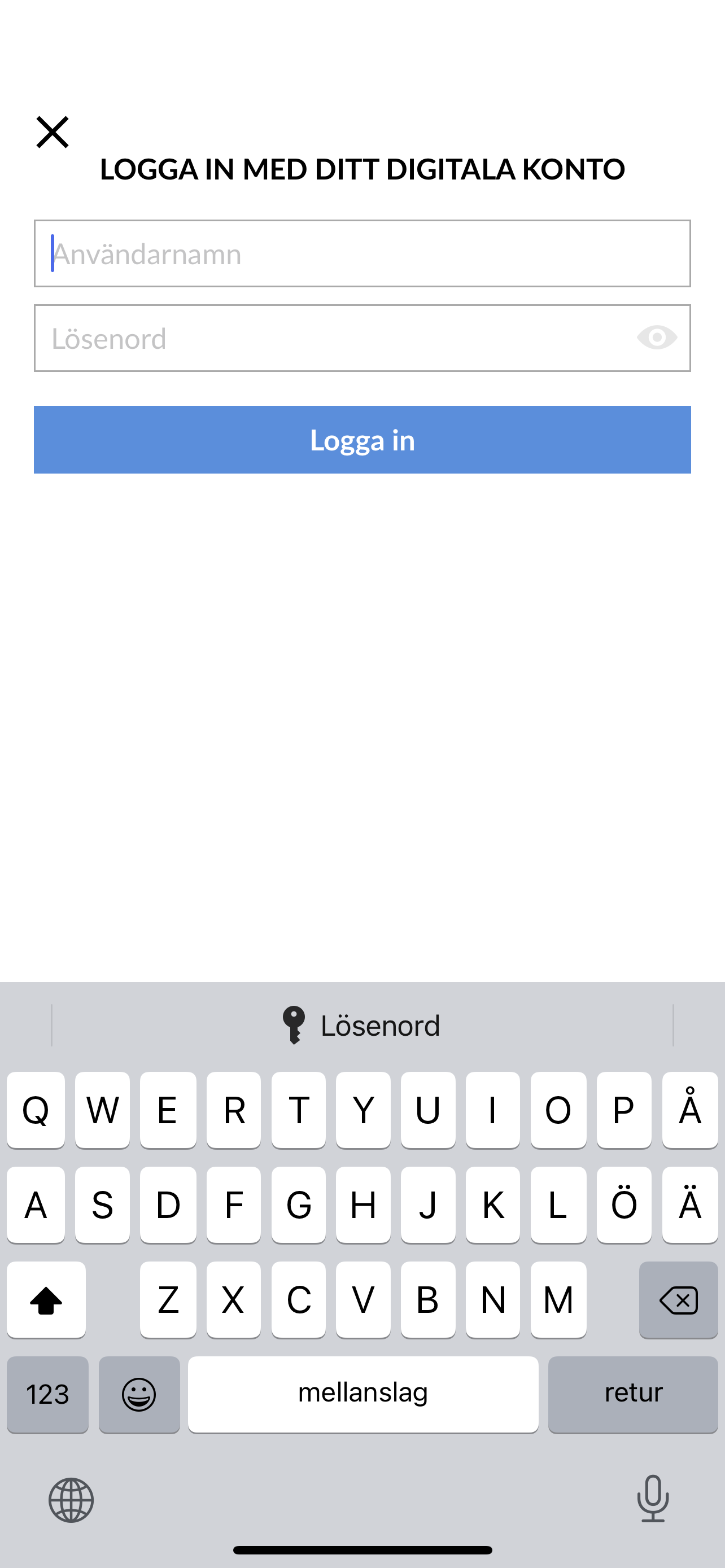
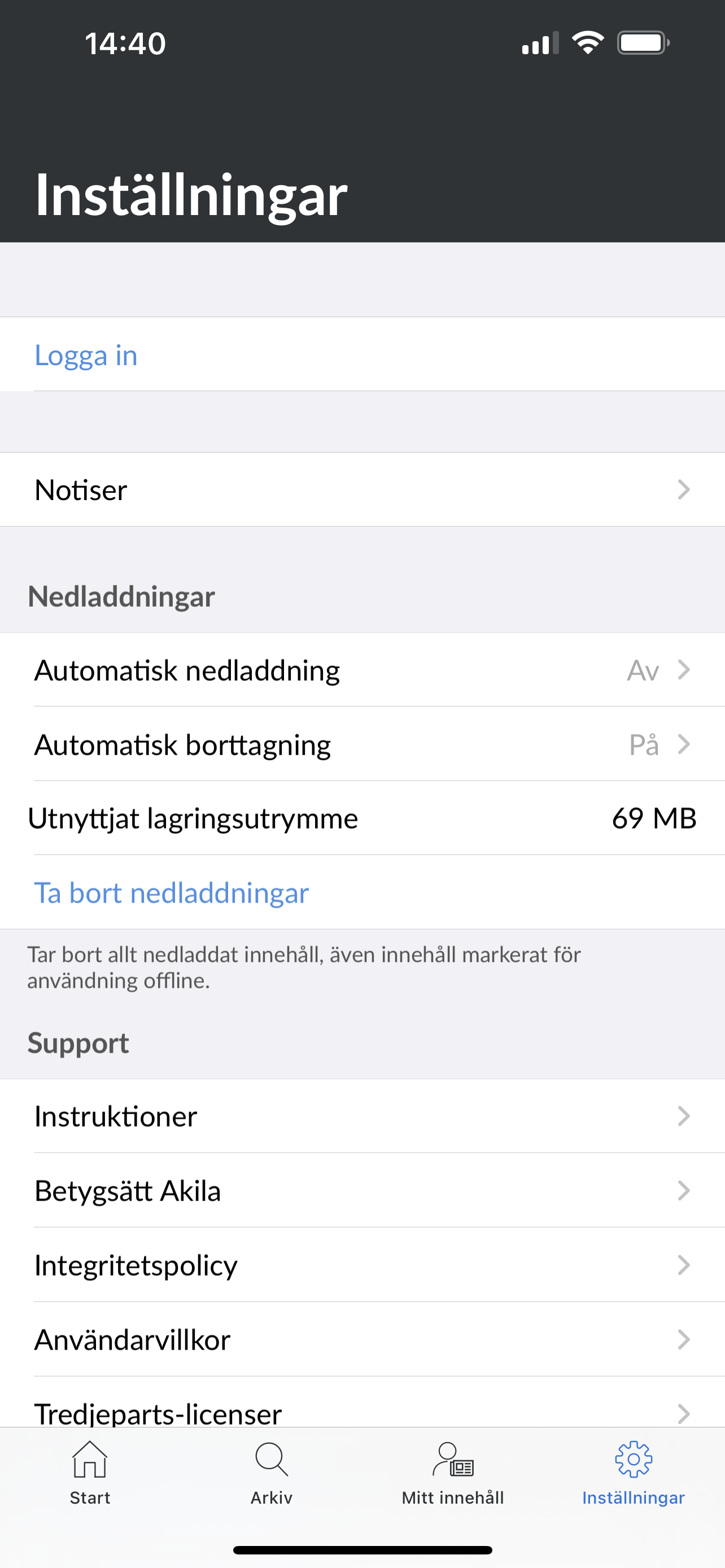
8. log in to the app - Now it's time to start reading! Click on settings in the bottom right corner and then "Log in".
9. Log in with your Digital Account - Here you log in with your digital account, username and password. Then it is ready!