Google Analytics - Get started with statistics - Prenly
Before you start
To start collecting statistical data you will need a Google Analytics account.
1. Create a Google Analytics account via google.com/analytics.
2. Select Get started today to create an account or to sign in to your current account.
Get started
1. Notify hello@prenly.com that activation of GA can begin, include this information:
If you have more than one e-paper, state which ones you wish to collect data from.
Which individual(s) you would like to represent the owner of your data in the underlying Firebase project.
Please note you will need an e-mail address associated with a Google Account that has edit rights to your chosen Google Analytics account.
2. The customer service team will invite you as an owner of the underlying Firebase project and you will receive an e-mail from Firebase.
After you have received the invitation you are ready to continue with the below.
Activate statistical data gathering
1. Log in to Firebase Console
2. If you are prompted to select a project, select the e-paper project you would like to enable statistic gathering for.
3. Select Project settings in the cogwheel menu.
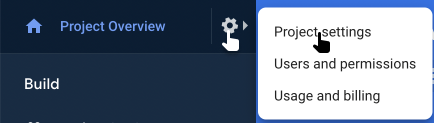
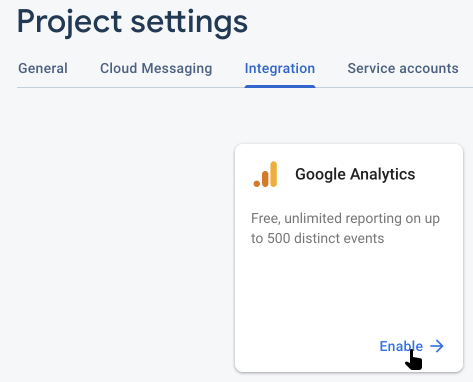
4. Select the sub-menu item Integration
5. Select Enable on the card Google Analytics
6. Select a Google Analytics account within the drop-down menu to host your statistical data on the page Configure Google Analytics
If you are unable to select an Analytics account, then you do not have edit rights to your Analytics account.
7. Select Enabling Google Analytics to create a new Analytics property on your Analytics account, where statistical data will be gathered and aggregated by the created property.
8. Select the link for the newly created Analytics property within Firebase. You will be taken to Analytics. Select Property Settings; configure your new property by setting industry (most likely "News"), the correct reporting time zone, and currency for your e-paper.
9. Set a name for the new property in order to easier find the property in the future.
10. Send an e-mail to hello@prenly.com stating you have finished the setup for your e-paper by including which e-paper you have activated the statistics for.
11. Once Prenly's customer service has received your e-mail, they will activate your web app and notify you that it has been activated.
12. You are now done and ready to view your new statistical data within your Analytics account by selecting the created Analytics property.
How long will it take till I see my data?
Once the statistics have been activated, Google will usually take 12-24 hours to allow Analytics to start aggregating your statistical data.
Why don't I see any data even though I have waited over 24 hours?
In order for Prenly to transfer the data to Analytics the readers must have given consent for user analysis.
You can enable your readers to give consent to be tracked by creating a consent dialog in Prenly Workspace and associating it with your e-paper application.