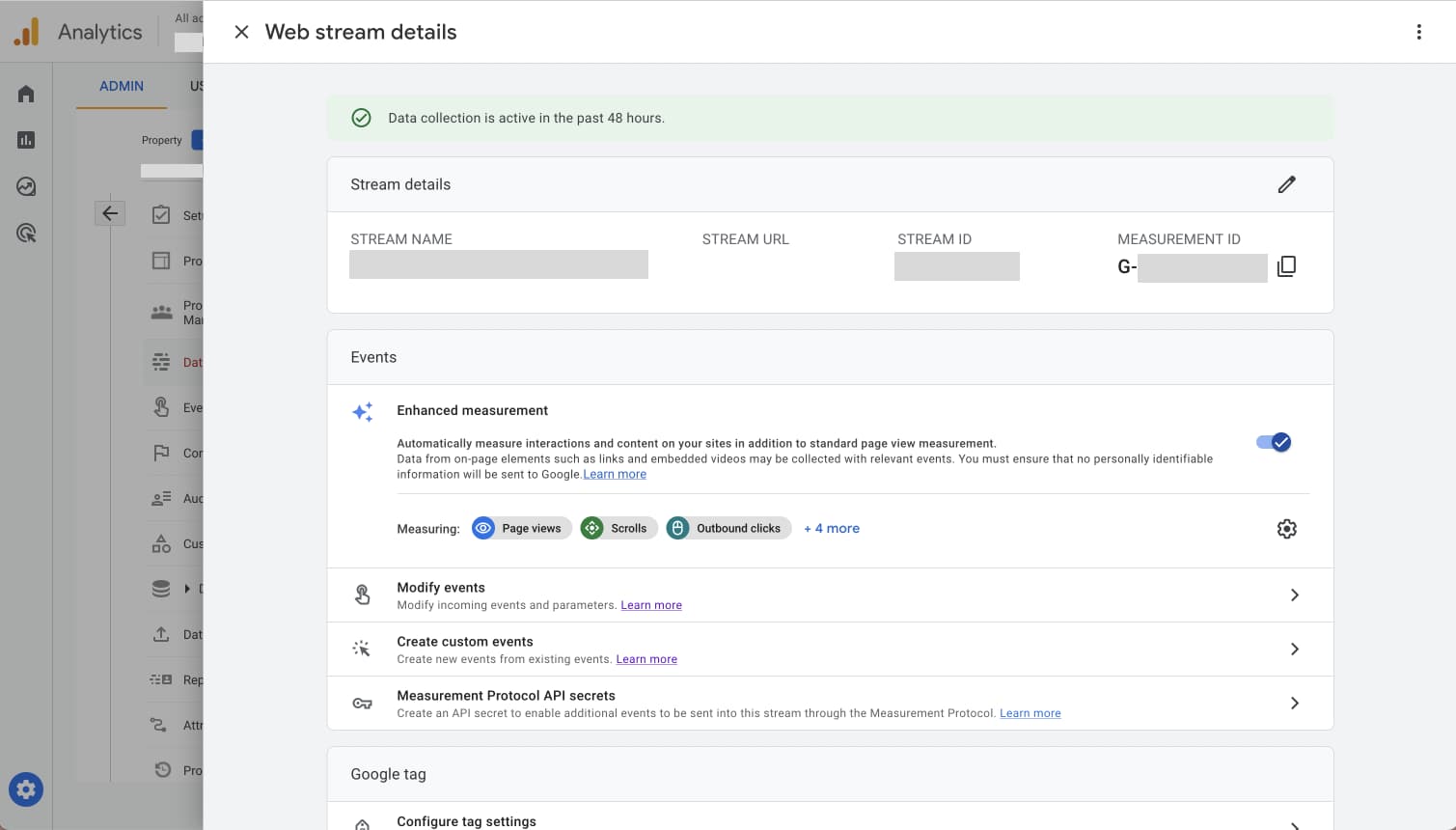
Configure Analytics – Enhanced measurement - Prenly
If you are interested in tracking data via Google Analytic's "page_view'" concept then we highly recommend you enable the enhanced measurement on the web app's Analytics property.
The web app is using the History API web API to present the reader within the replica reading mode and article reading mode, a technology which Analytics does not per default enable to track as a page view. This means that on default the page view tracked data will potentially miss a lot of page view event hits as your users engage with the web app. The Prenly-specific reading events are not affected by this.
To enable Analytic's enhanced measurement for web apps is easy! In this guide, we will guide you on how.
The web app is using the History API web API to present the reader within the replica reading mode and article reading mode, a technology which Analytics does not per default enable to track as a page view. This means that on default the page view tracked data will potentially miss a lot of page view event hits as your users engage with the web app. The Prenly-specific reading events are not affected by this.
To enable Analytic's enhanced measurement for web apps is easy! In this guide, we will guide you on how.
Activate enhanced measurement
Step 1. Complete Get started with statistics.
Step 2. Log in to Google Analytics and select the correct Analytics account and Analytics property.
Step 3. In the left menu, select Admin. In the main view under the Property menu, select Data Streams.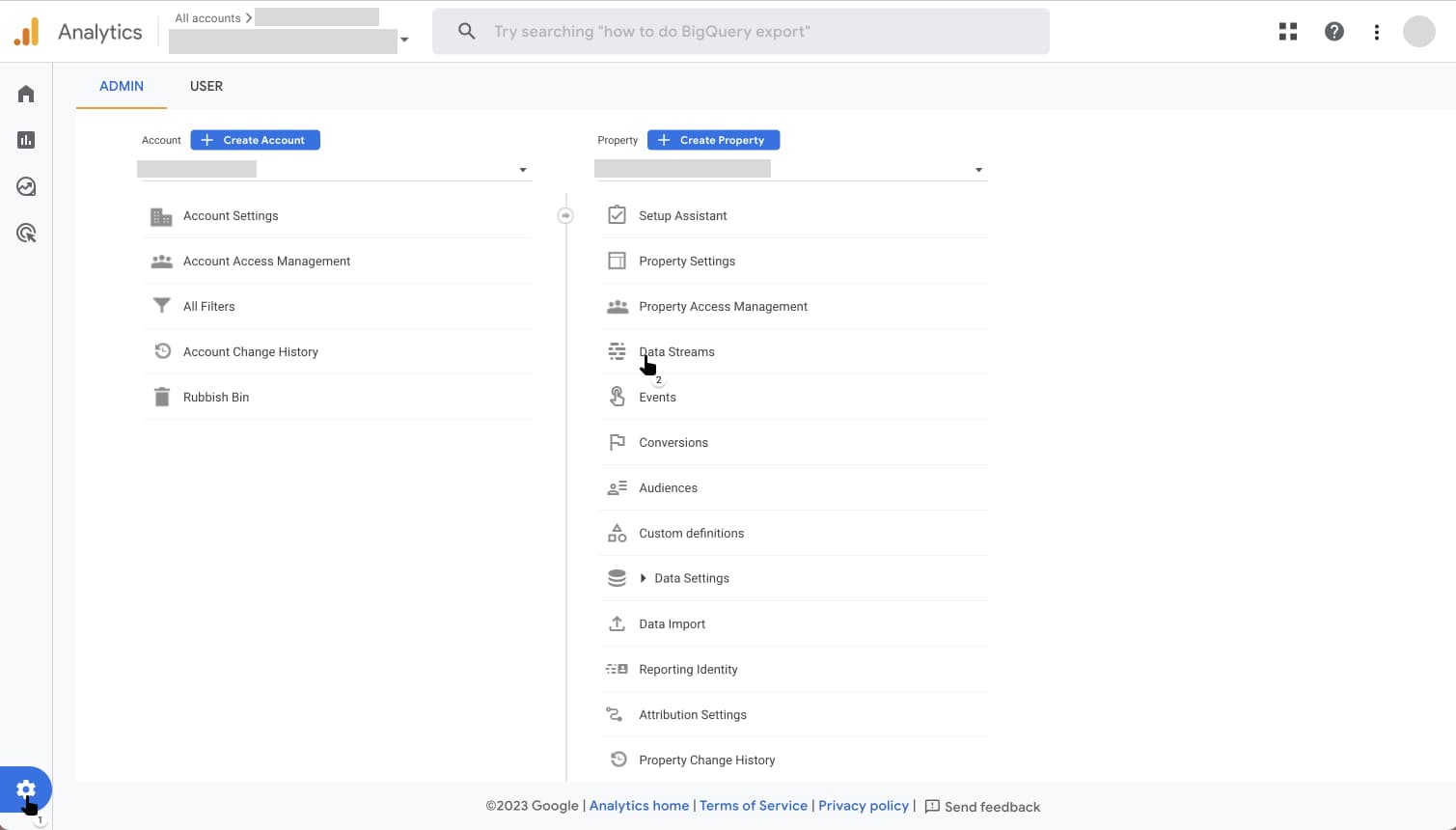
Step 4. In the Data Streams menu, select the Web panel. Select the web app data stream to enable enhanced measurement.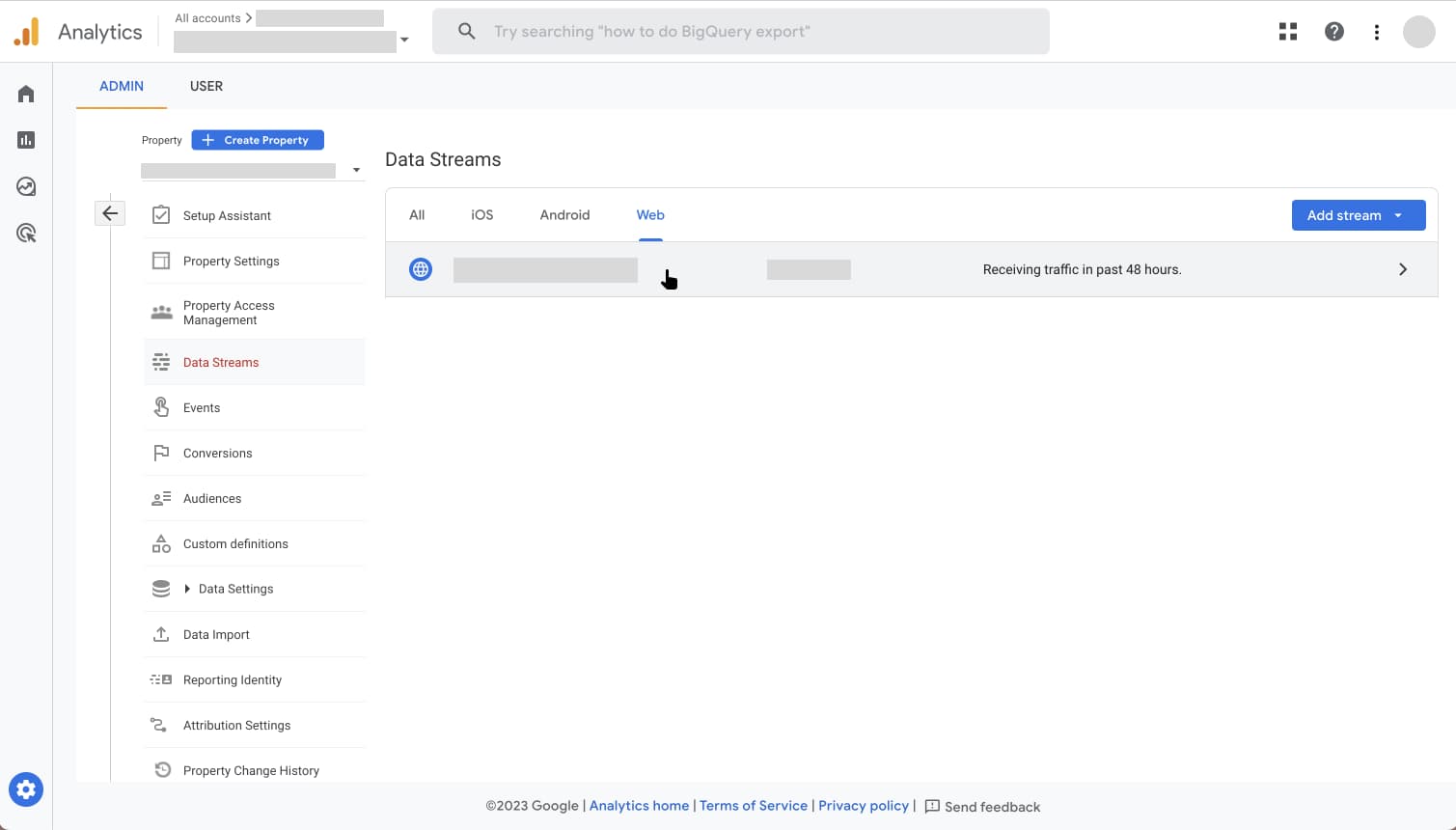
Step 5. Activate(toggle) Enhanced measurement.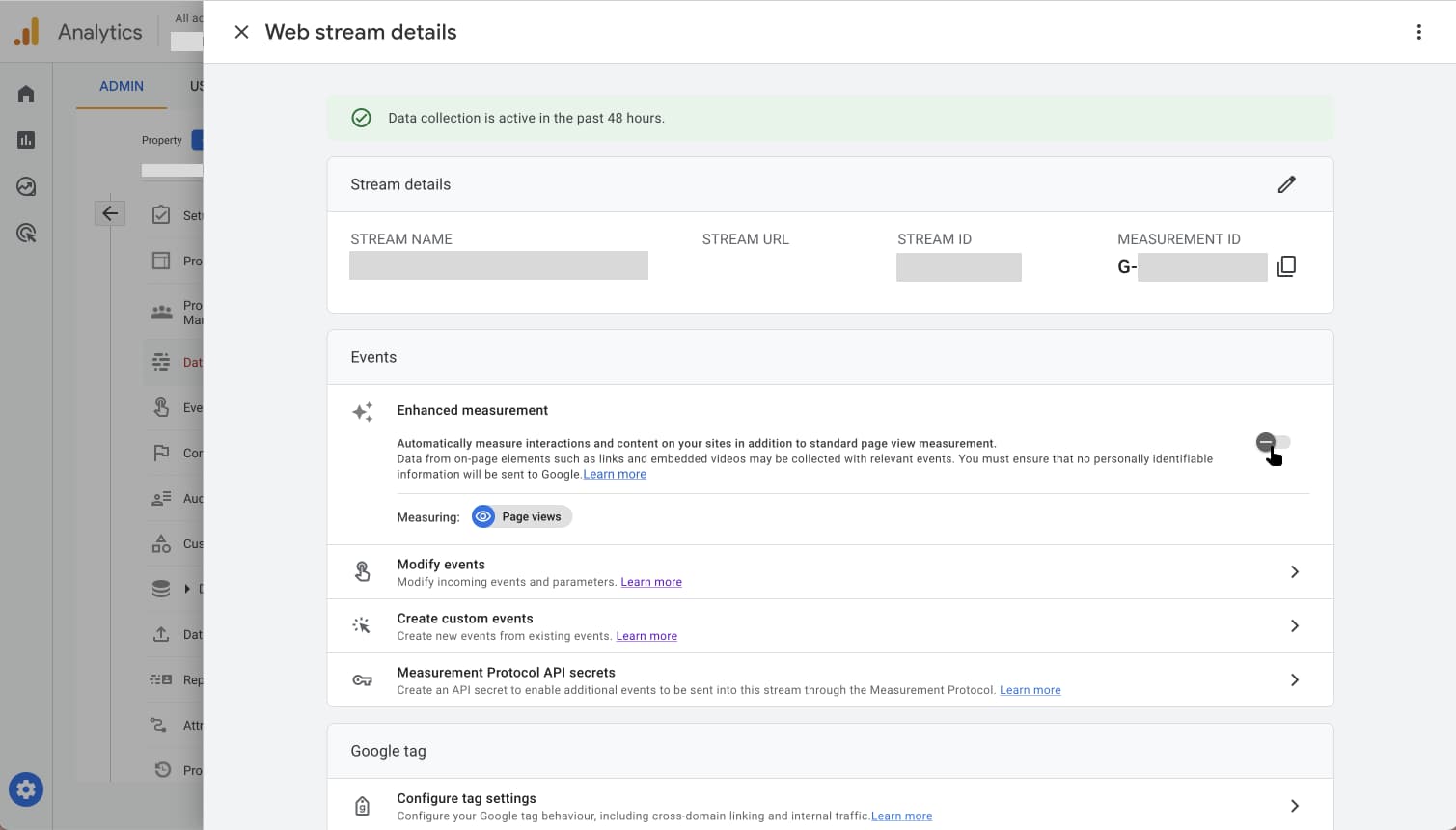
Step 6. Once enhanced measurement is enabled, you are done.
You can, if you wish, configure enhanced measurement; however, the enhanced page view tracking is enabled by default and cannot be turned off.