Rights & Roles - Prenly
In Prenly Workspace, you as an account owner can also invite your team members with different rights and roles to make it smoother and easier to manage.
Here you see the different rights and roles a team member can have.
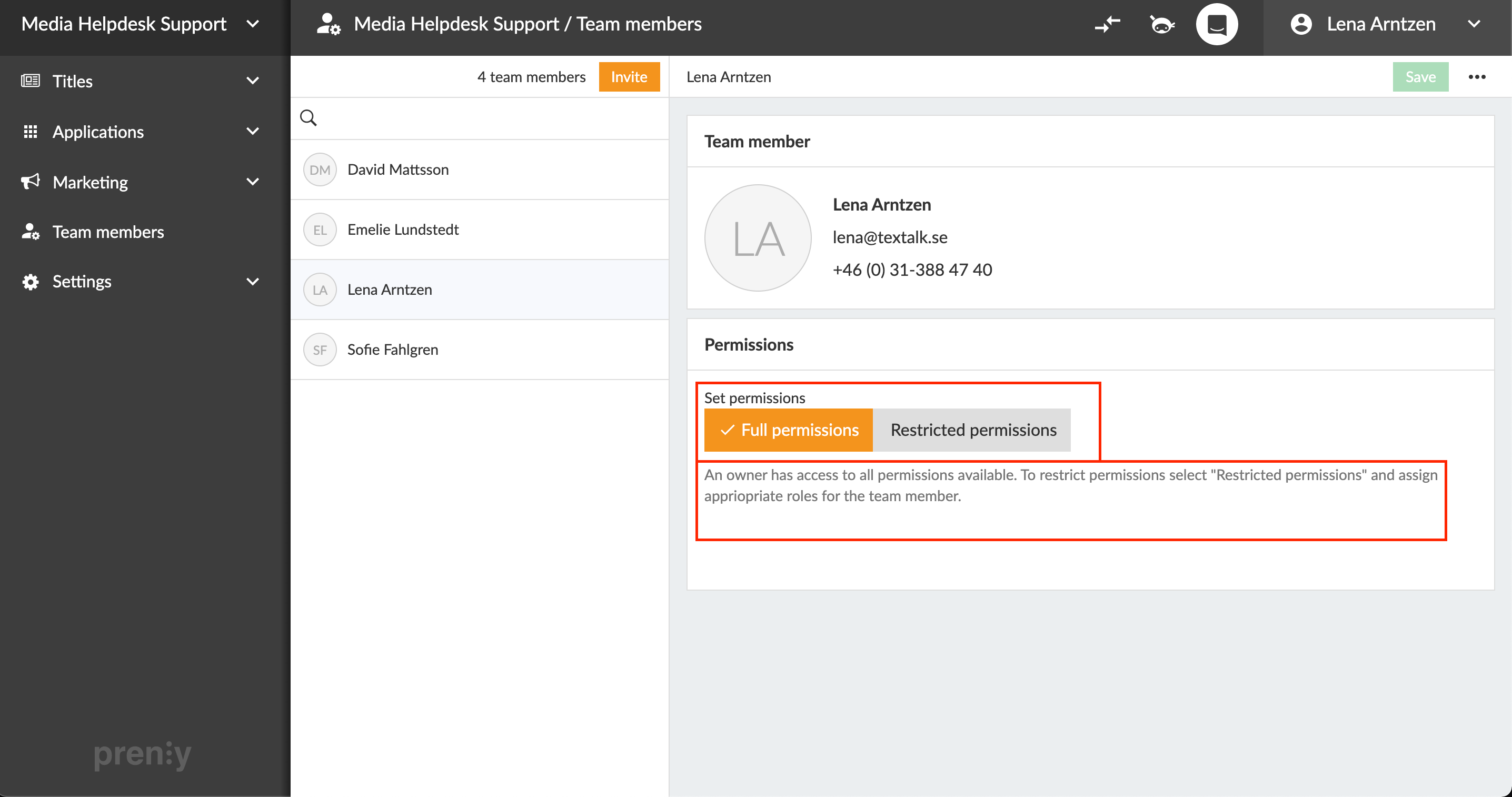
Full Permission
We always give the main contact who is the owner of your Prenly Workspace Full Permission. It gives them access to all functions in the system as well as the right to administrate and invite new team members.
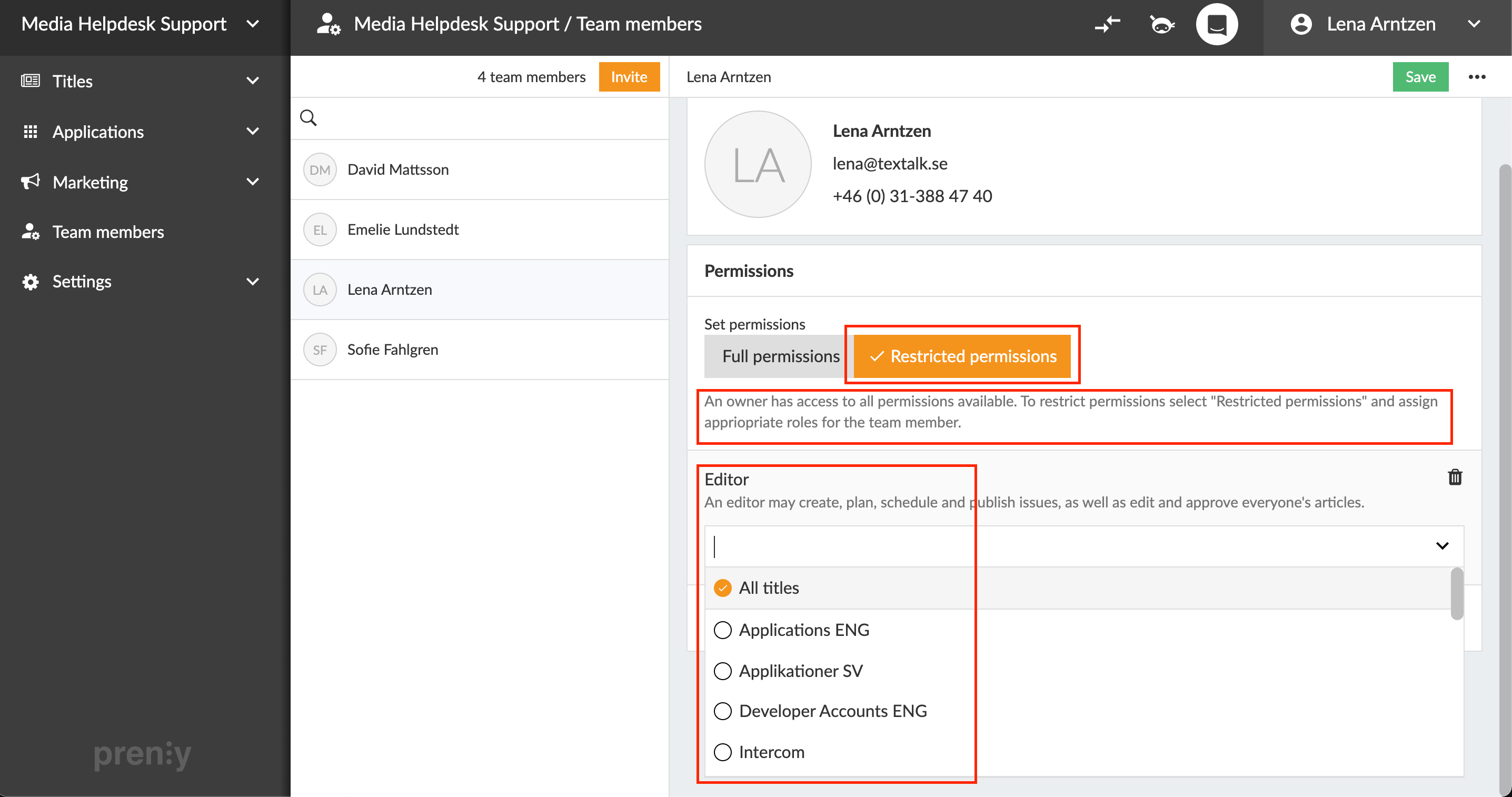
Editor
An editor can create, plan, schedule & publish editions, as well as edit and approve everyone's articles.
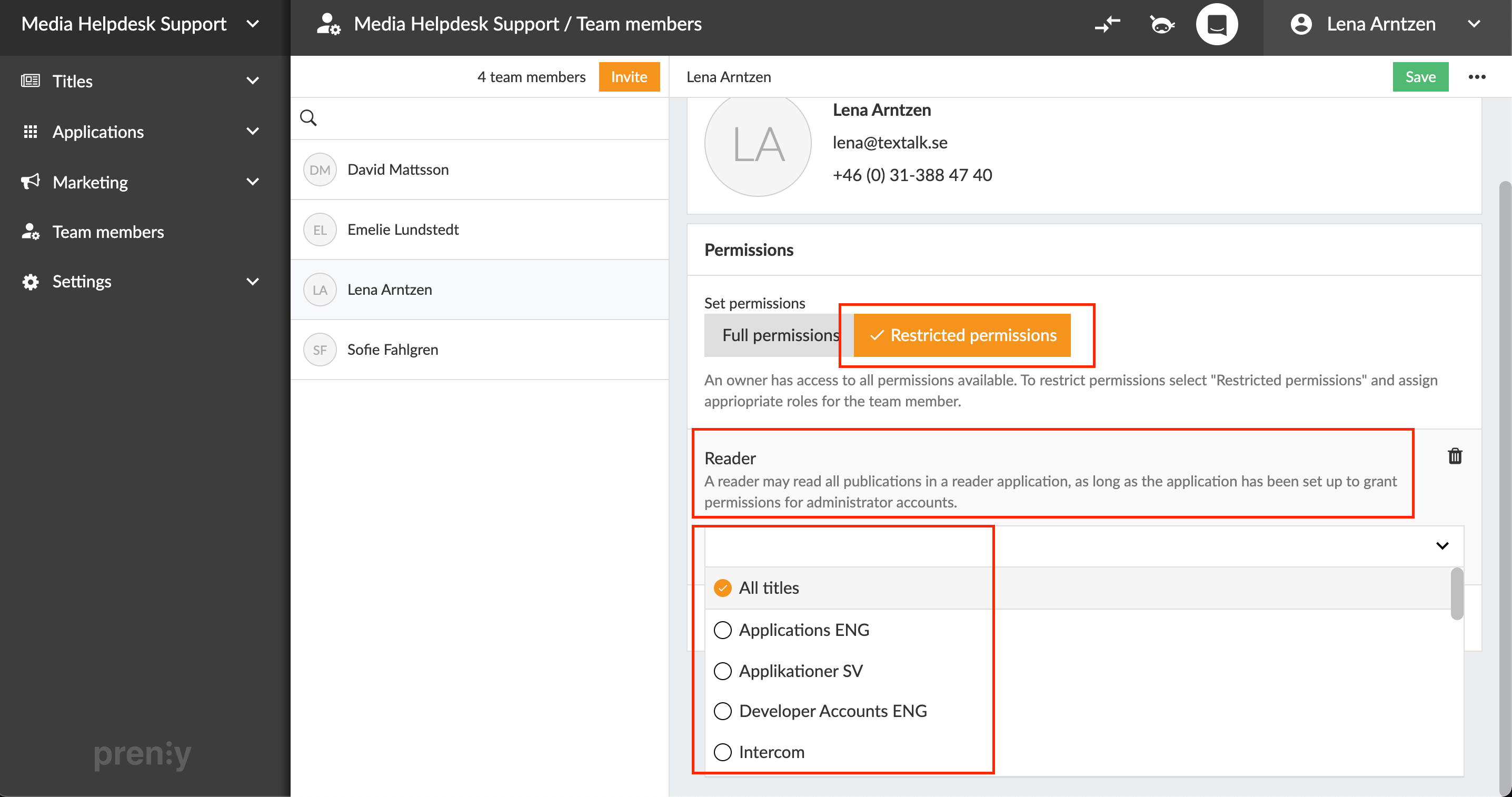
Reader
A reader can read all publications in a reader application, as long as the application has been configured to grant permissions for administrator accounts.
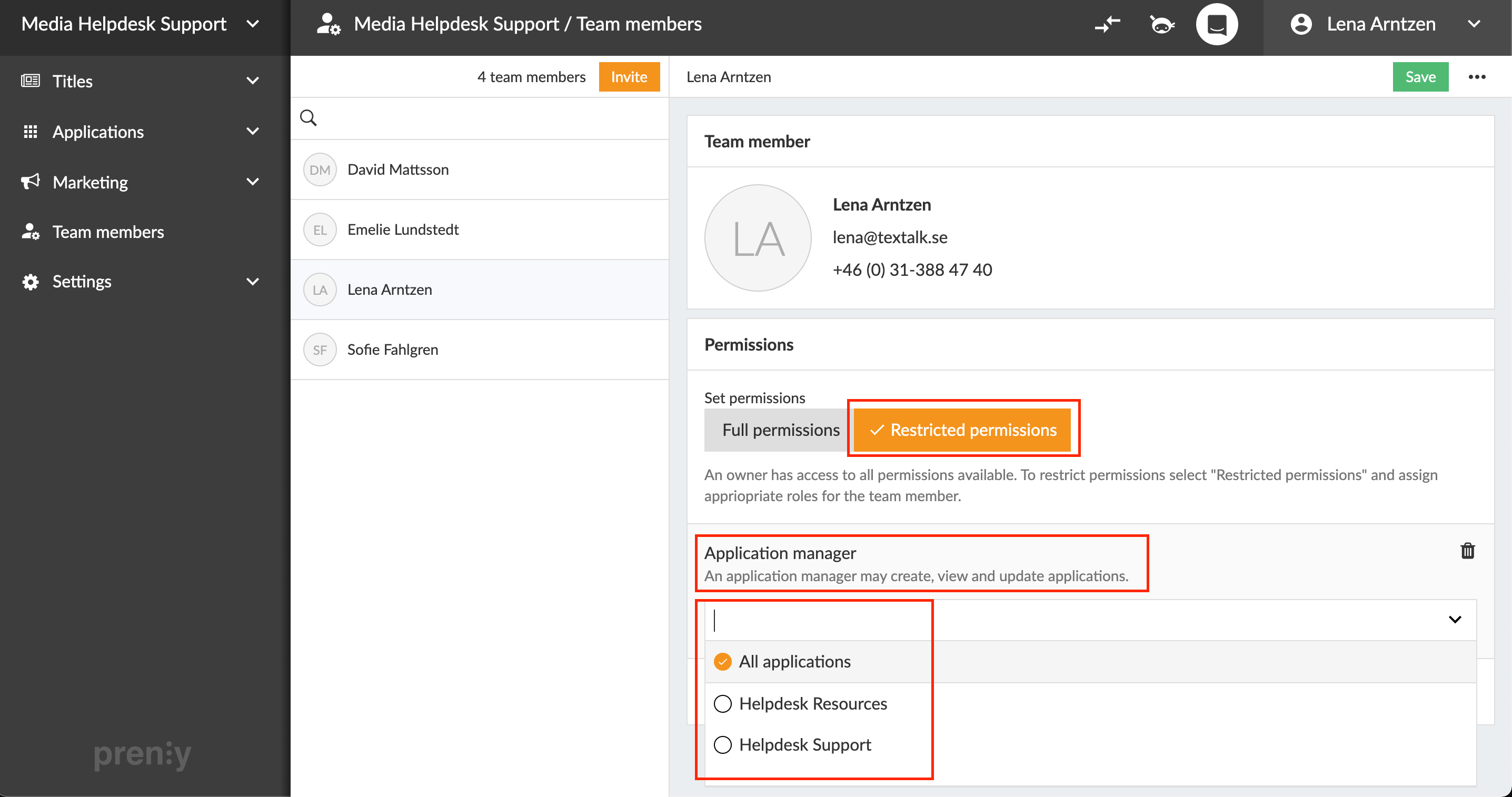
Application manager
An application manager can create, view and update applications.
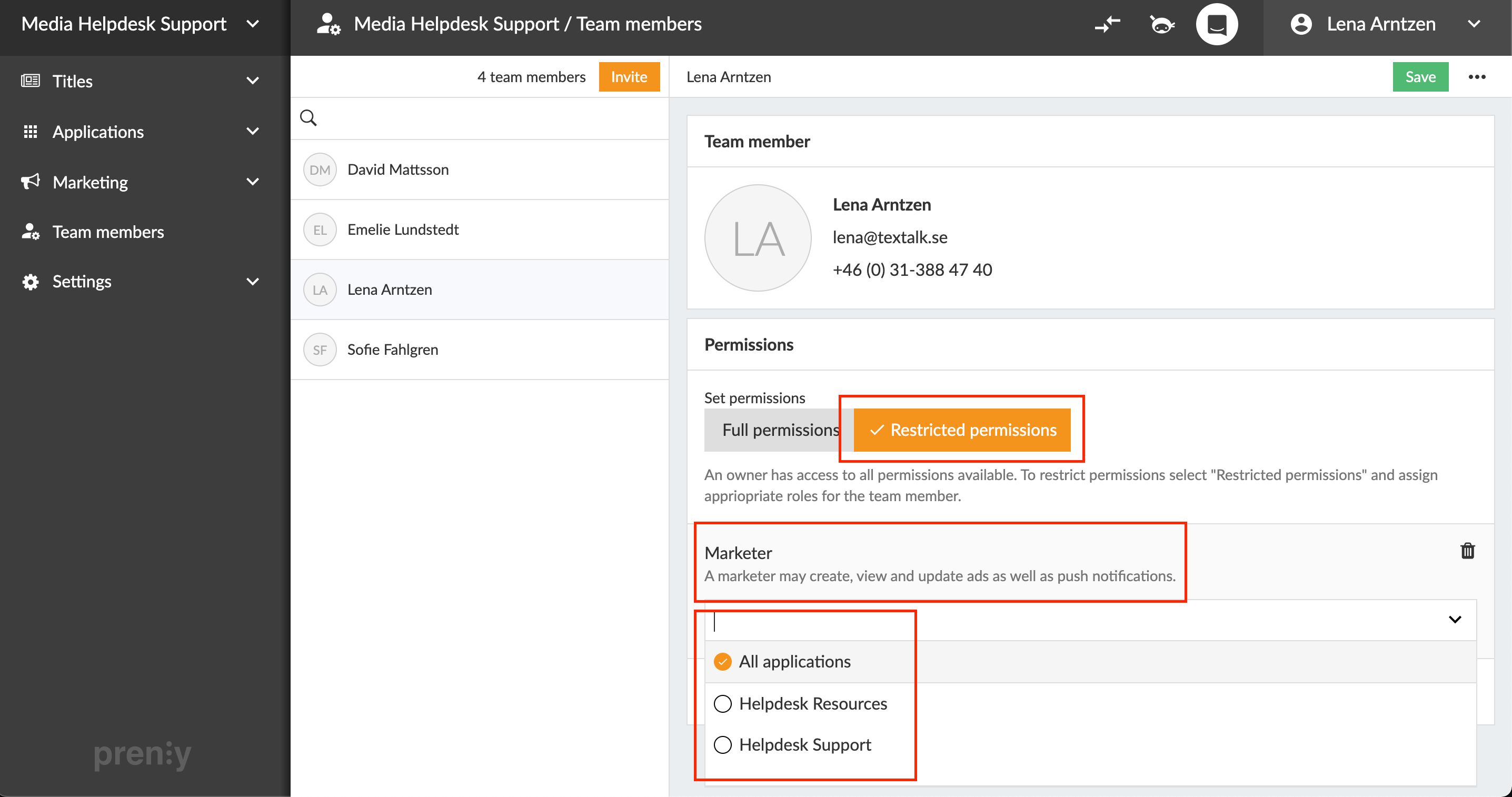
Marketer
A marketer can create, view and update ads as well as push notifications.
Delete a right, role or team member
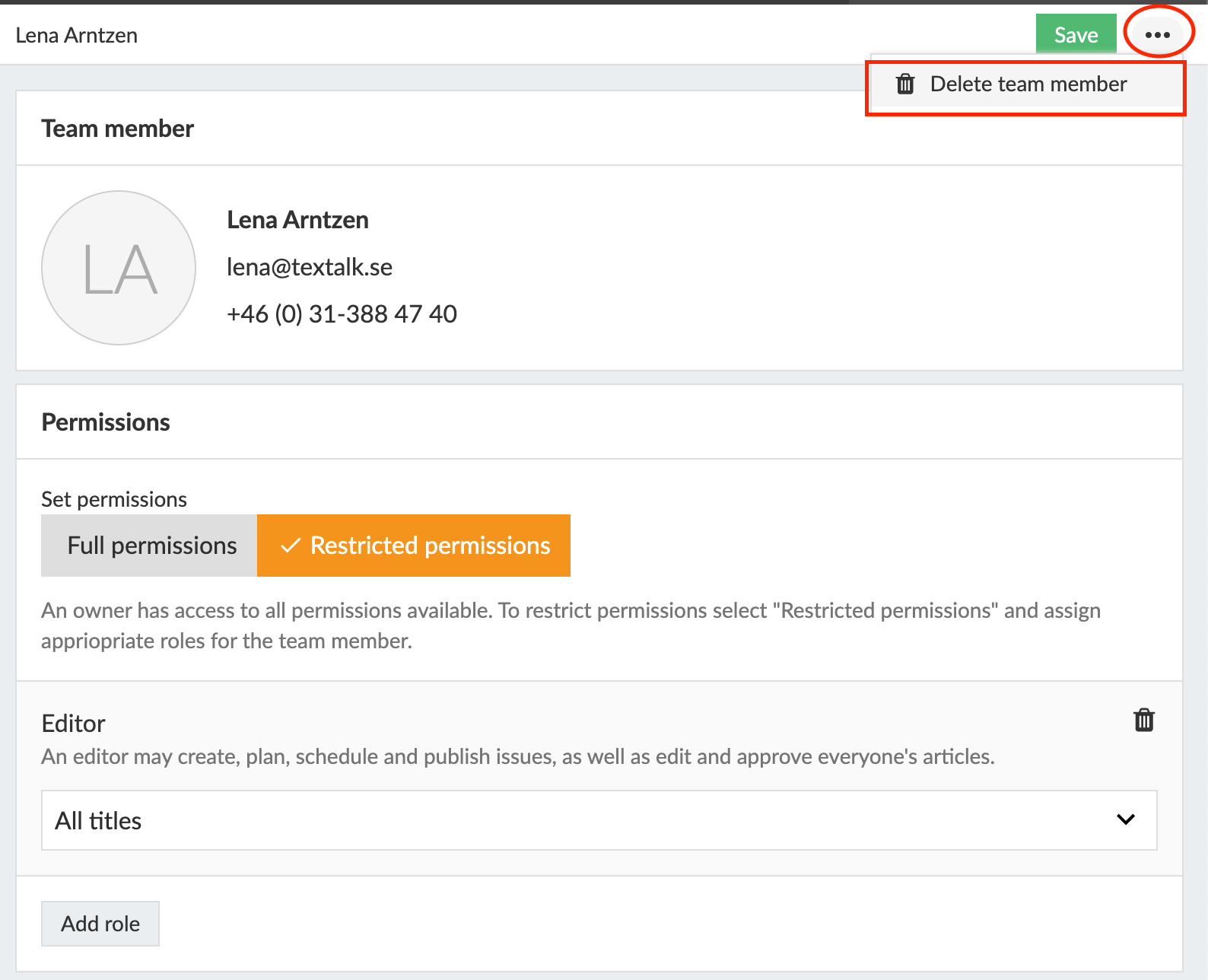
By clicking the trash can to the right of a role, you can easily delete it.
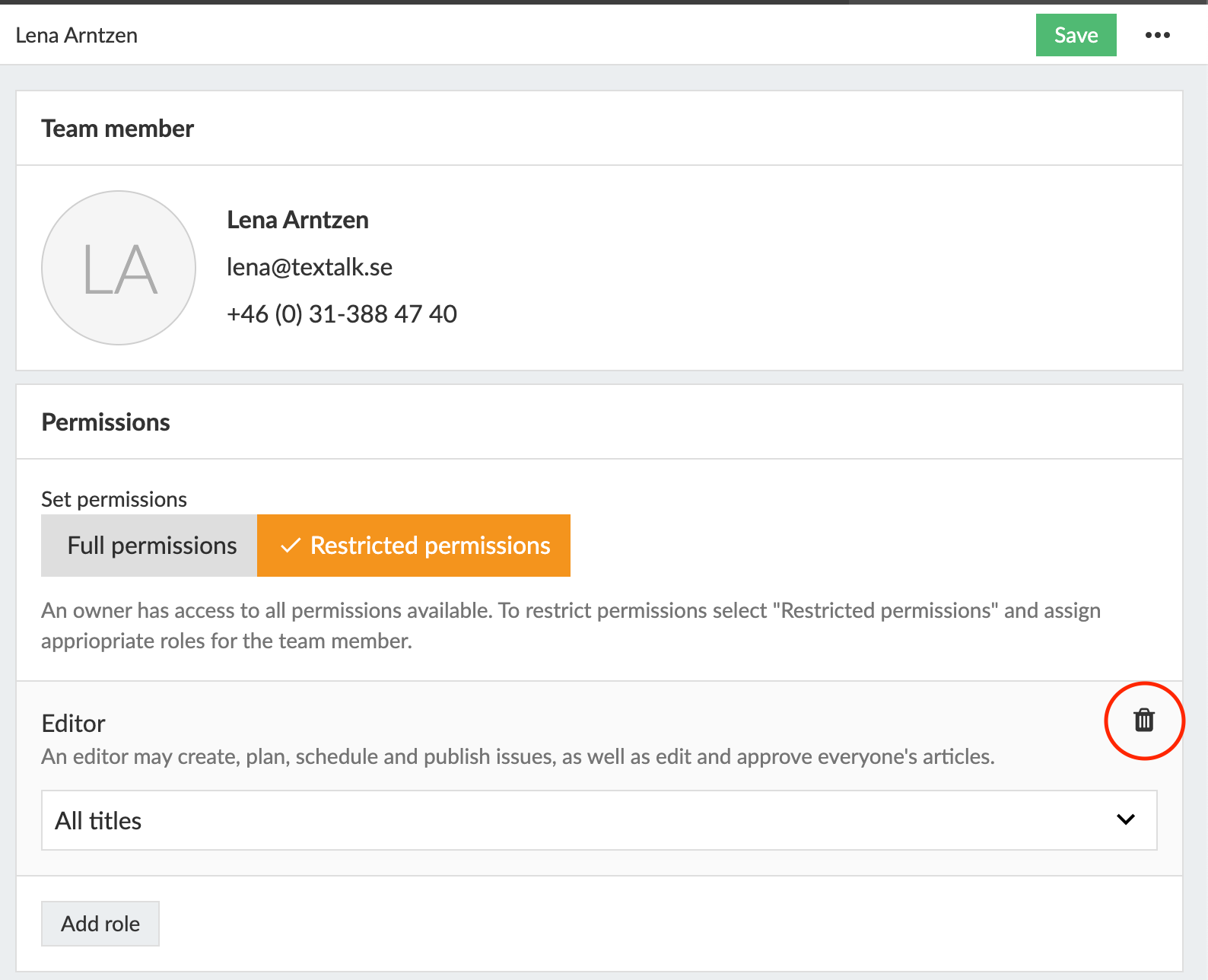
And finally, if you want to delete a team member completely, click on the "three-dot menu" at the top right under your name and then on Delete team member.