Manage team members - Prenly
Inviting & managing Prenly Workspace members is easy! Control who will have access to a newspaper and what rights each team member will have.
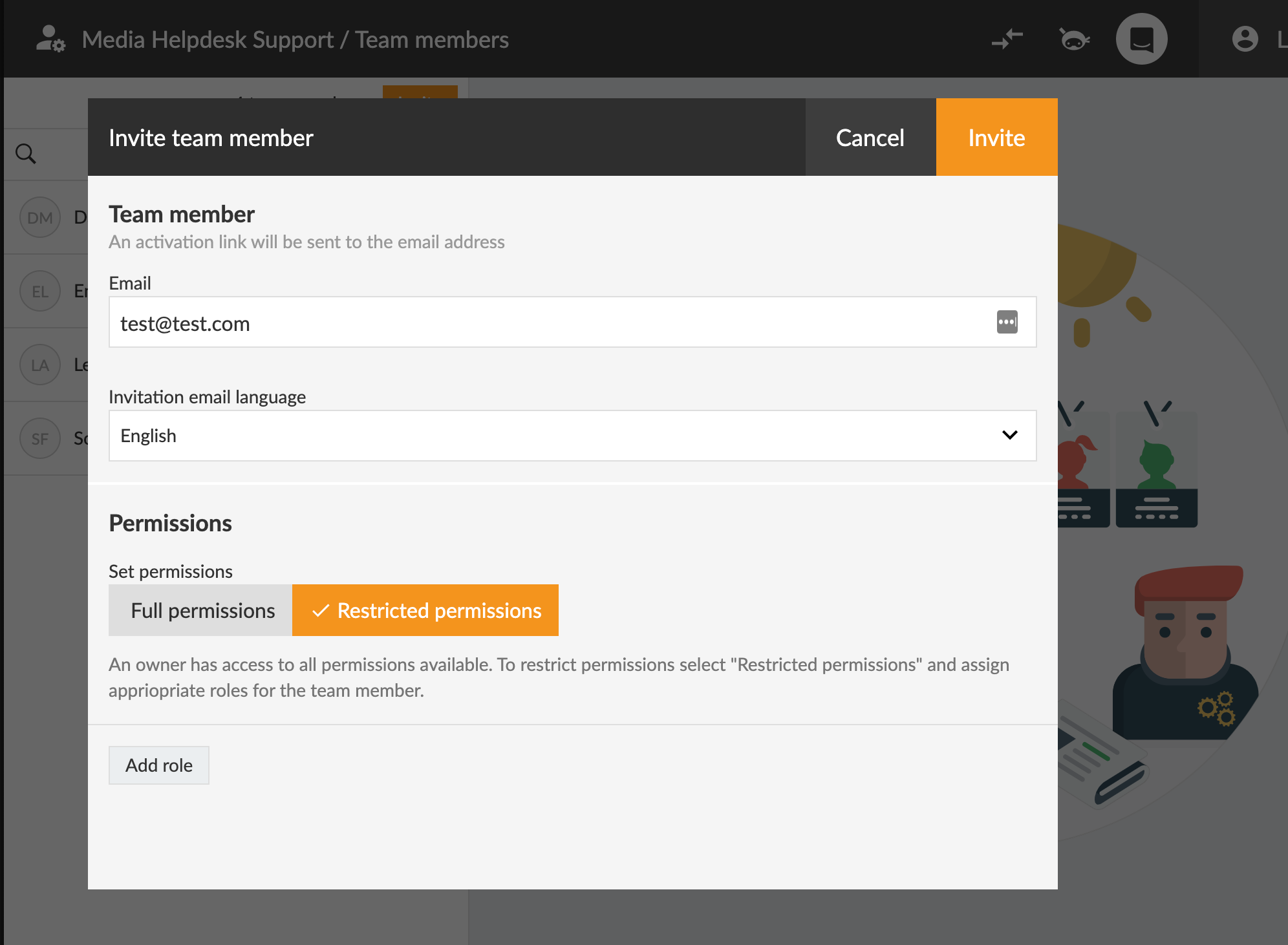
1. First log in to Prenly workspace: content.textalk.se
2. To the left of the main menu below Marketing is the Team members button, click it.
3. Here is a list of everyone who has access to Prenly Workspace for your titles. If you click on a team member, you also get information on the right about what his or her rights are.
4. If you want to invite a new team member, click on the orange button at the top of the Invite menu.
5. Enter the e-mail address of the person you want to invite, choose which right and role they will get and finally click on the Invite button at the top.
An activation link will now be sent to the selected e-mail address, where the person can go in and accept the invitation and choose their own password.
Admin Rights & Roles
Here you see the different rights and roles a team member can have.
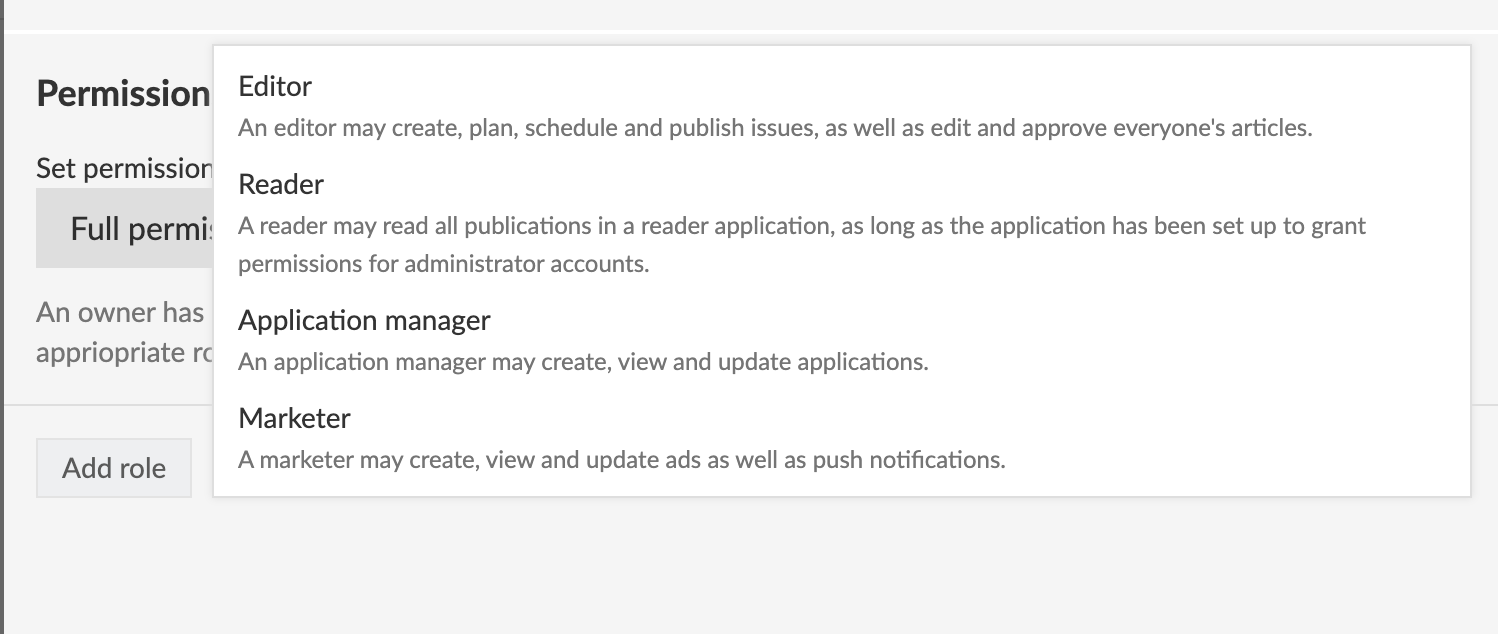
Editor
An editor can create, plan, schedule & publish editions, as well as edit and approve everyone's articles.
Reader
A reader can read all publications in an application, as long as the application has been configured to grant permissions for administrator accounts.
Application manager
An application manager can create, view and update applications.
Marketer
A Marketer may create, view and update ads as well as push notifications.
PS: Here's a video of how you do it!